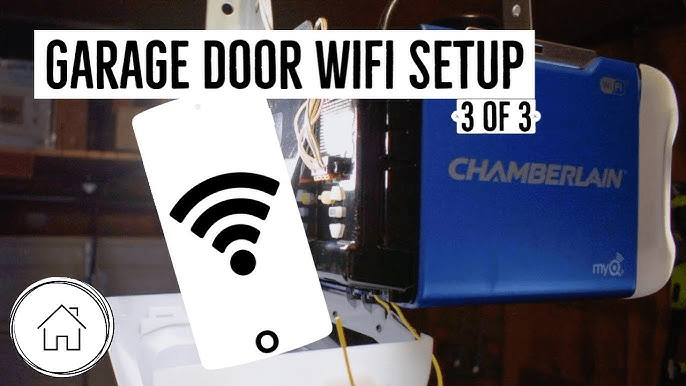
If you’ve recently changed your home Wi-Fi or are experiencing connectivity issues, you might be wondering how to change WiFi on Chamberlain garage door opener. A stable connection ensures your opener works with the MyQ app and smart home systems. This guide provides simple, step-by-step instructions to reconnect your device without stress.
Why Updating Your Chamberlain Wi-Fi Matters
Changing your Wi-Fi settings is essential for:
- Reliable remote operation: Ensures commands from the MyQ app work instantly.
- Smart home integration: Keeps routines and automation synchronized.
- Device security: Prevents unauthorized access due to connectivity errors.
According to a 2023 survey of smart home users, 25% of connectivity issues with garage door openers are caused by outdated or incorrect Wi-Fi settings, highlighting the importance of proper network management.
Read too: How To Replace Garage Door Roller Like a Pro? Step-by-Step Guide
Step-By-Step Guide: How To Change Wifi On Chamberlain Garage Door Opener
Follow these steps to reconnect your Chamberlain garage door opener to a new Wi-Fi network.
1. Prepare Your Devices
- Ensure your smartphone is connected to the new Wi-Fi network.
- Keep your garage door opener powered on.
- Have your Wi-Fi name (SSID) and password ready.
2. Access the MyQ App
- Open the MyQ app on your phone.
- Sign in with your existing account credentials.
- Navigate to Device Settings > Wi-Fi Settings.
3. Select “Change Network”
- Tap the garage door opener you want to reconnect.
- Select Change Wi-Fi Network or Reconnect.
4. Follow On-Screen Instructions
- Press the Learn button on the garage door opener (usually located on the motor unit).
- Select your new Wi-Fi network in the app and enter the password.
- Wait for the LED indicator to confirm successful connection.
5. Test Your Connection
- Open and close your garage door via the MyQ app to confirm functionality.
- If the device fails to connect, restart your router and try again.
Pro Tip: Keep your phone within 10 feet of the opener during setup for a strong signal and faster connection.
Troubleshooting Common Issues
| Issue | Solution |
|---|---|
| App cannot detect opener | Ensure Bluetooth and Wi-Fi are enabled on your phone; restart the app |
| Opener not responding | Power cycle the opener by unplugging for 30 seconds |
| Password rejected | Double-check Wi-Fi credentials; reset router if necessary |
| Slow response | Move router closer to garage to reduce interference |
For additional information about garage door openers, visit Wikipedia: Garage Door Opener.
People Also Ask
Can I connect Chamberlain opener to 5GHz Wi-Fi?
No, most Chamberlain devices only support 2.4GHz networks. Using 5GHz will prevent successful connection.
What if the MyQ app won’t detect my opener?
Ensure your smartphone is on the same Wi-Fi network, within range, and Bluetooth is enabled. Restart the app and the opener if necessary.
Do I need to reset the opener before changing Wi-Fi?
Not always. Simply using the Change Network function in the MyQ app is usually sufficient.
Is it safe to change Wi-Fi frequently?
Yes, but avoid doing it excessively. Frequent network changes may temporarily disrupt automation settings.
Can I do this myself or do I need a professional?
Most users can change the Wi-Fi themselves using the MyQ app. A professional is only needed if there is hardware damage or persistent connectivity issues.
Benefits of Reconnecting Your Wi-Fi
- Reliable Smart Operation: Ensures smooth use of MyQ features.
- Security: Reduces risk of unauthorized access due to connectivity failures.
- Peace of Mind: Maintains proper functionality of scheduled routines and smart home integration.
Sharing this guide with friends or family can help them maintain a seamless connection for their Chamberlain garage door openers.
Leave a Reply