Introduction
If you’ve recently installed a MyQ garage door opener and want to share access with another user, you might be wondering: How to add another phone to MyQ garage door opener? Whether it’s for a family member, a friend, or a trusted neighbor, granting access to your MyQ system can make life more convenient. Fortunately, adding another phone to your MyQ garage door opener is a simple process that ensures security and flexibility.
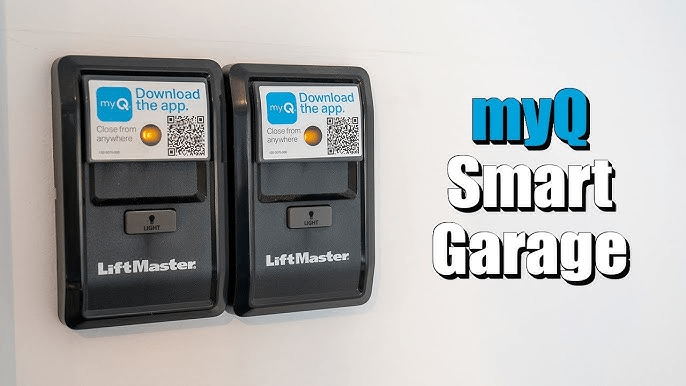
In this guide, we’ll walk you through everything you need to know to add multiple devices to your MyQ system, including setup instructions, troubleshooting tips, and additional security measures. By the end of this article, you’ll have full control over who can access your garage remotely.
Read too: Door and Garage Door Companies: Choosing the Right Partner for Your Needs
Why Add Another Phone to Your MyQ Garage Door Opener?
Before diving into the steps, let’s understand why you might need to add another device to your MyQ system:
- Family Convenience – Share access with family members so everyone can enter and exit without needing a remote.
- Guest Access – Allow trusted friends or house sitters to open the garage when needed.
- Multiple User Control – Manage garage access for household members without passing around a single phone.
- Enhanced Security – Monitor who is opening and closing the garage through individual access logs.
Now, let’s go step by step to add another phone to your MyQ garage door opener.
How To Add Another Phone To MyQ Garage Door Opener
Adding a second phone (or more) to your MyQ Smart Garage is a straightforward process. Here’s how you can do it:
Step 1: Download the MyQ App
- Ensure the second user has a compatible smartphone (iOS or Android).
- Go to the App Store (iOS) or Google Play Store (Android).
- Search for MyQ Garage & Access Control and download the official app.
- Once installed, open the app and proceed to the next step.
Step 2: Create a MyQ Account (If Not Already Registered)
If the person adding the second phone doesn’t already have a MyQ account, they’ll need to register:
- Open the MyQ app and tap Sign Up.
- Enter their email address, create a password, and fill out personal details.
- Verify their email by clicking the confirmation link sent to their inbox.
- Log in to the MyQ app using their credentials.
Step 3: Grant Access to Another User
There are two main ways to add another phone to your MyQ garage door opener:
Option 1: Adding Another User via Guest Access (Recommended)
- Open the MyQ app on your primary device.
- Tap the menu icon (☰) in the upper-left corner.
- Select “Users” or “Manage Users” from the menu.
- Tap “Add Guest” or “Invite User” (depending on your MyQ app version).
- Enter the email address of the person you want to invite.
- Assign the access level (full access or limited time access).
- Tap “Send Invitation”.
✅ The invited user will receive an email invitation to join your MyQ system. Once they accept and sign in to the app, they will have access to control the garage door.
Option 2: Logging Into the Same Account on Multiple Phones
Another way to add another phone is by using the same MyQ login credentials on multiple devices.
- Open the MyQ app on the second phone.
- Enter the same email and password as the primary account.
- Tap Login, and the second phone will have full access to control the garage door.
📌 Note: Using a shared login is less secure than adding a separate user because you cannot track individual activity.
Step 4: Test the Second Phone
After the second phone is added, test the connection:
- Open the MyQ app on the new device.
- Tap the garage door open/close button.
- Check if the garage responds correctly.
If the second phone successfully controls the garage, the setup is complete! 🚀
Troubleshooting: Common Issues & Fixes
Sometimes, users encounter issues while adding another phone to MyQ. Here are some common problems and solutions:
🔹 Issue: Guest User Didn’t Receive an Invitation
✅ Solution: Check the spam folder in their email. If it’s not there, resend the invitation from the MyQ app.
🔹 Issue: Second Phone Cannot Open the Garage
✅ Solution: Ensure the Wi-Fi signal is strong in the garage. Also, verify that the invited user has accepted the invitation and logged in correctly.
🔹 Issue: MyQ App Not Responding
✅ Solution: Restart the app or reinstall it. Ensure that the MyQ system firmware is up to date.
🔹 Issue: Can’t See the Garage in the MyQ App
✅ Solution: The owner must ensure the guest user has been granted access to the garage and not just the account.
Security Tips for Managing Multiple MyQ Users
When adding multiple users to your MyQ garage opener, it’s crucial to maintain security. Follow these best practices:
✔️ Use Guest Access Instead of Sharing Login Credentials – This allows better control and tracking.
✔️ Set Limited-Time Access for Temporary Users – Ideal for house sitters or contractors.
✔️ Regularly Review User Access – Remove access for users who no longer need it.
✔️ Enable Push Notifications – Stay informed when someone opens or closes your garage.
Frequently Asked Questions (FAQs)
🔹 Can I Add More Than One Additional Phone to MyQ?
Yes! You can invite multiple users via the MyQ app and grant access to several devices.
🔹 Do I Need to Pay for Additional Users?
No, basic guest access is free. However, premium features like HomeLink integration may require a paid subscription.
🔹 Can I Remove Access from a User Later?
Yes, you can revoke access anytime via the MyQ app by removing the user from the guest list.
Conclusion
Adding another phone to your MyQ garage door opener is a simple yet powerful way to improve accessibility and security. Whether you’re sharing access with family or a trusted guest, following the steps in this guide ensures a seamless setup.
By using the MyQ app’s guest access feature, you can maintain security and convenience while monitoring who comes and goes. Now that you know how to add another phone to MyQ garage door opener, go ahead and share access with peace of mind! 🚪🔑

Leave a Reply