Losing WiFi connection on your garage door opener can be frustrating, especially when you rely on smartphone control for daily access. Many homeowners search for How To Reconnect Chamberlain Garage Door Opener To WiFi after changing routers, passwords, or experiencing outages. This guide walks you through proven steps to restore your connection safely and efficiently.
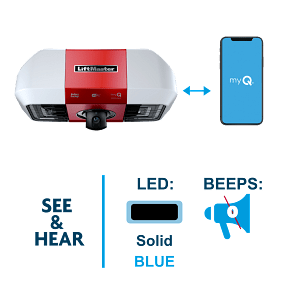
How To Reconnect Chamberlain Garage Door Opener To WiFi (Quick Overview)
To reconnect a Chamberlain garage door opener to WiFi, you typically need to reset the WiFi settings on the opener, reconnect it using the myQ® app, and ensure your home network meets compatibility requirements. Most reconnections take 10–15 minutes when done correctly.
Read too: Mastering Quantum Garage Door Opener Programming: A Comprehensive Guide
Why Does a Chamberlain Garage Door Opener Lose WiFi Connection?
Understanding the cause helps prevent repeat issues.
Common reasons include:
- New WiFi router or modem
- Changed WiFi password
- Power outages
- Weak WiFi signal in the garage
- Firmware or app updates
According to smart home support data, over 60% of reconnection issues occur after router changes, not hardware failure.
Is Your Chamberlain Garage Door Opener WiFi-Compatible?
Before reconnecting, confirm your model supports WiFi.
WiFi-enabled Chamberlain openers typically:
- Have a “WiFi” or “myQ” logo on the motor unit
- Work with the myQ® Smart Garage Control app
- Support 2.4 GHz networks only (not 5 GHz)
📌 If your opener is older and lacks WiFi, you may need a myQ Smart Garage Hub.
What You Need Before Reconnecting
Prepare these items first to avoid interruptions:
- Smartphone (iOS or Android)
- myQ® app installed and updated
- Home WiFi name (SSID) and password
- Strong WiFi signal in garage (RSSI better than -65 dBm)
Step-by-Step: How To Reconnect Chamberlain Garage Door Opener To WiFi
Step 1: Reset the WiFi Settings on the Opener
This clears old network data.
How to reset:
- Locate the Learn button on the opener motor.
- Press and hold it for 6–10 seconds until the LED turns off.
- Release the button—WiFi settings are now reset.
✔️ The WiFi LED should blink blue, indicating pairing mode.
Step 2: Install or Open the myQ App
The myQ app is required for reconnection.
App setup tips:
- Use the same phone connected to your home WiFi
- Enable Bluetooth, WiFi, and Location Services
- Disable VPNs during setup
Step 3: Add the Garage Door Opener in the App
- Open the myQ app.
- Tap “+ Add Device”.
- Select Garage Door Opener.
- Follow on-screen instructions.
The app will guide you through detecting the opener and pairing it with WiFi.
Step 4: Connect to Your Home WiFi Network
When prompted:
- Select your 2.4 GHz WiFi network
- Enter the password carefully
- Wait for confirmation (usually 30–60 seconds)
📌 If your router uses a single SSID for both 2.4 GHz and 5 GHz, ensure it supports device steering.
Step 5: Test the Connection
Once connected:
- Open and close the garage door via the app
- Check for real-time status updates
- Enable notifications if desired
If successful, the WiFi LED will turn solid green.
Troubleshooting: If Reconnection Fails
WiFi LED Blinking Green?
This means the opener sees WiFi but cannot connect.
Fix:
- Re-enter password
- Move router closer
- Use a WiFi extender
Opener Not Found in App?
Possible causes:
- Bluetooth disabled
- Opener not in pairing mode
Fix:
- Reset WiFi again
- Restart phone and opener
App Freezes During Setup?
Fix:
- Force-close app
- Clear cache (Android)
- Reinstall myQ app
Router Settings That Affect Chamberlain WiFi Connectivity
Recommended router settings:
- WPA2 or WPA3 security
- DHCP enabled
- No MAC filtering
- 2.4 GHz enabled
Routers with overly strict firewalls may block smart devices.
Does WiFi Signal Strength Matter?
Yes—significantly.
Minimum recommended signal:
- RSSI: -65 dBm or better
- Ping latency under 100 ms
Ways to improve signal:
- WiFi extender near garage
- Mesh WiFi system
- Reposition router antennas
How Secure Is a WiFi-Connected Garage Door Opener?
Modern Chamberlain openers use encrypted communication protocols, similar to other smart home devices.
For a general overview of garage door technology and automation, you can reference Wikipedia’s garage door article:
https://en.wikipedia.org/wiki/Garage_door
Benefits of Reconnecting Your Chamberlain Opener to WiFi
Key advantages:
- Remote open/close from anywhere
- Real-time alerts
- Activity history
- Integration with smart home systems
According to smart home adoption studies, homes with connected access systems report higher perceived security and convenience.
Common Mistakes to Avoid During Reconnection
- Using 5 GHz WiFi
- Standing too far from opener
- Entering incorrect password
- Skipping WiFi reset step
Avoiding these mistakes saves time and frustration.
When Should You Contact Chamberlain Support?
Consider professional support if:
- Opener won’t enter pairing mode
- WiFi LED never lights up
- App consistently crashes across devices
These may indicate hardware issues.
FAQ: How To Reconnect Chamberlain Garage Door Opener To WiFi
Q1: How long does it take to reconnect my Chamberlain opener to WiFi?
Usually 10–15 minutes if there are no network issues.
Q2: Can I use 5 GHz WiFi with my Chamberlain garage door opener?
No. Chamberlain openers require 2.4 GHz networks.
Q3: Do I need to reset my opener every time WiFi disconnects?
Not always. Try restarting your router first.
Q4: Will reconnecting WiFi erase my remote controls?
No. WiFi reset does not affect remotes or keypad programming.
Q5: Can multiple phones control the same garage door opener?
Yes. You can invite users through the myQ app.
Q6: What if my garage is too far from the router?
Use a WiFi extender or mesh node near the garage.
Conclusion
Knowing How To Reconnect Chamberlain Garage Door Opener To WiFi empowers you to restore smart control quickly and avoid unnecessary service calls. By resetting WiFi settings, using the myQ app correctly, and ensuring strong network coverage, most connection issues can be resolved in minutes.
If this guide helped you fix your garage door WiFi issue, share it on social media so other homeowners can enjoy seamless smart access too.
Leave a Reply