If your MyQ garage door opener will not connect to WiFi, you’re not alone. Many homeowners face this frustrating problem, especially when setting up their opener for the first time or after changing internet settings. Since MyQ’s smart features rely on a stable WiFi connection, a disruption can mean losing remote access, alerts, and integration with smart home systems.
In this comprehensive guide, we’ll explain the common reasons why your MyQ opener fails to connect, provide step-by-step solutions, and share tips to keep it working reliably.
Why MyQ Requires a Strong WiFi Connection
The MyQ system allows you to open, close, and monitor your garage door from anywhere using the MyQ app. To do this, it connects to your home’s 2.4 GHz WiFi network and communicates with the MyQ cloud service.
When your MyQ garage door opener will not connect to WiFi, it means the device can’t communicate with the internet, cutting off these smart features.
Read too: How To Replace Garage Door Roller Like a Pro? Step-by-Step Guide
Common Reasons Why MyQ Won’t Connect
Before diving into the fixes, it helps to understand why the problem happens in the first place.
- Weak WiFi Signal in the Garage
The garage might be far from your router, causing poor connectivity. - Wrong WiFi Band
MyQ only supports 2.4 GHz WiFi, not 5 GHz. - Incorrect Password or Network Name
A small typo can prevent connection. - Router Security Settings
Certain firewall or encryption settings can block the device. - Firmware or App Issues
Outdated MyQ firmware or mobile app can cause setup problems. - Network Changes
If you change your router, password, or internet provider, MyQ must be reconnected.
Myq Garage Door Opener Will Not Connect To Wifi – Step-by-Step Fixes
If your MyQ garage door opener will not connect to WiFi, follow these steps to get it back online.
Step 1: Check WiFi Signal Strength
- Stand in your garage with your phone connected to your home WiFi.
- Use a free speed test app to check signal strength.
- If speeds are low or the connection is unstable, consider:
- Moving your router closer.
- Using a WiFi range extender.
- Adding a mesh WiFi system.
Step 2: Confirm You’re Using 2.4 GHz WiFi
MyQ cannot connect to 5 GHz networks. On many routers, 2.4 GHz and 5 GHz have different network names (SSIDs). Make sure you select the 2.4 GHz one when setting up.
Step 3: Reset the MyQ Opener
If previous attempts failed, a reset may help.
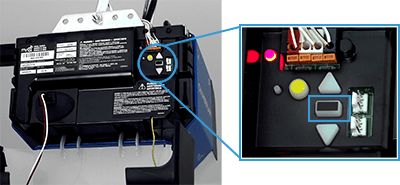
- Press and hold the Settings button (gear icon) on the MyQ control panel until the blue LED blinks.
- Release the button.
- Follow the in-app instructions to set up the connection again.
Step 4: Use the MyQ App Setup
- Download or update the MyQ app.
- Create or log into your MyQ account.
- Select Add Device and choose your opener model.
- Follow the step-by-step instructions to pair it with your WiFi.
Step 5: Verify Router Settings
If your MyQ garage door opener will not connect to WiFi even after resetting:
- Ensure WPA2 security is enabled.
- Disable MAC address filtering temporarily.
- Avoid special characters in your network name or password.
Step 6: Update Firmware
Some connection issues stem from outdated firmware. In the MyQ app:
- Go to Device Settings.
- Check for available updates.
- Install any pending updates and try connecting again.
Additional Tips to Keep MyQ Connected
- Power Cycle Your Devices – Restart both your router and MyQ opener every few months to refresh the connection.
- Use Static IP Assignment – Assigning a fixed IP to MyQ in your router can prevent random disconnections.
- Avoid Interference – Keep the opener’s WiFi antenna away from large metal objects and other electronics.
When to Contact Support
If you’ve tried every step and your MyQ still won’t connect, it’s time to reach out to Chamberlain MyQ customer support. They can walk you through advanced troubleshooting, check device compatibility, and confirm if there’s a hardware issue.
Preventing Future WiFi Problems
Once you’ve solved the connection problem, prevent it from happening again:
- Keep your router firmware updated.
- Avoid frequent changes to your network name or password.
- Invest in strong, garage-friendly WiFi coverage.
Final Thoughts
When your MyQ garage door opener will not connect to WiFi, it can feel like you’ve lost a key feature of your smart home setup. Thankfully, most connection issues come down to simple fixes—signal strength, correct network selection, and proper setup.
By following the steps above, you can quickly restore your MyQ system’s smart functionality and enjoy the convenience of controlling your garage door from anywhere.
Leave a Reply