If you’re searching How To Erase Memory On LiftMaster Garage Door Opener, you may be dealing with lost remotes, moving into a new home, or resetting your system after a malfunction. Erasing the memory on your LiftMaster opener removes all paired remotes, wireless keypads, and vehicle HomeLink buttons—allowing you to start fresh and improve security. This guide explains the entire process in simple terms, whether your LiftMaster is a Chamberlain-built model, Security+ 1.0, Security+ 2.0, or a newer MyQ-equipped opener.
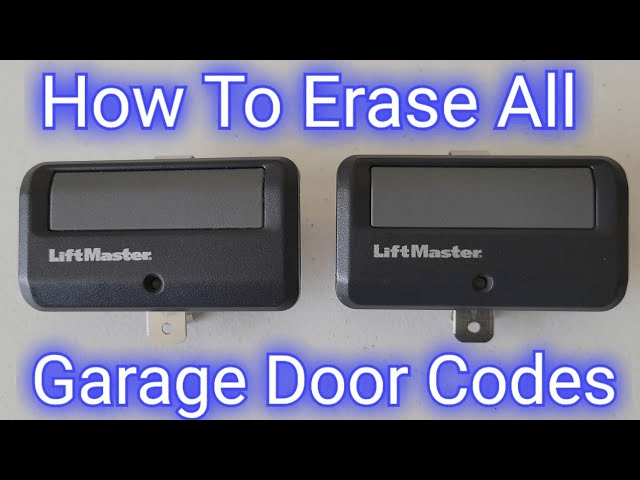
How To Erase Memory On LiftMaster Garage Door Opener (Quick Answer)
To erase all remotes and keypads:
- Locate the Learn button.
- Press and hold for 6–10 seconds.
- LED light turns off or blinks → memory erased.
After this, no remote or keypad will work until reprogrammed.
Read too: Door and Garage Door Companies: Choosing the Right Partner for Your Needs
This method works for nearly all LiftMaster openers, including:
- Chain drive
- Belt drive
- Wall-mount (8500 Series)
- MyQ smart openers
- Security+ 1.0 & 2.0 systems
Understanding the Learn Button on LiftMaster Openers
The Learn button also determines compatibility and memory type.
LiftMaster Learn Button Colors & Meanings
| Learn Button Color | System Type | Notes |
|---|---|---|
| Yellow | Security+ 2.0 | Newer rolling code system |
| Purple | Security+ | Mid-generation models |
| Red/Orange | Security+ | Older but still widespread |
| Green | Early Security+ | Works with basic remotes |
These color codes also affect remote pairing methods.
Step-by-Step: How To Erase Memory On LiftMaster Garage Door Opener
Step 1: Locate the Learn Button
Find it on the motor unit. Common locations:
- Under the light lens cover
- On the back panel next to the antenna
- On the side of the motor housing
- On wall-mount models → front panel
Look for:
- Yellow, purple, red/orange, or green square button
- LED indicator next to the button
Step 2: Press and Hold the Learn Button
Hold the button 6–10 seconds until:
- LED turns off, or
- LED blinks rapidly, or
- A clicking sound occurs
This indicates all paired devices have been erased.
Step 3: Confirm Memory Has Been Cleared
Test it:
- Press your remote → should NOT work
- Keypad should not unlock the door
- HomeLink (car button) stops functioning
If any device still works:
- Repeat Step 2
- Hold for 10–15 seconds for older units
How To Erase Only HomeLink or Only Keypads
Sometimes you want to keep remotes but erase other devices.
Erase Wireless Keypads Only
- Enter programming mode by pressing Learn once (do NOT hold).
- Immediately press the Keypad “*” button for 5 seconds.
- Keypad is now wiped, but remotes remain paired.
Erase HomeLink (In-Car Buttons) Only
- Hold the outer two HomeLink buttons for 10–20 seconds.
- LED begins flashing rapidly.
- Release → HomeLink memory cleared.
You can now reprogram the button to a new garage system.
Complete System Reset vs Memory Erase
| Action | What It Clears | When to Use |
|---|---|---|
| Memory Erase | Remotes, keypads, HomeLink | Lost remote, new home |
| Factory Reset | Limits + force + memory | Opener malfunction |
| Keypad Only Reset | Keypad PIN | Forgotten PIN |
| HomeLink Reset | Car buttons | Selling a car |
Memory erase does NOT affect door travel limits or force settings.
Why You Should Erase Memory on a LiftMaster Opener
1. Lost or Stolen Remote
Prevents unauthorized access.
2. Moving Into a Previously Owned Home
Old remotes may still be in circulation.
3. Troubleshooting Remote Issues
Erasing and reprogramming often solves pairing errors.
4. Upgrading to MyQ or a New Remote
Clears outdated codes that cause interference.
5. Removing Old HomeLink Settings
Useful when switching vehicles.
Security experts emphasize that clearing remote databases prevents unauthorized device access—consistent with electronic security best practices (see foundational information on Wikipedia.org).
Troubleshooting: Why Won’t My LiftMaster Memory Erase?
1. Learn Button Not Responding
Possible causes:
- Dust or debris
- Worn circuit board
- Broken Learn button
Try holding for 15 seconds.
2. No LED Light
Could indicate:
- Blown fuse
- No power to opener
- Damaged logic board
3. Remote Still Working After Erase
Means:
- Remote was reprogrammed accidentally
- The opener has multiple logic boards (rare)
- Remote belongs to another door (if multi-unit)
4. Very Old LiftMaster Models
Units prior to 1993 use dip switches.
To erase memory:
- Set all DIP switches to OFF
- Reconfigure switches manually
Not all features apply to these older openers.
Infographic: Memory Erase vs Remote Reprogramming
| Feature | Erase Memory | Reprogram Remote |
|---|---|---|
| Clears all devices | ✔ | ✘ |
| Removes keypad PIN | ✔ | ✘ |
| Fixes pairing issues | ✔ | ✔ |
| Needed after moving homes | ✔ | ✘ |
| Adds new devices | ✘ | ✔ |
Step-by-Step: How To Reprogram Devices After Clearing Memory
1. Press the Learn Button Once (don’t hold).
2. LED flashes or stays steady.
3. Press remote button for 2–3 seconds.
4. Opener light flashes → paired successfully.
Repeat for all devices:
- Remotes
- Keypads
- Car HomeLink/Car2U
- MyQ accessories
People Also Ask (FAQ Section)
1. How long does it take to erase memory on a LiftMaster opener?
About 6–10 seconds for most models.
2. Does erasing memory delete MyQ settings?
It removes paired remotes—not your MyQ account. You may need to re-link if using MyQ Smart Garage Hub.
3. Is memory erase the same as factory reset?
No. Factory reset also clears door limits and force settings.
4. Will my keypad stop working after memory erase?
Yes—you must reprogram it.
5. Why does my remote still work after clearing memory?
You likely didn’t hold the Learn button long enough.
6. Does erasing memory affect garage door travel limits?
No. The opener will still open and close normally.
Conclusion
Learning How To Erase Memory On LiftMaster Garage Door Opener is essential for keeping your home secure and ensuring only authorized remotes operate your garage. Whether you’re resetting after a lost remote, moving into a new home, or troubleshooting, clearing the memory is quick, easy, and highly effective.
Leave a Reply