If you’re wondering how to pair Genie garage door opener to remote, you’re looking to simplify your daily routine. Pairing your Genie opener with its remote allows hands-free garage access, ensures smooth operation, and avoids the hassle of using multiple remotes.
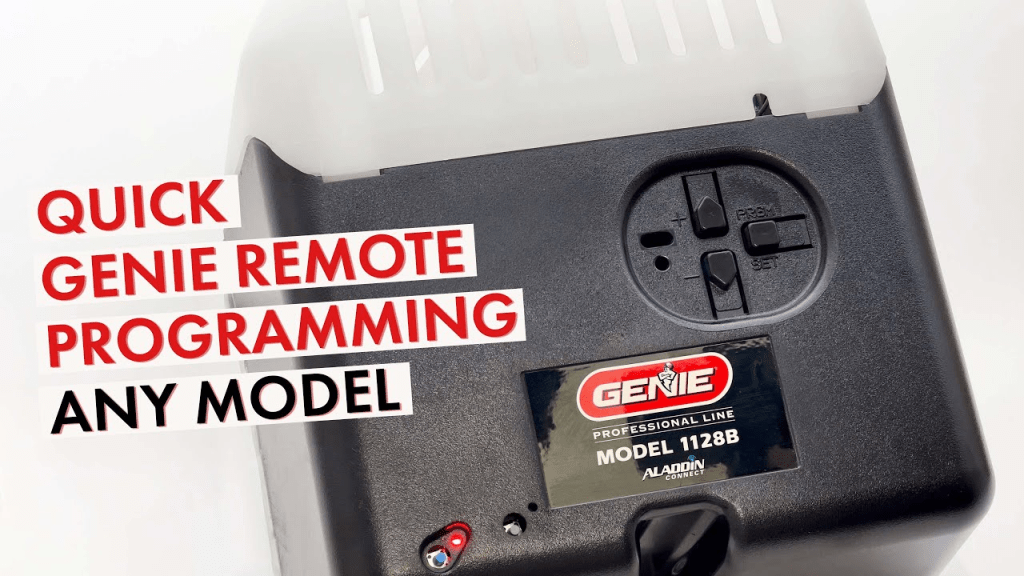
This guide will walk you step by step through the process, provide troubleshooting tips, and highlight best practices for secure and reliable garage door control.
Read too: The Complete Guide to Tighten Chain On Garage Door Opener for Smooth Operation
Understanding Genie Garage Door Openers
Genie garage door openers are widely recognized for their reliability, ease of installation, and compatibility with a variety of remote systems.
Key Features:
- Wireless remote access
- Rolling code security for safe operation
- Compatibility with multiple remotes
- Integration with smart home systems
According to Wikipedia Smart Home, automating garage doors enhances convenience, security, and efficiency in modern homes.
Step-By-Step Guide: Pairing Genie Garage Door Opener To Remote
Step 1: Prepare Your Garage Door Opener
- Locate the “Learn” or “Program” button on your Genie opener motor.
- Ensure the garage door is fully closed.
- Remove any obstructions near the door to prevent accidents during testing.
Step 2: Prepare The Remote
- Insert fresh batteries in your Genie remote.
- Identify the button on the remote you wish to program.
Step 3: Enter Programming Mode
- Press and release the Learn button on the Genie motor. The indicator light should turn on.
- Within 30 seconds, press and hold the desired button on your remote until the motor light blinks, indicating successful programming.
Tip: Some Genie models require pressing the remote button twice during pairing. Consult your model’s manual for precise timing.
Step 4: Test The Remote
- Press the programmed button to open the garage door.
- Press again to close the garage door.
- Ensure the door responds reliably without delays or interruptions.
Tips For Smooth Pairing
- Check Frequency Compatibility
- Genie remotes typically operate at 310–390 MHz. Ensure your remote matches your opener’s frequency.
- Clear Previous Pairings
- If the remote was previously paired with another opener, reset it before programming.
- Safety First
- Avoid programming while standing in the garage doorway.
- Keep pets and children away during setup.
- Use Fresh Batteries
- Low battery power can interfere with the pairing process.
Troubleshooting Common Issues
| Issue | Solution |
|---|---|
| Remote doesn’t work | Verify batteries are fresh and installed correctly |
| Garage light flashes but door doesn’t move | Re-press Learn button and retry |
| Multiple Genie devices nearby | Program the intended opener individually |
| Rolling code mismatch | Follow your model’s instructions to reset rolling code |
Advantages Of Pairing Genie Opener With Remote
- Convenience: Control your garage door without leaving your vehicle.
- Security: Rolling code technology prevents unauthorized access.
- Integration: Works with Genie smart home devices for automation.
- Multiple Users: Pair several remotes for family members.
FAQ
Q1: Can I pair multiple Genie remotes to the same opener?
A: Yes, Genie openers allow multiple remotes to be paired individually.
Q2: Does pairing erase previous remotes?
A: No, existing remotes remain functional unless manually cleared.
Q3: What if my Genie model is old?
A: Older models may require slightly different timing for the Learn button; always check the manual.
Q4: Can I program the remote from inside my car?
A: No, programming must be done near the opener motor to establish the signal.
Q5: How long does the pairing process take?
A: Typically 5–10 minutes if all devices are compatible and batteries are fresh.
Q6: Is it safe to leave the remote paired permanently?
A: Yes, pairing is secure, especially with rolling code technology. Always keep the remote safe.
Best Practices For Long-Term Use
- Test regularly to ensure smooth operation.
- Replace batteries yearly or as needed.
- Update firmware for Genie smart home devices.
- Keep remote and opener manuals handy for troubleshooting.
Conclusion
Knowing how to pair Genie garage door opener to remote simplifies your daily routine, enhances security, and integrates seamlessly with modern smart homes. By following the steps above, you can enjoy hands-free, reliable, and safe garage door operation. Share this guide with friends or family to help them streamline their garage access and improve home convenience.
Leave a Reply