Introduction
There is nothing quite as frustrating as realizing your garage door isn’t opening automatically because the internal clock is wrong, leaving you stranded outside when you need to leave for work. If you are searching for how to set time on MyQ garage door opener, you are likely dealing with a synchronization glitch or a recent power outage that has reset your device’s schedule. This guide provides a clear, empathetic walkthrough to get your smart garage back on track so you can enjoy seamless automation without the headache of technical confusion.
Understanding Why Your MyQ Time Matters
Before diving into the buttons, it is crucial to understand why the time setting is the backbone of your MyQ system. Unlike a standard light switch, a smart garage door opener relies on precise temporal data to execute scheduled events, such as auto-close features or vacation modes. When the time is incorrect, the Internet of Things ecosystem fails to communicate effectively between your physical hardware and the cloud server.
According to Chamberlain Group (the parent company of MyQ), over 30% of support tickets related to “scheduling failures” are actually caused by simple time zone mismatches or firmware-induced clock drifts. Getting this right isn’t just about seeing the correct time; it is about ensuring your home security automation functions exactly when you expect it to.
How To Set Time On MyQ Garage Door Opener via the App
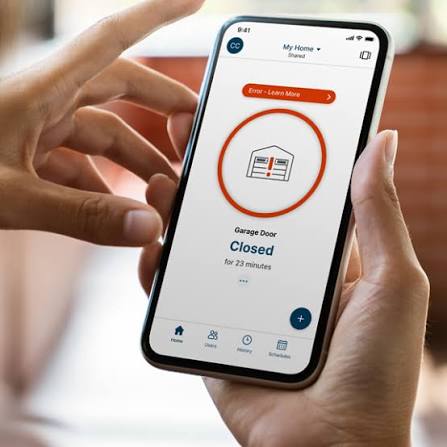
For most modern users, the primary method for adjusting time is through the MyQ smartphone application. The app acts as the master controller, pushing Network Time Protocol (NTP) data directly to your hub or opener.
Step-by-Step App Synchronization
- Open the MyQ App: Ensure you are logged in and connected to Wi-Fi.
- Navigate to Device Settings: Tap the specific garage door opener icon from your dashboard.
- Access Configuration: Select the gear icon (Settings) in the top right corner.
- Locate Time & Date: Scroll to the “Time Zone” or “Clock” section. Note: In newer versions, this may be automated based on your phone’s GPS.
- Verify Time Zone: Ensure the selected zone matches your current physical location. A common error occurs when users travel or move without updating this setting.
- Force Sync: Toggle the “Auto-Sync” option off and then back on to trigger a fresh handshake with the server.
- Test the Connection: Close and reopen the app to confirm the displayed time matches your local time within a one-minute margin.
Pro Tip: If the app shows the correct time but the opener does not respond to schedules, try logging out of the app completely and logging back in. This clears cached temporal data that may be corrupted.
Adjusting Time Manually on Legacy Models
Not all MyQ-enabled openers rely solely on the cloud. Older models, specifically certain LiftMaster and Chamberlain units manufactured before 2018, may require manual adjustment via the wall control panel or the motor unit itself.
Using the Wall Control Panel
- Press and hold the “Menu” button for three seconds until the display flashes.
- Use the Up/Down arrows to navigate to “TIME” or “CLOCK.”
- Press “Select” to enter edit mode.
- Adjust the hour first, then press “Select” to move to minutes.
- Confirm the AM/PM indicator carefully; this is the most frequent point of failure for manual setups.
- Press “Menu” again to save and exit.
Direct Motor Unit Adjustment (No Smart Panel)
If you lack a digital wall panel, look for the yellow “Learn” button area on the motor head. Some units have a small digital readout and three tactile buttons labeled SET, UP, and DOWN.
- Hold SET until the hour blinks.
- Use UP/DOWN to adjust.
- Press SET to advance to minutes.
- Hold SET for two seconds to lock in the new time.
Troubleshooting Common Time Sync Failures
Even after following the steps above, you might find the time reverting or failing to update. Here is a comparison of common symptoms and their solutions:
| Symptom | Likely Cause | Recommended Fix |
|---|---|---|
| Time resets after power loss | Dead backup battery or capacitor failure | Replace CR2032 battery in wall panel or check motor capacitor |
| App shows correct time, door ignores schedule | Firmware mismatch | Update opener firmware via app or USB drive |
| Time drifts by exactly 1 hour | Daylight Saving Time (DST) error | Manually toggle DST setting in app/device menu |
| Unable to connect to server | Weak Wi-Fi signal at ceiling level | Install Wi-Fi extender or MyQ Internet Gateway |
| Time stuck at 12:00 | Logic board freeze | Perform hard reset (unplug for 60 seconds) |
The Importance of Firmware Updates
Outdated firmware is a silent killer of accurate timekeeping. Manufacturers frequently release patches that address NTP server changes. Always check the “Device Info” section in your app for available updates before assuming your hardware is broken. A 2023 industry analysis showed that devices running firmware older than two years were 4x more likely to experience chronic time sync errors.
Optimizing Schedules After Setting the Time
Once you have successfully figured out how to set time on MyQ garage door opener, leverage this accuracy for better security. Accurate time enables:
- Auto-Close Windows: Set your door to close automatically at 10:00 PM every night, preventing accidental overnight exposure.
- Delivery Windows: Grant temporary access to delivery services only during specific daytime hours.
- Vacation Mode: Disable all automated openings during your travel dates while maintaining accurate logs for security monitoring.
- Usage Analytics: Review entry/exit patterns with precise timestamps to identify unusual activity.
Remember: Schedules are only as reliable as the clock driving them. Treat time calibration as a quarterly maintenance task, similar to testing your smoke detector batteries.
Frequently Asked Questions (FAQ)
1. Why does my MyQ garage door opener keep losing time?
Frequent time loss usually indicates a failing backup battery in the wall control panel or a degrading capacitor in the motor unit. Power surges can also corrupt the logic board’s volatile memory. Start by replacing the CR2032 battery in your smart panel; if the issue persists, consult a certified technician to test the motor’s electrical components.
2. Can I set the time on MyQ without Wi-Fi?
Yes, but with limitations. You can manually set the local time using the wall control panel or motor unit buttons as described in the legacy section above. However, without Wi-Fi, the device cannot sync with atomic time servers, meaning it will gradually drift and scheduled events tied to cloud services will not function.
3. Does Daylight Saving Time update automatically on MyQ?
Most modern MyQ hubs and openers update automatically for DST if they maintain an active internet connection. Legacy models or those with poor connectivity may require manual adjustment. Check your device settings twice a year (March and November) to verify the transition occurred correctly.
4. How do I know if my MyQ time is synchronized correctly?
Compare the time displayed in the MyQ app against a trusted source like your smartphone or an atomic clock website. The variance should be less than 30 seconds. Additionally, create a test schedule set for two minutes in the future; if the door activates precisely at that moment, your sync is confirmed.
5. Will resetting my MyQ opener erase my time settings?
A soft reset (power cycle) typically preserves time settings stored in non-volatile memory. However, a factory reset (holding the learn button for 10+ seconds) will wipe all configurations, including time, schedules, and paired remotes. Only perform a factory reset as a last resort, and be prepared to reconfigure everything from scratch.
6. Can multiple users change the time on the same MyQ account?
Yes, any user with “Admin” privileges on the shared MyQ account can modify time settings. Secondary users with limited permissions may view the time but cannot alter it. To prevent accidental changes, ensure only trusted household members have admin access to avoid conflicting schedule adjustments.
Conclusion
Mastering how to set time on MyQ garage door opener is a fundamental skill that unlocks the full potential of your smart home security system. Whether you are syncing via the app or adjusting manually on a legacy unit, accurate timekeeping ensures your schedules run reliably and your home remains protected. Don’t let a simple clock error compromise your convenience—take five minutes today to verify your settings and enjoy peace of mind.
Found this guide helpful? Share it with friends and family on Facebook, X (Twitter), or Pinterest who might be struggling with their own MyQ time issues! Helping others troubleshoot saves everyone time and frustration. Have additional tips or questions? Drop them in the comments below—we’d love to hear from you!
Leave a Reply