The MyQ Garage Door Opener is a convenient smart home device that allows users to control their garage door remotely through a smartphone app. However, if you change your WiFi network, you’ll need to update the settings on your MyQ device to ensure it stays connected. Whether you’ve switched internet providers, upgraded your router, or simply changed your WiFi password, this guide will walk you through the process of reconnecting your MyQ Garage Door Opener to a new WiFi network.
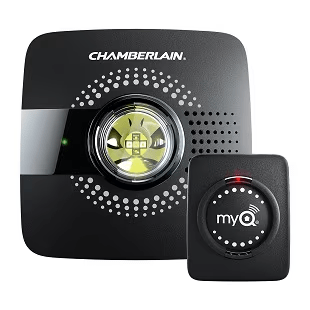
Why You Need To Update Your MyQ Garage Door Opener’s WiFi
Your MyQ Garage Door Opener relies on a stable internet connection to function properly. Without an updated WiFi connection, you won’t be able to:
- Open and close your garage door remotely using the MyQ app
- Receive notifications about garage door activity
- Integrate with smart home systems like Google Assistant or Amazon Alexa
- Ensure firmware updates for better performance and security
If your MyQ device is offline due to a network change, follow this step-by-step guide to reconnect it.
How To Change WiFi Network On MyQ Garage Door Opener
Changing the WiFi network on your MyQ Garage Door Opener is a straightforward process. Follow these steps carefully to avoid connectivity issues.
Step 1: Prepare for the Setup
Before you begin, make sure you have the following:
- Your smartphone with the latest version of the MyQ app installed
- The name (SSID) and password of your new WiFi network
- A stable WiFi connection with a 2.4GHz band (since MyQ devices don’t support 5GHz WiFi)
- Your MyQ Garage Door Opener powered on and within range of your WiFi router
Step 2: Reset the WiFi on Your MyQ Garage Door Opener
If your MyQ device is still connected to the old WiFi network, you’ll need to reset its WiFi settings before connecting to a new network.
- Locate the “Learn” Button – This is typically found on the garage door opener’s motor unit or near the WiFi hub.
- Press and Hold the Learn Button – Hold it down until the LED indicator begins to blink blue (this usually takes about 6–10 seconds).
- Wait for the Beeping Sound – Some MyQ models will beep, signaling that the device is in WiFi setup mode.
Your MyQ Garage Door Opener is now ready to be connected to a new WiFi network.
Step 3: Connect to the New WiFi Network Using the MyQ App
- Open the MyQ App on your smartphone.
- Tap on the Menu (☰) in the upper-left corner.
- Select Device Management and find your garage door opener.
- Tap Change WiFi Settings or Reconnect to WiFi (the exact wording may vary based on your app version).
- Follow the on-screen instructions to:
- Select your new WiFi network from the list
- Enter the WiFi password
- Confirm the connection
After successfully connecting, the LED light on your MyQ Garage Door Opener will turn solid green, indicating that it’s online.
Step 4: Test Your MyQ Connection
Once your device is connected to the new WiFi network, test its functionality:
- Try opening and closing the garage door using the MyQ app.
- Check if you receive real-time notifications when the garage door is operated.
- Ensure that any smart home integrations (such as Google Assistant or Amazon Alexa) are working properly.
If everything functions correctly, your MyQ device is now successfully reconnected to the new WiFi network!
Troubleshooting: MyQ Garage Door Opener Won’t Connect to WiFi
If you’re having trouble reconnecting your MyQ Garage Door Opener, try these troubleshooting steps:
1. Check Your WiFi Signal Strength
- Make sure your garage is within range of your WiFi router.
- If the signal is weak, consider using a WiFi extender or moving your router closer.
2. Ensure You’re Using a 2.4GHz Network
- MyQ devices only support 2.4GHz networks.
- If your router has both 2.4GHz and 5GHz, separate the networks and connect your MyQ to the 2.4GHz band.
3. Reset Your Router and MyQ Device
- Restart your WiFi router and try reconnecting.
- If issues persist, perform a full factory reset on your MyQ Garage Door Opener and go through the setup process again.
4. Update the MyQ App and Firmware
- Make sure your MyQ app is up to date.
- Check for any firmware updates for your MyQ Garage Door Opener.
Frequently Asked Questions
Can I Connect MyQ to a 5GHz WiFi Network?
No. MyQ Garage Door Openers only support 2.4GHz WiFi networks. If your router defaults to 5GHz, you need to manually connect to the 2.4GHz band.
What If MyQ Still Won’t Connect to WiFi After Resetting?
Try these additional steps:
- Make sure your WiFi password is correct.
- Disable any WiFi security settings like MAC address filtering.
- Try using a mobile hotspot to see if the issue is with your home WiFi.
Do I Need to Reconnect MyQ Every Time I Change My Router?
Yes. If you change your router, internet provider, or WiFi name (SSID), you’ll need to reconnect your MyQ Garage Door Opener to the new network.
Read too: How To Replace Garage Door Roller Like a Pro? Step-by-Step Guide
Final Thoughts
Updating your MyQ Garage Door Opener’s WiFi settings is essential to maintaining its smart features. Whether you’re switching internet providers or upgrading your router, following the steps outlined in this guide will help you quickly and easily reconnect your device.
By ensuring a stable 2.4GHz WiFi connection, keeping your MyQ app updated, and troubleshooting any potential connectivity issues, you can continue enjoying the convenience of remote garage door control without interruptions.
If you found this guide helpful, feel free to share it with others who might be experiencing similar issues!
Leave a Reply