When your Liftmaster Garage Door Opener Will Not Connect To Wifi, you lose remote control, alerts, and smart access through the app. This issue is frustrating, especially when the opener works mechanically but refuses to go online.
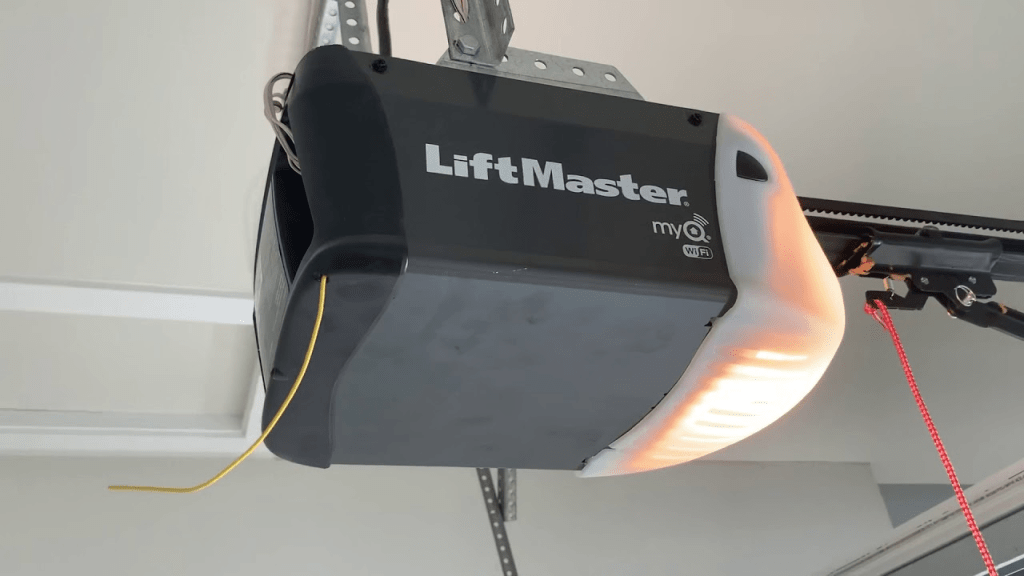
This guide walks you through exact, practical steps to restore connectivity using checks that technicians perform in the field.
How LiftMaster Wi-Fi Works with myQ

4
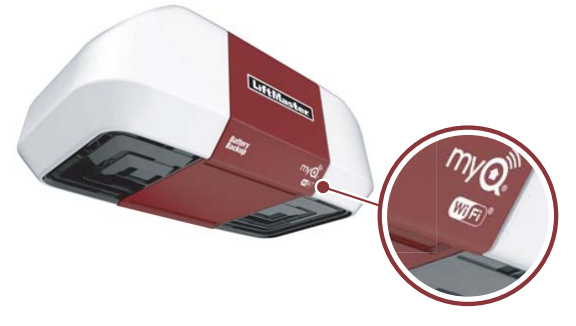
Most modern openers from LiftMaster connect to your home network through the myQ platform. The opener contains a small Wi-Fi radio and antenna that must:
- Detect a 2.4 GHz network
- Receive a strong signal
- Authenticate through the myQ app
- Maintain a stable connection
Read too: Mastering the Art of How to Open a Garage Door Safely and Efficiently
For background on how a Garage door opener integrates electronics and controls, see:
https://en.wikipedia.org/wiki/Garage_door_opener
Why This Problem Happens So Often
In service diagnostics, Wi-Fi failures usually come from:
| Cause | Frequency | Difficulty |
|---|---|---|
| Wrong Wi-Fi band (5 GHz only) | Very common | Easy |
| Weak signal in garage | Very common | Easy |
| Router security settings | Common | Moderate |
| Incorrect setup sequence | Common | Easy |
| Outdated myQ app | Moderate | Easy |
| Firmware glitch | Rare | Moderate |
Start with the network band and signal strength. These solve most cases.
Step 1 — Confirm You Have a 2.4 GHz Network
LiftMaster openers do not connect to 5 GHz.
What to Do
- Log into your router settings
- Ensure 2.4 GHz is enabled
- If you have “Smart Connect” or merged bands, create a separate 2.4 GHz SSID
Example:
- HomeWiFi_2.4 ✅
- HomeWiFi_5G ❌
Reconnect using the 2.4 GHz network only.
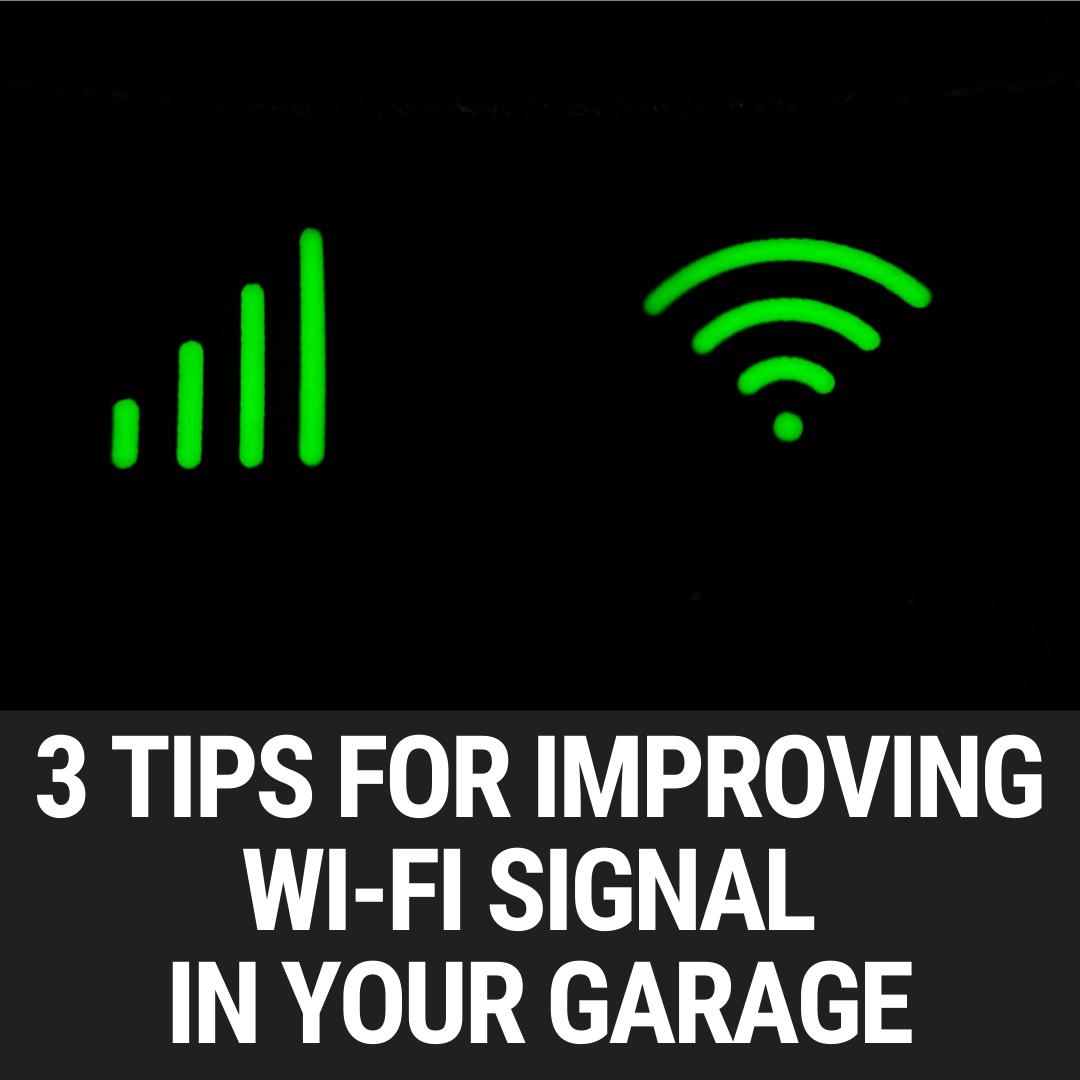
Step 2 — Check Wi-Fi Signal Strength in the Garage
4
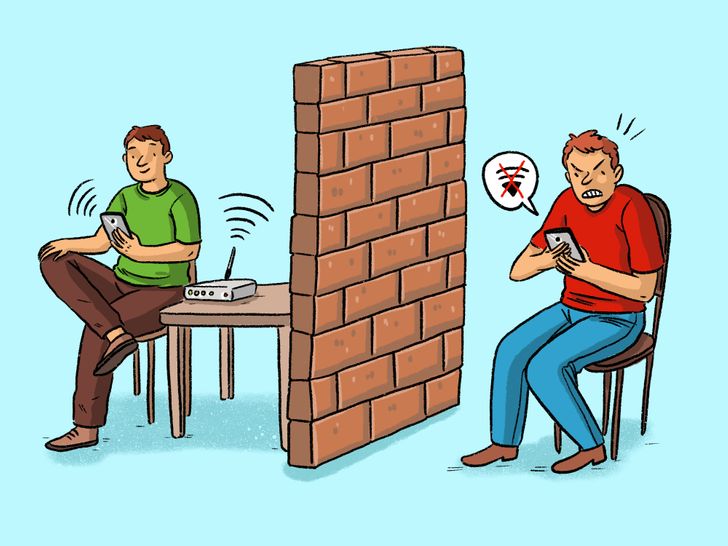
Garages often have:
- Concrete walls
- Metal doors
- Electrical interference
All weaken signals.
Test
Stand under the opener with your phone:
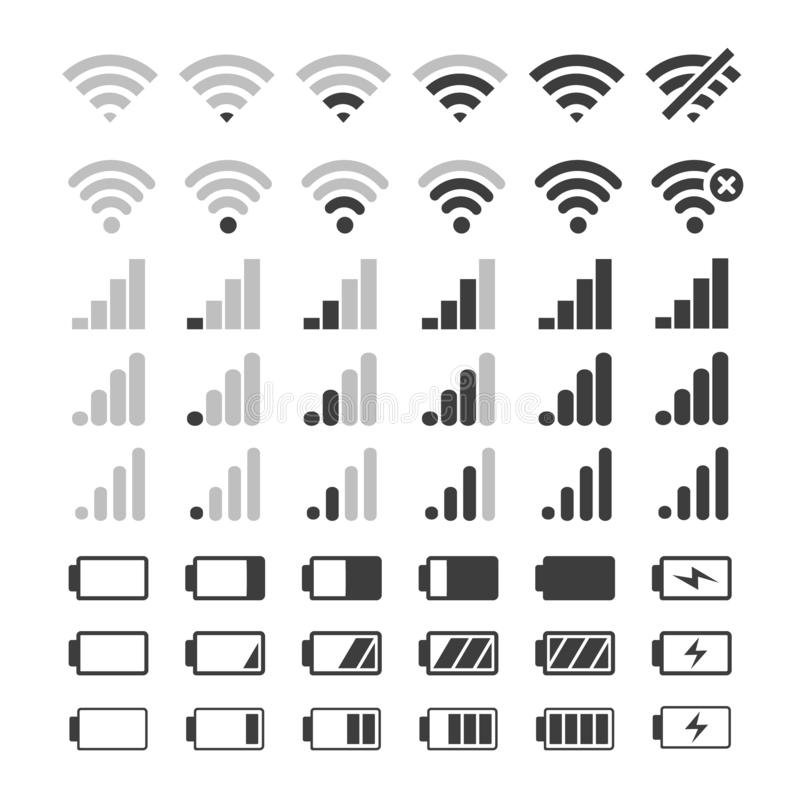
- If Wi-Fi shows 1–2 bars, the opener cannot maintain connection.
Fix Options
- Install a Wi-Fi extender in the garage
- Use a mesh node nearby
- Move the router closer if possible
Step 3 — Reset the Opener’s Wi-Fi Memory
A corrupted setup attempt can block new connections.
Reset Procedure
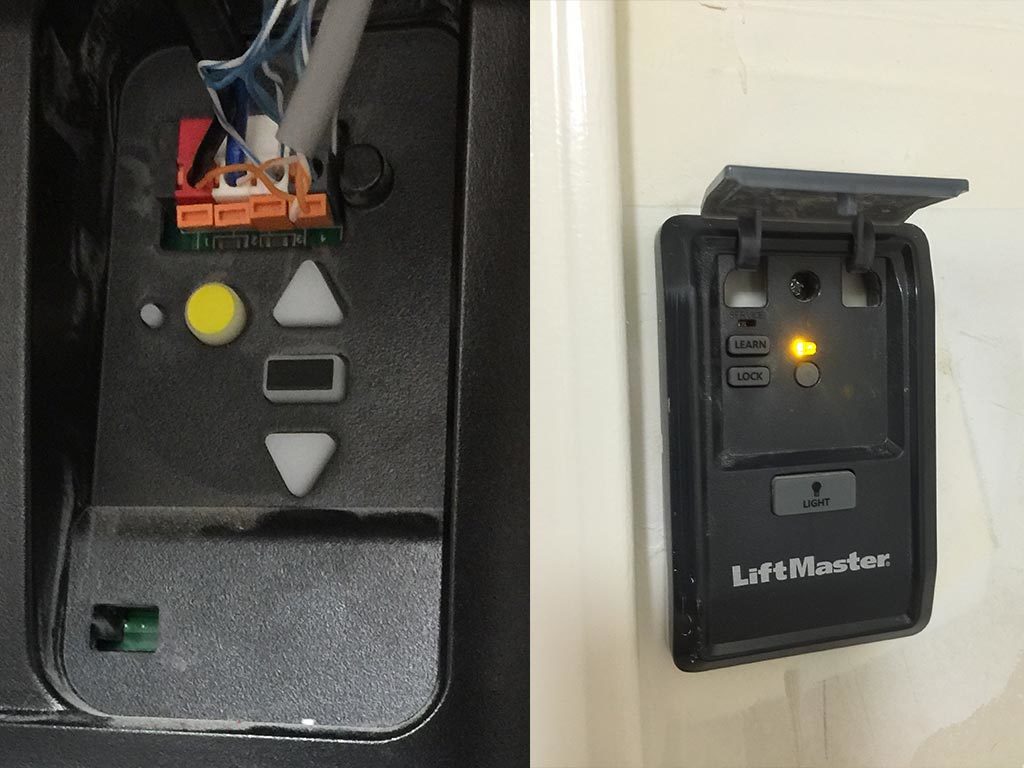
- Press and hold the Learn (yellow) button for 6 seconds
- LED will turn off
- Wait 30 seconds
- Start pairing again from the myQ app
Step 4 — Use the Correct myQ Setup Sequence
Incorrect pairing order is a common issue.
Correct Order
- Open myQ app
- Tap Add Device
- Select Garage Door Opener
- When prompted, press the Learn button
- Choose your 2.4 GHz Wi-Fi
- Enter password carefully
Do not press the Learn button before the app asks.
Step 5 — Check Router Security Settings
Some routers block IoT devices by default.
Required Settings
- WPA2 or WPA2/WPA3 mixed mode
- DHCP enabled
- Firewall not blocking new devices
- No MAC address filtering
Temporarily disable advanced security to test connection.
Step 6 — Update the myQ App
Outdated app versions often fail during pairing.
- Update from App Store / Google Play
- Log out and back in
- Retry setup
Step 7 — Power Cycle Everything
Simple but effective.
- Unplug opener for 60 seconds
- Restart router
- Wait for full internet connection
- Plug opener back in
- Retry setup
Troubleshooting Table
| Symptom | Likely Cause | Solution |
|---|---|---|
| Opener not found in app | Wrong Wi-Fi band | Use 2.4 GHz |
| Connects then drops | Weak signal | Add extender |
| App freezes on setup | App issue | Update app |
| “Cannot connect” error | Router security | Change WPA settings |
| Worked before, now offline | Router reset | Reconnect device |
Best Router Placement for Garage Connectivity
Ideal layout:
- Router elevated, not on floor
- Minimal walls between router and garage
- Avoid placing near metal cabinets or breaker panels
Signal travels best through open air, worst through concrete and metal.
When You May Need a Wi-Fi Extender or Mesh
If the garage is detached or far from the router, a $30–$80 extender solves most issues permanently.
Place it:
- Halfway between router and garage
- Or inside the garage outlet closest to opener
FAQ — LiftMaster Wi-Fi Problems
Q1: Why does my opener say offline in myQ?
Weak signal or router settings changed.
Q2: Can LiftMaster connect to 5 GHz?
No. Only 2.4 GHz is supported.
Q3: Does a power outage affect Wi-Fi setup?
Yes. You may need to reconnect after outages.
Q4: How far can the opener be from the router?
Ideally within 30–50 feet with minimal walls.
Q5: Do I need to reset every time I change Wi-Fi password?
Yes. The opener must be re-paired.
Conclusion
When your Liftmaster Garage Door Opener Will Not Connect To Wifi, the issue is almost always related to network band, signal strength, or setup sequence. By following these practical steps, you can restore myQ connectivity in minutes without calling for service.
If this guide helped you get back online, share it on social media so other homeowners can fix the same issue quickly.
Leave a Reply