Introduction
There are few things more frustrating than being locked out of your smart home features because of a simple network change. If you have recently changed your internet provider, updated your router password, or noticed your app showing “offline,” you are likely searching for how to reset MyQ garage door opener WiFi password to regain control. We understand that a disconnected garage door isn’t just an inconvenience; it is a security concern and a disruption to your daily routine. This comprehensive guide will walk you through the exact steps to reconnect your device safely and efficiently, ensuring your home remains secure and accessible.
Why Your MyQ Device Needs a WiFi Reset
Before diving into the technical steps, it is helpful to understand why this issue occurs. Smart garage door openers do not automatically update when your home network credentials change. Unlike a laptop or smartphone that might prompt you for a new password, IoT (Internet of Things) devices like the MyQ hub retain the old SSID and password in their non-volatile memory.
According to recent smart home adoption statistics, over 30% of smart device connectivity issues stem from router replacements or password updates. When the handshake between your router and the MyQ device fails, the system defaults to an offline state to protect against unauthorized access. Understanding this mechanism helps clarify why a manual reset is the only solution.
Preparation: What You Need Before Starting
To ensure the process of learning how to reset MyQ garage door opener WiFi password goes smoothly, gather the following items. Skipping preparation is the most common cause of failed resets.
- Your New WiFi Credentials: Have the exact SSID (network name) and password ready. Note that MyQ devices typically only support 2.4 GHz networks. They cannot connect to 5 GHz bands.
- The MyQ App: Ensure you have the latest version installed on your iOS or Android device. Outdated apps often fail to communicate with newer firmware.
- A Ladder: Safety first. The learn button is usually located on the motor unit mounted on the ceiling.
- Bluetooth Enabled: Your phone’s Bluetooth must be ON during the setup process for local provisioning.
- Stable Internet Connection: Your mobile device needs active internet access to validate the new credentials with the MyQ cloud servers.
⚠️ Critical Safety Warning: Always keep hands and fingers clear of moving parts. Do not attempt to reset the device while the door is in motion. If you are uncomfortable working at heights, hire a certified technician.
Step-by-Step: How To Reset MyQ Garage Door Opener Wifi Password
This tutorial covers the standard procedure for most MyQ-enabled LiftMaster, Chamberlain, and Craftsman openers manufactured after 2017.
Step 1: Locate the Learn Button
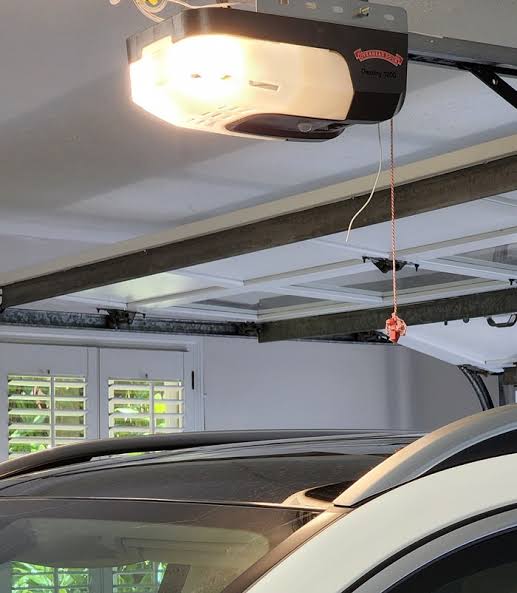
Find the “Learn” button on your garage door opener motor head. It is typically yellow, red, orange, or purple and located near the antenna wire or light lens. For Wi-Fi enabled openers, there may also be a dedicated Wi-Fi logo button.
Step 2: Initiate WiFi Reset Mode
Press and hold the Wi-Fi button (or the Learn button if no dedicated Wi-Fi button exists) for approximately 6 seconds.
- Visual Cue: Listen for a beep and watch the LED indicator. The blue LED should begin flashing rapidly.
- Confirmation: Once the blue light flashes, release the button. The device is now in pairing mode and has cleared the old network credentials.
Step 3: Open the MyQ App and Add Device
- Launch the MyQ app and log in.
- Tap the + icon or “Add Device.”
- Select “Garage Door Opener” > “Wi-Fi Garage Door Opener.”
- The app will scan for the device via Bluetooth. Select your opener when it appears.
Step 4: Enter New Network Credentials
The app will display available WiFi networks.
- Select your 2.4 GHz network.
- Enter your new WiFi password precisely. Tip: Use the “show password” eye icon to avoid typos.
- Tap “Connect.” The app will transmit credentials to the opener.
Step 5: Verify Connection
Wait 30–60 seconds. The blue LED on the motor unit should turn solid blue, indicating a successful connection. The app will confirm “Device Connected.” Test the functionality by opening and closing the door remotely once.
Troubleshooting Common Connection Failures
Even when following the steps for how to reset MyQ garage door opener WiFi password, issues can arise. Use this table to diagnose problems quickly.
| Symptom | Likely Cause | Solution |
|---|---|---|
| Blue light never flashes | Button not held long enough | Hold Wi-Fi/Learn button for full 6 seconds until beep |
| App can’t find device | Bluetooth disabled or too far | Enable Bluetooth; stand within 10 feet of motor |
| Connection fails at 90% | 5 GHz network selected | Switch to 2.4 GHz band; separate SSIDs if mesh |
| Solid amber light | Router incompatible | Check WPA2/WPA3 settings; disable MAC filtering temporarily |
| Works then drops offline | Weak signal strength | Install Wi-Fi range extender in garage; reposition router |
Expert Tips for Maintaining Stable Connectivity
Maintaining your smart garage system requires proactive management. Here are insights from industry professionals:
- Dedicated IoT Network: Create a separate guest or IoT network on your router specifically for smart devices. This isolates them from personal devices and reduces congestion.
- Signal Strength Testing: Use a WiFi analyzer app in your garage before resetting. Signal strength should be above -65 dBm for reliable operation. Below -70 dBm causes intermittent disconnections.
- Firmware Updates: After successfully resetting, check for firmware updates in the MyQ app. Manufacturers regularly patch connectivity bugs.
- Router Compatibility: As noted in technical documentation regarding Wireless LAN standards, ensure your router supports WPA2-Personal (AES). Some older MyQ units are incompatible with WPA3-only modes.
Frequently Asked Questions (FAQ)
1. Will resetting the WiFi password erase my programmed remotes?
No. Resetting the WiFi configuration only clears network credentials. Your handheld remotes, keypads, and vehicle Homelink systems operate on radio frequencies independent of WiFi and will continue functioning normally.
2. How often should I reset my MyQ WiFi connection?
You should only reset when necessary—typically after changing routers, updating WiFi passwords, or experiencing persistent offline status. Unnecessary resets do not improve performance and may trigger security flags.
3. Can I use a 5 GHz WiFi network with MyQ?
Generally, no. Most MyQ garage door openers are designed exclusively for 2.4 GHz networks due to better wall penetration and range. Attempting to connect to 5 GHz will result in failure. Dual-band routers should have separate SSIDs to prevent auto-switching issues.
4. What if my opener doesn’t have a Wi-Fi button?
Older MyQ-compatible models without a dedicated Wi-Fi button use the standard Learn button. Press and hold the Learn button for 6 seconds until the LED flashes. Alternatively, you may need a separate MyQ Smart Garage Hub if your opener lacks built-in WiFi.
5. Is my data secure after resetting?
Yes. The reset process uses encrypted communication between the app and device. Always use strong, unique WiFi passwords and enable two-factor authentication on your MyQ account for maximum security.
6. Why does the app say “device already registered” after reset?
This occurs when the device wasn’t properly removed from your account before resetting. Go to Device Settings > Remove Device in the app first, then perform the physical reset and re-add as a new device.
Conclusion
Mastering how to reset MyQ garage door opener WiFi password empowers you to maintain seamless smart home functionality without costly service calls. By following the preparation checklist, executing the five-step reset process, and applying our troubleshooting table, you can restore connectivity in under ten minutes. Remember to prioritize 2.4 GHz networks and verify signal strength for long-term reliability.
Your garage door is a critical entry point to your home, and keeping its smart features operational is essential for both convenience and security. Found this guide helpful? Share it on Facebook, X (Twitter), or Pinterest to help fellow homeowners solve their MyQ connectivity issues! Together, we can build smarter, safer homes. 🏠🔧
Leave a Reply