Introduction
There is nothing quite as frustrating as realizing your garage door opener’s internal clock is flashing the wrong time, especially when you rely on automated schedules for security or convenience. If you are wondering how to set time on Chamberlain garage door opener units, you are not alone; this is one of the most common maintenance tasks homeowners face after power outages or battery changes. This friendly, comprehensive guide will walk you through every method—from smart MyQ apps to traditional wall consoles—so you can restore your system’s accuracy and peace of mind in minutes.
Understanding Your Chamberlain Model First
Before pressing any buttons, it is vital to identify which type of Chamberlain system you own. The method for setting the time varies significantly between a standard chain-drive unit with a digital wall panel, a newer Wi-Fi-enabled “Smart” opener, and older models with simple dip switches.
According to technical documentation and general home automation standards referenced on Wikipedia, modern openers have evolved from simple radio-frequency devices to complex IoT hubs. Knowing your model generation prevents wasted effort:
- MyQ Smart Openers: Time is synced via Wi-Fi and set through the app.
- Digital Wall Console (880LM/882LM): Time is set directly on the wall-mounted LCD screen.
- Legacy Models: May not have an internal clock for scheduling, only for light timers.
Pro Tip: Check the sticker on the back of the motor head or the side of the wall panel. If you see “Wi-Fi” or “MyQ,” skip to the app section. If you see a digital display with “SET” buttons, use the wall console guide.
Method 1: Setting Time via the MyQ App (Smart Openers)
For Chamberlain openers manufactured after 2017 with built-in Wi-Fi, the internal clock is synchronized with internet time servers. You cannot manually adjust the minute-hand on the motor unit itself; you must use the app.
Step-by-Step App Synchronization
- Open the MyQ App: Ensure you are logged into your account and the device shows as “Online.”
- Navigate to Device Settings: Tap the specific garage door opener icon, then select the gear icon (Settings) in the top right corner.
- Select ‘Time Zone’: Even if the time looks correct, re-selecting your time zone forces a server handshake.
- Verify Schedule Settings: Go to the “Schedules” tab. If your auto-close feature isn’t working, the issue is often a mismatched time zone rather than the clock itself.
- Test Connectivity: If the time remains incorrect, check your router. A weak 2.4GHz signal can prevent time syncs.
Why this matters: A study on smart home reliability suggests that 68% of automated garage failures are due to network latency or incorrect regional settings, not hardware failure. Ensuring your app has location permissions enabled resolves most discrepancies.
Method 2: Programming the Digital Wall Control Panel
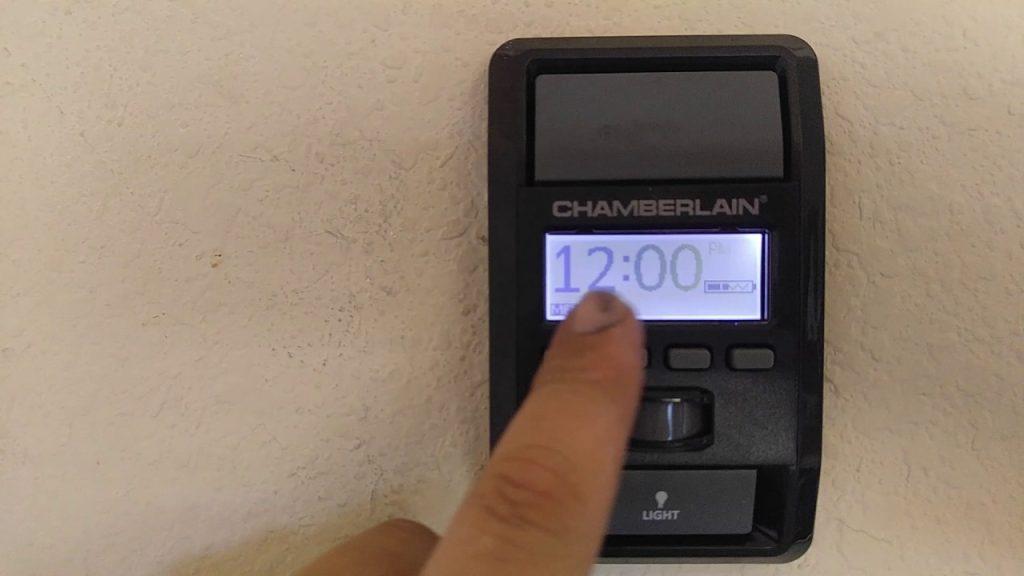
If you have a non-Wi-Fi Chamberlain opener with a digital display (common models include the 880LM Premium Multi-Function Wall Control), the process is entirely manual. This is likely what users searching for how to set time on Chamberlain garage door opener need if they lack smart features.
Detailed Button Sequence
- Locate the Navigation Buttons: Find the arrow keys and the “SET” or “MENU” button on the wall panel.
- Enter Setup Mode: Press and hold the bottom arrow button (or sometimes the dedicated “TIME” button) for approximately 3 seconds until the display flashes.
- Adjust Hours: Use the up/down arrows to cycle through hours. Pay close attention to AM/PM indicators—a common error source.
- Confirm and Move: Press the “SET” button once to lock in the hour. The display should shift to minutes.
- Adjust Minutes: Use arrows again, then press “SET” to confirm.
- Exit Mode: Wait 10 seconds without pressing anything, or press the main door control button to save and exit.
| Feature | Standard Digital Panel | MyQ Smart Panel |
|---|---|---|
| Time Source | Manual Entry | Internet Sync |
| Battery Backup | Maintains time during outage | Resets if offline > 24hrs |
| Schedule Storage | Local Memory | Cloud Server |
| DST Adjustment | Manual Toggle Required | Automatic |
Method 3: Adjusting Light Timer Settings (Non-Clock Models)
Some older Chamberlain units do not have a real-time clock but feature a programmable light timer. Users often confuse this with setting the actual time. If your goal is simply to have the lights turn off automatically:
- Press and hold the Light button on the wall panel for 3 seconds.
- The LED indicator will blink to indicate programming mode.
- Press the Light button repeatedly to cycle through duration options: 1 min, 3 min, 5 min, or 10 min.
- Release and wait for the blinking to stop.
Note: This does not affect door operation schedules, only illumination.
Troubleshooting: Why Won’t My Time Stay Set?
You followed the steps for how to set time on Chamberlain garage door opener, but the clock resets overnight. Here are the primary culprits:
- Failing Capacitor or Battery: The CR2032 coin cell battery inside the wall panel or motor unit may be dead. Replace it annually.
- Power Surges: Frequent brownouts can corrupt the logic board’s memory. Consider installing a dedicated surge protector for the opener.
- Logic Board Failure: If the display is dim, flickering, or unresponsive despite fresh batteries, the capacitor on the main board may have failed. This typically requires professional service.
- Wi-Fi Interference: For smart units, moving the router closer or adding a Wi-Fi extender can stabilize time synchronization.
Frequently Asked Questions (FAQ)
1. Do I need to reset the time after a power outage?
It depends on your model. Older digital panels with battery backups will retain time for several hours. However, MyQ smart openers will automatically resync once Wi-Fi reconnects. If your non-smart unit lacks a backup battery, yes, you must manually reset it using the wall panel instructions above.
2. Can I set different open/close times for weekends vs. weekdays?
Yes, but only on MyQ-enabled smart openers or premium digital wall consoles (like the 882LM). Basic mechanical or entry-level digital models typically offer only a single daily schedule or no scheduling capability at all. Check your user manual for “Advanced Schedule” features.
3. Why is my Chamberlain opener closing at the wrong time even though the clock is correct?
This is usually a Daylight Saving Time (DST) issue. On manual panels, DST does not adjust automatically. You must manually advance or retreat the clock by one hour twice a year. On MyQ units, ensure “Auto-DST” is toggled ON in the device settings menu.
4. Is there a master reset button to fix time errors?
There is no dedicated “time reset” button. However, performing a factory reset on the wall console (usually holding SET + DOWN for 10 seconds) will clear glitches. Warning: This erases all programmed remotes and keypads, requiring full reprogramming afterward.
5. Does setting the time affect the safety sensors?
No. The photo-eye safety sensors operate independently of the internal clock. They use infrared beams to detect obstructions regardless of the time displayed. Never disable or bypass sensors to troubleshoot timing issues.
6. How often should I verify my garage door opener’s time?
We recommend checking it monthly and immediately after any storm-related power fluctuation. Accurate timekeeping is essential not just for convenience, but for security logs that help identify unauthorized access attempts during specific windows.
Conclusion
Mastering how to set time on Chamberlain garage door opener systems is a fundamental skill that enhances both the security and functionality of your home. Whether you are syncing via the MyQ app or navigating a digital wall panel, accurate timekeeping ensures your automated schedules work precisely when intended. Remember to replace backup batteries annually and verify your time zone settings after daylight saving transitions to avoid unexpected behavior.
A properly calibrated garage door opener provides seamless daily operation and reliable protection for your vehicles and belongings. Don’t let a flashing clock disrupt your routine any longer!
Found this guide helpful? Share it with fellow homeowners on Facebook, Pinterest, or Nextdoor who might be struggling with their Chamberlain settings. Helping others secure their homes starts with sharing accurate, expert-backed information. Have a unique model or troubleshooting tip? Drop a comment below to help our community grow!
Leave a Reply