Introduction
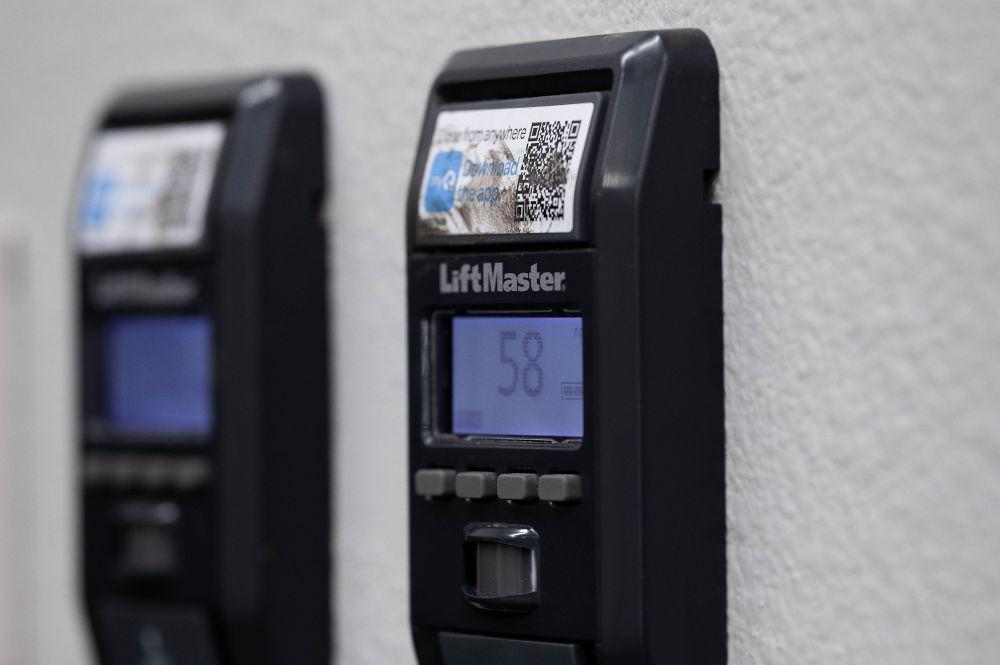
Are you tired of fumbling for your garage door remote or worrying about whether you closed the garage before leaving home? Learning how to program Liftmaster garage door opener to phone can transform your daily routine and give you peace of mind. With millions of American homeowners upgrading to smart home technology, connecting your Liftmaster opener to your smartphone has become easier than ever. This comprehensive guide will walk you through every step, ensuring you can control your garage door from anywhere in the world.
Why Connect Your Liftmaster Garage Door to Your Phone?
Before diving into the technical steps, let’s understand why this upgrade matters. According to recent smart home adoption studies, over 60% of US homeowners now use at least one connected device in their homes. Garage door openers rank among the top three most popular smart home upgrades.
Key Benefits of Smart Garage Door Control
- Remote Access: Open or close your garage from anywhere using your smartphone
- Real-Time Notifications: Receive alerts when your garage door opens or closes
- Enhanced Security: Monitor who accesses your garage and when
- Integration Capabilities: Connect with other smart home devices like Alexa, Google Home, or Apple HomeKit
- Guest Access: Grant temporary access to delivery drivers or visitors without sharing physical remotes
What You’ll Need Before Starting
To successfully program your Liftmaster garage door opener to your phone, gather these essential items:
Required Equipment
- Compatible Liftmaster Garage Door Opener: Most models manufactured after 2011 work with MyQ technology
- MyQ Smart Garage Hub (if your opener doesn’t have built-in Wi-Fi)
- Smartphone: iOS 12.0+ or Android 8.0+
- Stable Wi-Fi Connection: 2.4GHz network required
- Liftmaster Account: Free registration on the MyQ platform
Checking Your Opener Compatibility
Not all Liftmaster models support direct smartphone connectivity. Here’s how to verify compatibility:
| Model Series | Built-in Wi-Fi | Requires MyQ Hub | Year Range |
|---|---|---|---|
| Elite Series | Yes | No | 2015-Present |
| Professional Series | Some models | Varies | 2012-Present |
| Essential Series | No | Yes | 2011-Present |
| Legacy Models | No | Yes | Pre-2011 |
If you’re unsure about your model, check the label on your garage door opener motor unit or visit Liftmaster’s official compatibility page.
Step-by-Step Guide: How to Program Liftmaster Garage Door Opener to Phone
Step 1: Download and Install the MyQ App
Begin by downloading the MyQ app from your device’s app store:
- iOS Users: Search “MyQ” in the App Store
- Android Users: Search “MyQ” in Google Play Store
The app is completely free and takes up minimal storage space (approximately 150MB). Once installed, create your Liftmaster account using a valid email address and secure password.
Step 2: Prepare Your Garage Door Opener
Before connecting to Wi-Fi, ensure your opener is ready:
- Check Power Supply: Verify your garage door opener is plugged in and functioning
- Locate the Learn Button: Find the colored button (usually yellow, purple, or red) on your motor unit
- Clear Previous Codes: If reprogramming, press and hold the Learn button for 10 seconds until the LED blinks
Pro Tip: Take a photo of your opener’s model number and serial number for future reference.
Step 3: Connect the MyQ Hub (If Required)
For openers without built-in Wi-Fi, you’ll need the MyQ Smart Garage Hub:
- Plug in the Hub: Connect to a power outlet within 20 feet of your garage door opener
- Position Correctly: Place the hub so the antenna faces your opener
- Wait for Initialization: The LED will blink blue during setup (approximately 2-3 minutes)
Step 4: Add Your Device in the MyQ App
Now comes the crucial programming phase:
- Open the MyQ App and log into your account
- Tap “Add Device” on the home screen
- Select “Garage Door Opener” from the device list
- Follow On-Screen Instructions: The app will guide you through the pairing process
- Press the Learn Button: When prompted, press and release the Learn button on your opener within 30 seconds
- Confirm Connection: Wait for the app to display “Device Added Successfully”
Step 5: Test Your Connection
After successful pairing, verify everything works correctly:
- Test Remote Operation: Use the app to open and close your garage door
- Check Notifications: Ensure you receive alerts for door activity
- Verify Status Updates: Confirm the app shows accurate door position (open/closed)
Troubleshooting Common Issues
Even with careful following of instructions, you might encounter some challenges. Here are solutions to frequent problems:
Wi-Fi Connection Problems
Issue: Hub won’t connect to Wi-Fi Solutions:
- Ensure you’re using a 2.4GHz network (not 5GHz)
- Move the hub closer to your router temporarily during setup
- Check that your Wi-Fi password doesn’t contain special characters
- Restart both your router and MyQ hub
App Not Recognizing Device
Issue: MyQ app can’t find your garage door opener Solutions:
- Verify your opener model is compatible with MyQ technology
- Ensure the Learn button was pressed within the 30-second window
- Try clearing the app cache and restarting your phone
- Contact Liftmaster support if issues persist
Delayed Response Times
Issue: Commands take too long to execute Solutions:
- Check your internet connection speed (minimum 1 Mbps recommended)
- Ensure the MyQ hub has strong Wi-Fi signal strength
- Update the MyQ app to the latest version
- Consider upgrading your router if it’s outdated
Advanced Features and Tips
Once you’ve successfully learned how to program Liftmaster garage door opener to phone, explore these advanced features:
Setting Up Schedules
Create automatic opening and closing schedules:
- Navigate to “Settings” in the MyQ app
- Select “Schedules”
- Choose days and times for automatic operation
- Save your preferences
Integrating with Voice Assistants
Connect your smart garage to popular voice platforms:
- Amazon Alexa: Enable the MyQ skill and link your account
- Google Assistant: Add MyQ to your Google Home app
- Apple HomeKit: Use HomeBridge for iOS integration
Managing Multiple Users
Share access with family members:
- Go to “Account Settings”
- Select “User Management”
- Invite users via email
- Set permission levels (full access or limited)
Security Best Practices
Protecting your smart garage door system is crucial for home security:
Essential Security Measures
- Use Strong Passwords: Combine letters, numbers, and special characters
- Enable Two-Factor Authentication: Add an extra layer of security
- Regular Software Updates: Keep the MyQ app updated
- Monitor Activity Logs: Review who accesses your garage and when
- Secure Your Wi-Fi Network: Use WPA3 encryption if available
According to cybersecurity experts, smart home devices are increasingly targeted by hackers. Implementing these security measures significantly reduces your risk of unauthorized access.
FAQ Section
Q: Can I program multiple Liftmaster openers to one phone?
A: Yes, the MyQ app supports multiple garage door openers under one account. Simply repeat the setup process for each additional opener. You can name each device differently for easy identification.
Q: What happens if my internet goes down?
A: Your garage door will still operate normally using physical remotes or wall controls. However, you won’t be able to control it remotely via the app until internet service is restored. The MyQ hub stores basic commands locally for brief outages.
Q: Is the MyQ app free to use?
A: Yes, the basic MyQ app functionality is completely free. This includes remote control, notifications, and basic scheduling. Premium features like video monitoring require a subscription service.
Q: Can I still use my physical remote after programming to phone?
A: Absolutely! Programming your opener to work with the MyQ app doesn’t affect existing remotes. All control methods work simultaneously, giving you maximum flexibility.
Q: How do I remove a device from the MyQ app?
A: To remove a device:
- Open the MyQ app
- Select the device you want to remove
- Tap “Settings”
- Choose “Remove Device”
- Confirm the action
This will disconnect the device from your account but won’t affect its basic functionality.
Q: What should I do if the Learn button doesn’t work?
A: If the Learn button isn’t responding:
- Ensure you’re pressing it firmly for 1-2 seconds
- Check that your opener has power
- Try resetting the opener by unplugging it for 30 seconds
- Contact Liftmaster customer support if the issue persists
Conclusion
Learning how to program Liftmaster garage door opener to phone opens up a world of convenience, security, and modern home automation possibilities. By following this comprehensive guide, you’ve gained the knowledge to transform your traditional garage door into a smart, connected device that enhances your daily life.
The benefits extend far beyond simple remote control. You now have the power to monitor your garage from anywhere, receive instant notifications, integrate with other smart home devices, and provide secure access to trusted individuals. As smart home technology continues evolving, your Liftmaster garage door opener will remain compatible with future innovations through regular software updates.
Ready to share your smart garage experience? Tell your friends and family about the convenience of controlling your garage door from your phone. Share this guide on social media to help others discover the ease of modern garage door automation. Have questions or success stories? Leave a comment below—we’d love to hear about your smart home journey!
Remember, the key to successful smart home integration is taking it one step at a time. Start with your garage door, then gradually expand to other connected devices as you become more comfortable with the technology. Your future self will thank you for making this upgrade today.
Leave a Reply