Introduction
There is nothing quite as frustrating as leaving for work and wondering if you actually closed the garage door, or coming home to find it wide open. If you are searching for how to set up Chamberlain garage door opener WiFi, you are taking the right step toward peace of mind and modern home security. This guide will walk you through the process with empathy and precision, ensuring your smart garage integration is seamless, secure, and fully functional from day one.
Why Connect Your Chamberlain Opener to WiFi?
Before diving into the technical steps, it is helpful to understand why this upgrade matters. According to industry data from the National Association of Home Builders, over 75% of new homes now include some form of smart technology, with garage access being a top priority for safety-conscious homeowners. Connecting your opener isn’t just about convenience; it is about creating a verifiable security layer for your largest entry point.
When you successfully configure your system, you gain:
- Real-Time Status Alerts: Know instantly when the door opens or closes.
- Remote Access: Open the door for delivery drivers or family members from anywhere.
- Scheduled Closures: Set automatic close times to prevent accidental overnight exposure.
- Guest Management: Grant temporary digital keys without sharing physical remotes.
For a deeper understanding of how these wireless protocols integrate with broader home automation ecosystems, you can refer to general information on Smart Home Technology via Wikipedia.
Prerequisites: What You Need Before Starting
Many users fail at the setup stage because they skip preparation. Gather these items before beginning:
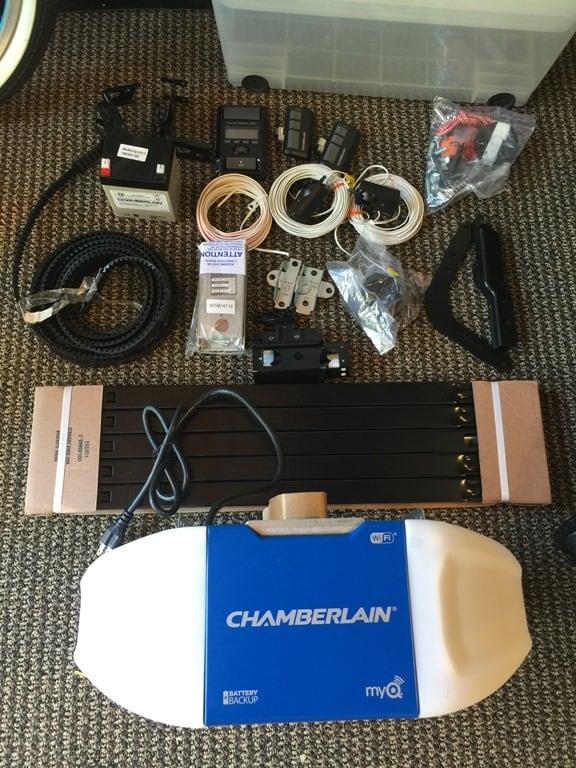
- Compatible Chamberlain Opener: Most models manufactured after 2017 have built-in MyQ WiFi. Older units may require a MyQ Smart Garage Hub.
- Smartphone/Tablet: iOS 14+ or Android 8+.
- MyQ App: Downloaded and updated to the latest version.
- WiFi Credentials: Specifically for a 2.4 GHz network. Note: Most Chamberlain openers do NOT support 5 GHz bands.
- Ladder & Flashlight: For safely accessing the motor unit’s learn button and LED indicators.
⚠️ Critical Safety Warning: Always disconnect power to the garage door opener before performing any physical inspections near the motor housing to prevent accidental activation or electrical shock. Reconnect only when instructed.
Step-by-Step: How To Set Up Chamberlain Garage Door Opener WiFi
Follow these precise instructions to ensure a successful connection on the first attempt.
Step 1: Verify Hardware Compatibility
Locate the model number on the back or side of your motor unit. Cross-reference it with the official MyQ compatibility list. If your unit has a yellow “Learn” button, it likely has integrated WiFi. If it has a purple, orange, or red button without a WiFi logo, you will need an external hub.
Step 2: Prepare Your Network Environment
Ensure your smartphone is connected to your 2.4 GHz WiFi band before launching the app. Temporarily disable mobile data/cellular service during pairing to prevent the phone from switching networks mid-setup. Position yourself within 10 feet of the opener during initial configuration.
Step 3: Initiate Pairing Mode on the Opener
- Press and release the “Learn” button on the motor unit (usually located under the light lens).
- Watch the LED indicator. It should begin flashing blue (or amber, depending on model), indicating it is in WiFi pairing mode.
- If the light does not flash: Hold the Learn button for 6 seconds until the LED turns off, then press once more to reset and re-enter pairing mode.
Step 4: Complete In-App Configuration
- Open the MyQ app and tap “Add Device.”
- Select “Garage Door Opener” > “Chamberlain/LiftMaster.”
- When prompted, confirm the LED on your opener is flashing.
- Enter your 2.4 GHz WiFi password exactly (case-sensitive).
- Wait 60–90 seconds for the handshake. The LED will turn solid green upon success.
Step 5: Test and Name Your Device
Operate the door via the app three times to verify latency and reliability. Assign a descriptive name (e.g., “Main Garage,” “Workshop”) to avoid confusion if you add multiple doors later.
Troubleshooting Common WiFi Setup Failures
Even professionals encounter hiccups. Use this diagnostic table to resolve issues quickly:
| Symptom | Likely Cause | Solution |
|---|---|---|
| LED flashes then turns red | Wrong WiFi band or weak signal | Switch to 2.4 GHz; move router closer temporarily |
| App stuck on “Connecting” | Router firewall blocking MyQ | Enable UPnP; whitelist myqdevice.com domains |
| Device goes offline daily | IP conflict or DHCP lease issue | Assign static IP to opener in router settings |
| No LED response to Learn button | Logic board fault or capacitor failure | Power cycle unit; inspect wiring; consult technician |
| Pairing succeeds but no control | Outdated firmware | Check MyQ app for mandatory firmware update prompt |
💡 Expert Tip: If your garage has poor WiFi coverage, install a dedicated 2.4 GHz extender inside the garage rather than relying on whole-home mesh systems, which sometimes cause band-steering conflicts with IoT devices.
Optimizing Security After WiFi Setup
Connecting your garage to the internet introduces cybersecurity considerations. Protect your investment with these best practices:
- Enable Two-Factor Authentication (2FA): Mandatory in the MyQ app since 2023; never disable it.
- Use Unique Passwords: Never reuse your email or banking credentials for MyQ.
- Review Activity Logs Monthly: Audit access history for unauthorized entries.
- Update Firmware Quarterly: Chamberlain releases security patches regularly; enable auto-updates.
- Segment Your Network: Place IoT devices on a separate guest/VLAN network isolated from personal computers.
Frequently Asked Questions (FAQ)
Q1: Can I use a 5 GHz WiFi network with my Chamberlain opener?
No. Chamberlain MyQ technology exclusively uses the 2.4 GHz frequency band due to its superior wall penetration and range, which is essential for garage environments. Attempting to pair on 5 GHz will result in persistent connection failures. Ensure your router broadcasts a distinct 2.4 GHz SSID if you use band steering.
Q2: Do I need a subscription to use WiFi features?
Basic remote control, status monitoring, and alerts are completely free with the MyQ app. However, advanced features like video storage, extended cloud history, and certain smart home integrations (e.g., IFTTT, Alarm.com) require a paid MyQ Premium subscription. Core WiFi functionality never expires.
Q3: What happens if my WiFi goes down?
Your garage door opener continues to function normally via traditional remotes, wall buttons, and keypads. WiFi is purely for remote monitoring and control. Once your internet restores, the opener automatically reconnects without manual intervention, typically within 2–5 minutes.
Q4: Is the Chamberlain MyQ system compatible with Apple HomeKit or Google Home?
Direct native integration varies by model. Many newer Chamberlain units support Amazon Alexa and Google Assistant natively through the MyQ app linking. Apple HomeKit compatibility is limited and often requires a third-party bridge or specific newer models. Always check your exact model’s spec sheet before purchasing for ecosystem compatibility.
Q5: How far can my router be from the garage door opener?
For reliable WiFi performance, we recommend the router be no more than 30 feet from the opener with minimal obstructions. Concrete walls, metal siding, and HVAC ductwork significantly degrade signals. If your distance exceeds this, install a WiFi extender rated for outdoor/garage use or consider a hardwired Ethernet adapter for maximum stability.
Q6: Why did my previously working WiFi connection suddenly stop?
Sudden disconnections are commonly caused by router firmware updates that change security protocols, ISP-assigned dynamic IP changes, or MyQ server maintenance. First, power-cycle both your router and garage opener. If unresolved, check the MyQ Service Status page for outages before assuming hardware failure.
Conclusion
Learning how to set up Chamberlain garage door opener WiFi transforms your garage from a vulnerable entry point into an intelligent, monitored component of your home security ecosystem. By following the precise steps outlined above—verifying compatibility, preparing your 2.4 GHz network, executing pairing correctly, and implementing security best practices—you ensure reliable performance for years to come. Remember, the initial 20-minute setup pays dividends in daily convenience and long-term safety.
Found this guide helpful? Share it with friends, family, or neighbors who are struggling with their smart garage setup! Tag us on social media or forward this article to someone who deserves the peace of mind that comes with a properly connected Chamberlain opener. Together, we can make every home smarter and safer. 🏡🔒
Leave a Reply