If your Meross garage door opener suddenly disconnects or you’ve recently changed your home router, you may be wondering how to change WiFi on Meross garage door opener without reinstalling everything from scratch. Don’t worry—this is a common issue, and the fix is much easier than most people think. This guide walks you through the process step by step in a friendly, beginner-friendly way.
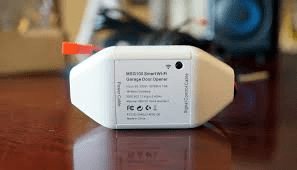
How To Change WiFi On Meross Garage Door Opener (Quick Overview)
Before jumping deeper, here’s a simple overview of the process you’ll learn in detail:
- Delete the device from the Meross App.
- Reset the opener using the physical reset button.
- Reconnect through the app and choose the new WiFi network.
- Calibrate and test the garage door again.
Read too: Why Are My Garage Doors Opening By Themselves? Troubleshooting Guide
Now let’s break everything down clearly.
Why Meross Requires Re-Pairing When WiFi Changes
Meross devices store your WiFi credentials internally. Once your SSID or password changes, the opener can’t connect. Unlike some smart devices that allow editing WiFi directly, Meross requires re-pairing for security and reliability reasons.
According to industry-wide IoT standards (such as WPA2 encryption), devices must re-authenticate with new WiFi profiles for safety. This ensures your garage door—an entry point to your home—remains protected. (For general reference on WiFi security, you may read more at Wikipedia.)
Step-By-Step Guide: How To Change WiFi on Meross Garage Door Opener
1. Remove Your Meross Opener From the App
This resets the device’s cloud connection and prepares it for new WiFi.
Steps:
- Open the Meross App on your phone.
- Tap your garage door opener device.
- Tap the three dots (…) in the top-right corner.
- Select Device Info → Delete Device.
- Confirm the deletion.
Why this matters:
Meross links every device to a specific WiFi profile on your account. Removing it prevents pairing conflicts with the new network.
2. Reset the Meross Garage Opener Hardware
Your opener must be put into Pairing Mode to accept the new WiFi connection.
How to reset (works for most Meross models):
- Locate the reset button on the Meross controller
(usually a small circular button near the LED light). - Press and hold it for 5–10 seconds.
- Release when the LED starts blinking amber (pairing mode).
If the LED blinks slowly, repeat the process until you see fast blinking.
Tip:
Meross LED colors:
- Fast amber blink: Ready to pair
- Slow blink: Booting / not paired
- Solid green: Successfully connected
3. Reconnect the Opener to Your New WiFi Network
Important Requirements
Before pairing:
- Your phone must be connected to a 2.4 GHz WiFi network (Meross does not support 5 GHz).
- Turn on Bluetooth (some models use BLE for faster pairing).
- Ensure your new router has WPA2 enabled.
Pairing Steps:
- Open the Meross App.
- Tap + (Add Device).
- Choose Garage Door Opener.
- Confirm the LED status: fast blinking amber.
- Select your new WiFi network.
- Enter the WiFi password carefully.
- Complete the setup wizard (device naming, location, integration options).
Once done, the LED should turn solid green—that means the connection is successful.
4. Recalibrate the Door (Optional but Recommended)
If you removed or reset the device, you should re-calibrate.
Calibration Steps:
- Open your opener inside the app.
- Tap the Settings icon.
- Select Calibrate.
- Follow the prompts:
- Open the door fully.
- Close the door fully.
- Confirm movements.
This ensures the app reads “open” and “closed” positions correctly.
People Also Ask (Answers to Common Questions)
—
How do I reset my Meross garage opener?
Most Meross models reset by holding the small side button for 5–10 seconds until the LED flashes amber. If the light doesn’t blink, try holding it longer or cycle power before retrying.
Can Meross connect to 5 GHz WiFi?
No. Meross smart controllers only work on 2.4 GHz networks, which have better range and wall penetration—important for garage installations.
Do I need to remove the device to change the WiFi?
Yes. Meross currently does not support editing WiFi parameters without re-adding the device. Deleting the device ensures a clean pairing.
Why won’t my Meross opener connect to the new WiFi?
Common causes include:
| Problem | Explanation | Fix |
|---|---|---|
| 5 GHz WiFi | Meross doesn’t support it | Use 2.4 GHz only |
| Weak signal | Garage may be far from router | Add WiFi extender |
| Wrong password | Most common error | Retype carefully |
| MAC Filtering On | Router blocks unknown devices | Disable filtering |
| Blinking pattern mismatch | Not in pairing mode | Reset again |
Does Meross work with Alexa and Google Home after WiFi change?
Yes, but you must reconnect the device in the Meross App first. Once the opener is visible again, voice assistants will automatically detect it within a few minutes.
Troubleshooting: What If Meross Still Won’t Connect?
1. Check Router Distance
Garages often have thick walls. If your opener shows unstable blinking or disconnects often, your signal may be too weak.
Quick Fixes:
- Move your router closer to the garage if possible
- Add a 2.4 GHz WiFi extender
- Use a mesh WiFi system for better coverage
Data from multiple smart home tests show WiFi performance drops up to 60% through concrete walls—common in North American garages.
2. Disable or Adjust Router Security Features
Modern routers use advanced protections like WPA3, MAC Filtering, and AP Isolation. Meross supports WPA2, not WPA3-only configurations.
Recommended Settings:
- WiFi Mode: 802.11 b/g/n (2.4 GHz)
- Security: WPA2-Personal
- Disable AP Isolation
- Disable MAC Filtering
3. Confirm Your SSID Is Visible
Hidden SSIDs sometimes cause pairing failures.
Solution:
Temporarily unhide your network while pairing.
Comparison: Reset vs. Full Re-Installation
| Action | When to Use | Pros | Cons |
|---|---|---|---|
| Simple Reset | WiFi changed or router replaced | Fast, preserves settings | Must re-pair |
| Factory Reset | Device malfunctioning | Clears corrupted settings | Time-consuming |
| Full Re-Installation | Hardware rewiring | Starts fresh | Requires wiring |
For WiFi changes, a simple reset (our method) is best.
Safety Tips When Working With Garage Openers
Even though Meross devices are low-voltage and safe, garage doors themselves can be dangerous.
Safety Reminders:
- Never stand directly under a moving door
- Keep children away during calibration
- Ensure manual release rope is accessible
- If door movement seems uneven, stop and inspect
FAQ (H2)
Q1: Can I change the WiFi without deleting the device?
A: No. Meross requires deleting and re-adding the device to enter new WiFi credentials.
Q2: Does changing WiFi delete my automation rules?
A: Yes, routines linked to the old device must be recreated because the new pairing generates a new device ID in the cloud.
Q3: How long does it take to change the WiFi?
A: Most users complete the entire process in 3–5 minutes, including resetting and pairing.
Q4: What if the LED never starts blinking fast?
A: This often means the reset button wasn’t held long enough. Try holding it 10+ seconds or unplug the unit for 10 seconds and retry.
Q5: Why can’t my phone find the Meross device during pairing?
A: Make sure Bluetooth is enabled. Some Meross models rely on BLE to detect nearby devices quickly.
Q6: Do I need to redo Apple HomeKit or Google Home setup after WiFi change?
A: Yes, because the device is treated as new after re-pairing. The app will guide you automatically.
Conclusion
Changing the WiFi on your Meross garage door opener may seem intimidating, but now you know it’s actually very simple. By deleting the device, resetting it, and reconnecting through the app, you can restore full smart control in just a few minutes. If this guide helped you, feel free to share it on your social media so more people can solve the same problem quickly.
Let me know if you want a short version, a YouTube script, or an infographic version of this article!
Leave a Reply