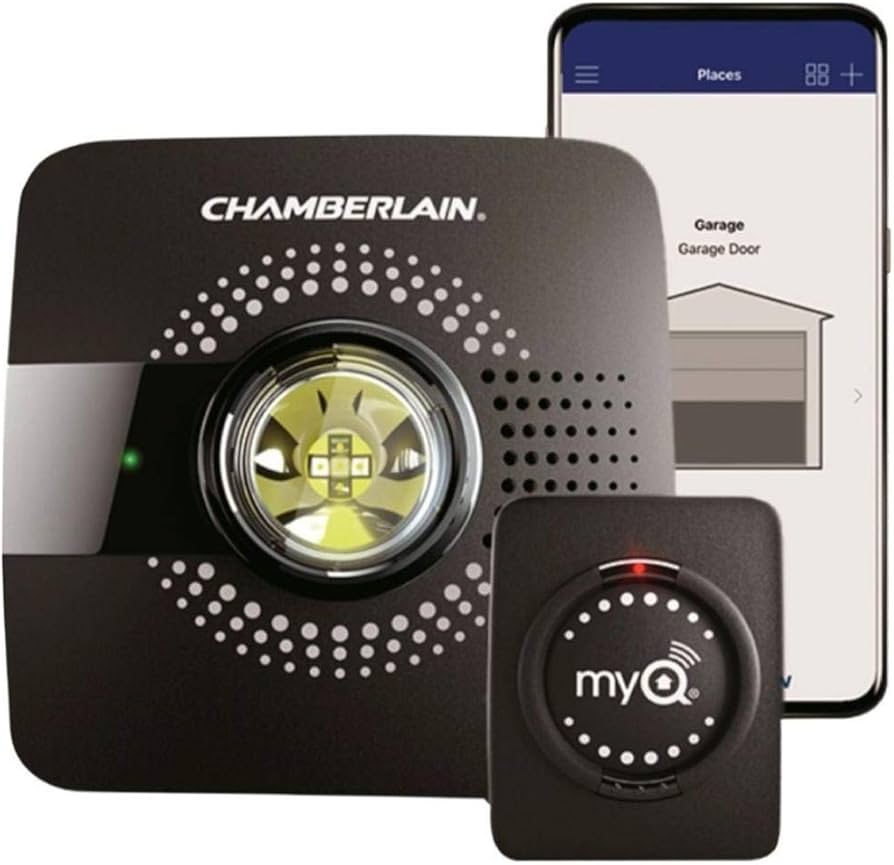
Is your new smart garage hub sitting unused in the box? Or perhaps you recently reset your system and now can’t figure out how to reconnect your devices? You are not alone. Many homeowners struggle with the initial setup of smart home devices, but learning how to program a Chamberlain MyQ garage door opener is simpler than it looks. With the right steps, you can secure your home and enjoy remote access in under 15 minutes.
Why Choose the Chamberlain MyQ System?
Before diving into the technical steps, it helps to understand why the MyQ ecosystem is a top choice for US homeowners. Chamberlain, the parent company, has been a leader in garage access solutions for decades. The MyQ technology allows you to control your garage door from anywhere using your smartphone.
According to industry reports, smart home adoption in the United States has grown significantly, with garage security being a primary concern for residents. The MyQ system integrates seamlessly with major platforms like Amazon Alexa, Google Assistant, and Apple HomeKit (via third-party bridges or native support depending on the model). This interoperability makes it a versatile choice for modern smart homes.
For more background on the history of garage door automation standards, you can refer to Wikipedia’s entry on garage door openers.
Prerequisites: What You Need Before Starting
Successful programming depends on preparation. Ensure you have the following items ready before you begin:
- A Compatible Garage Door Opener: Most Chamberlain, LiftMaster, and Craftsman openers manufactured after 2011 are MyQ compatible. Look for a yellow “MyQ” label or a purple learn button on your motor unit.
- The MyQ App: Download the free MyQ app from the Apple App Store or Google Play Store.
- Stable Wi-Fi Connection: Your garage needs to be within range of your home’s 2.4 GHz Wi-Fi network. Note: MyQ devices generally do not support 5 GHz networks.
- Your Garage Door Remote: You will need this to sync with the new MyQ hub or to reprogram existing remotes.
- A Ladder: To safely reach the motor unit mounted on your garage ceiling.
Step-by-Step Guide: How to Program a Chamberlain MyQ Garage Door Opener
Programming your device involves two main phases: setting up the MyQ Hub (if you have one) and syncing your remote controls or keypads. Follow these precise steps to ensure a successful connection.
Phase 1: Setting Up the MyQ Smart Hub
If you purchased a standalone MyQ Smart Garage Hub, follow these instructions:
- Power the Hub: Plug the MyQ Hub into a standard electrical outlet in your garage. Ensure it is within 6 feet of your garage door opener motor.
- Position the Sensor: Attach the door sensor to the top panel of your garage door using the provided adhesive strips. Align the arrow on the sensor with the arrow on the bracket attached to the track.
- Open the MyQ App: Create an account or log in if you already have one.
- Add a Device: Tap the “+” icon or “Add Device” in the app. Select “Garage Door Opener.”
- Follow On-Screen Prompts: The app will search for your Hub. Once found, it will ask you to connect to your Wi-Fi. Enter your 2.4 GHz network password carefully.
- Test the Connection: The app will prompt you to open and close the door to verify the sensor is working correctly.
Phase 2: Programming Remotes and Keypads
If you are adding a remote control or wireless keypad to an existing MyQ-enabled opener, the process relies on the “Learn Button” on your motor unit.
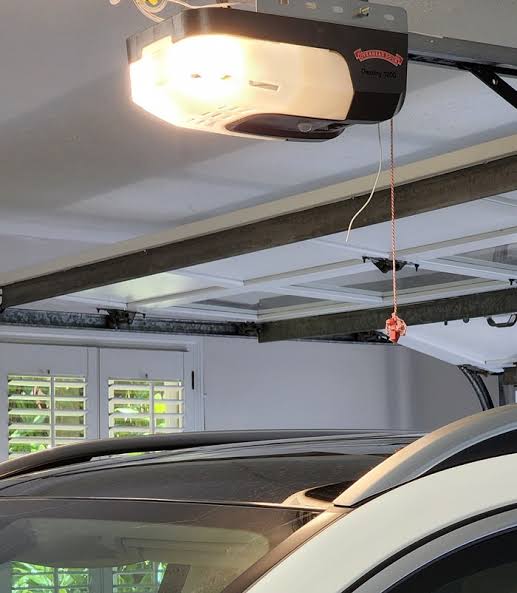
- Locate the Learn Button: Climb your ladder and find the motor unit. The Learn button is usually located on the back or side panel. It is typically yellow, purple, orange, or red.
- Tip: Take a photo of the button color; it determines the coding type.
- Clear Old Codes (Optional but Recommended): If you are having trouble, press and hold the Learn button for 10 seconds until the indicator light blinks. This clears all previously programmed remotes. Warning: You will need to reprogram all existing remotes after doing this.
- Initiate Programming Mode: Press and release the Learn button quickly. The indicator light will turn on or blink, signaling that the unit is ready to receive a signal. You have 30 seconds to complete the next step.
- Sync the Remote: Within 30 seconds, press and hold the button on your remote control that you wish to program. Hold it until the motor unit’s lights flash or you hear two clicks.
- Test the Remote: Press the remote button again. The garage door should activate.
Troubleshooting Common Pairing Issues
Even with careful execution, issues can arise. Here is a quick comparison of common problems and solutions:
| Issue | Possible Cause | Solution |
|---|---|---|
| Remote Not Syncing | Wrong frequency or old battery | Replace remote batteries; ensure remote is compatible with your opener’s year. |
| Hub Offline | Weak Wi-Fi signal | Move router closer or install a Wi-Fi extender in the garage. |
| Door Reverses Immediately | Sensor misalignment | Check safety eyes at the bottom of the door tracks; ensure they are aligned and clean. |
| App Says “No Response” | Internet outage | Check your home internet connection; restart the MyQ Hub by unplugging it for 10 seconds. |
Understanding the “Learn Button” Colors
The color of the Learn button on your Chamberlain opener indicates the technology generation. This is crucial when buying replacement remotes.
- Yellow: Uses Security+ 2.0 rolling code technology. Common in models from 2011–present.
- Purple: Also uses Security+ 2.0. Often found in LiftMaster models.
- Orange/Red: Older Security+ technology. Pre-2011 models.
- Green: Very old DIP switch systems. These are generally not compatible with modern MyQ hubs without additional hardware.
Expert Tip: If your opener has DIP switches (small rows of tiny switches inside the remote and motor), it is likely too old for direct MyQ integration. You may need to replace the motor unit or use a universal retrofit kit.
FAQ: Frequently Asked Questions
1. Can I program a MyQ opener without the app?
No, the MyQ Smart Hub requires the app for initial Wi-Fi setup and configuration. However, once set up, you can use physical remotes and wall consoles without opening the app. For older openers with built-in MyQ, you still need the app to enable smart features.
2. Why won’t my MyQ Hub connect to Wi-Fi?
The most common reason is attempting to connect to a 5 GHz network. MyQ Hubs only support 2.4 GHz Wi-Fi. Ensure your router broadcasts a 2.4 GHz signal and that you are entering the correct password. Also, check that your garage has sufficient signal strength.
3. How many remotes can I program to one Chamberlain opener?
Most Chamberlain and LiftMaster openers can store up to 50 unique remote codes. This includes handheld remotes, wireless keypads, and vehicle homelink systems. If you exceed this limit, you must clear the memory and reprogram all devices.
4. Is the Chamberlain MyQ system secure?
Yes, MyQ uses bank-level encryption for data transmission. However, like any IoT device, it is essential to keep your app updated and use a strong, unique password for your MyQ account. Enable two-factor authentication (2FA) if available for added security.
5. What should I do if the garage door closes but immediately opens again?
This is usually a safety sensor issue. Check the photo-eye sensors located near the floor on both sides of the door. Ensure they are aligned (no obstructions) and that the indicator lights are solid (not blinking). Dirt or misalignment can trigger the safety reverse mechanism.
Conclusion
Learning how to program a Chamberlain MyQ garage door opener empowers you to take full control of your home’s security and convenience. Whether you are setting up a new Smart Hub or simply adding a remote, following the correct steps ensures a smooth experience. Remember to check your Wi-Fi compatibility, identify your Learn button color, and keep your safety sensors clean.
Leave a Reply