Introduction
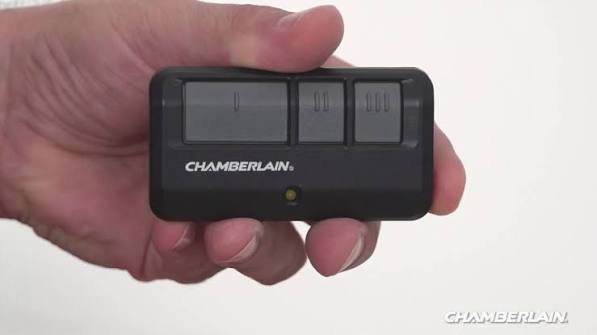
There is nothing quite as frustrating as sitting in your driveway, pressing a visor button repeatedly, only to realize your vehicle and garage are no longer communicating. If you have recently purchased a new vehicle, replaced a battery, or reset your system, understanding how to sync Chamberlain garage door opener with car is essential for restoring seamless daily convenience. This guide provides empathetic, expert-backed solutions to get you back inside safely and quickly, without the need for expensive service calls.
Understanding Compatibility Before You Begin
Before attempting any programming, it is vital to confirm that your specific Chamberlain model supports in-car synchronization. Not all openers are created equal, and compatibility depends heavily on the manufacturing date and frequency technology.
According to industry standards, most Chamberlain openers manufactured after 1993 utilize Security+ rolling code technology, which is compatible with universal in-car remotes like HomeLink. However, older fixed-code models may require a separate compatibility bridge or receiver upgrade. Always check the “Learn” button color on your motor unit:
- Yellow Learn Button: Security+ 2.0 (2011–Present)
- Purple Learn Button: Security+ (2006–2014)
- Red/Orange Learn Button: Security+ (1997–2005)
- Green Learn Button: Older Fixed Code (Pre-1997)
Knowing your button color saves time and prevents frustration during the syncing process.
Method 1: Programming HomeLink Systems (Most Common)
For the vast majority of US drivers, the built-in HomeLink system is the primary interface. Follow these precise steps to ensure a successful connection.
Step 1: Clear Previous Codes
If this is a used vehicle or you are reprogramming, clear the existing memory first. Press and hold the two outer HomeLink buttons simultaneously for approximately 10 seconds until the indicator light changes from solid to flashing. Do not skip this step, as residual data causes sync failures.
Step 2: Train the HomeLink Button
- Hold your original Chamberlain handheld remote 1–3 inches away from the HomeLink button you wish to program.
- Simultaneously press and hold both the handheld remote button and the chosen HomeLink button.
- Watch the HomeLink indicator light. It will flash slowly at first, then rapidly once the frequency is captured. This typically takes 5–20 seconds.
- Release both buttons once the rapid flashing begins.
Step 3: Activate the Chamberlain Learn Button
This is the critical security handshake that many users miss when learning how to sync Chamberlain garage door opener with car:
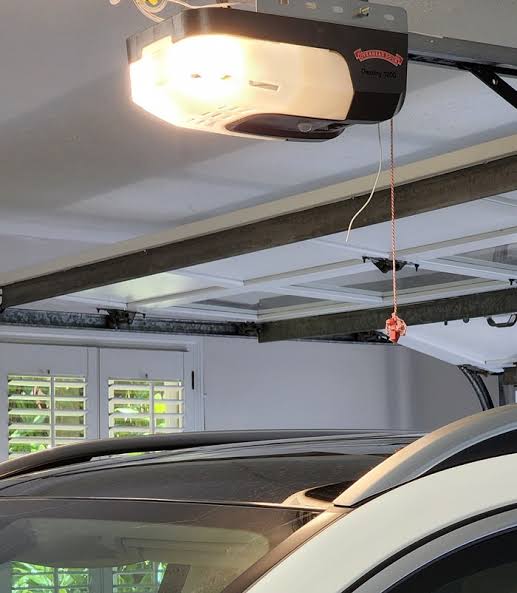
- Locate the “Learn” button on the back or side of your garage door motor unit.
- Press and release the Learn button. You have exactly 30 seconds to complete the next step before the system times out.
- Return to your vehicle and press the newly programmed HomeLink button three times, holding each press for 2 seconds.
- The garage door should activate, confirming the sync is complete.
Expert Tip: If the door does not move after three presses, repeat Step 3 immediately. The 30-second window is strict, and environmental interference can sometimes delay signal reception.
Method 2: Using the Visor Clip Remote
Not all vehicles have integrated HomeLink. For those using a Chamberlain universal visor clip remote (Model KLIK3U or similar), the process differs slightly but remains straightforward.
- Reset the Clip Remote: Slide the battery cover open and press the small reset pinhole button until the LED blinks.
- Enter Programming Mode: Press and hold the desired button on the clip remote until the LED turns solid blue.
- Sync with Motor Unit: Press the Learn button on your Chamberlain opener. Within 30 seconds, press the clip remote button again. The opener lights should flash or click.
- Test Operation: Press the clip remote button once to verify full range and responsiveness.
Visor clips are ideal for older vehicles or rental cars where permanent programming isn’t desirable.
Troubleshooting: When Syncing Fails
Even professionals encounter hiccups. Use this diagnostic table to identify and resolve common issues efficiently.
| Symptom | Likely Cause | Solution |
|---|---|---|
| Light flashes but door won’t move | Rolling code not synced | Repeat “Learn Button” activation within 30 seconds |
| No response at all | Frequency mismatch | Verify opener compatibility; consider universal receiver |
| Works intermittently | Weak battery or interference | Replace remote battery; check for LED bulb interference |
| HomeLink light never flashes rapidly | Signal not captured | Move remote closer (1 inch); try different angle |
| Door reverses immediately | Safety sensor misalignment | Clean and realign photo-eye sensors at floor level |
Note on LED Bulbs: Many homeowners unknowingly install non-compatible LED bulbs in their garage opener fixtures. These emit radio frequency interference that blocks sync signals. Always use Chamberlain-approved LED bulbs or temporarily remove bulbs during programming.
Safety and Maintenance Best Practices
Synchronization isn’t just about convenience—it’s a safety feature. Properly synced systems reduce the temptation to leave doors open or force manual operation, which accounts for thousands of annual injuries.
- Test Monthly: Press your in-car button monthly to ensure consistent performance.
- Battery Replacement Schedule: Replace handheld remote batteries every 12–18 months, even if they still appear functional. Weak signals cause intermittent sync loss.
- Sensor Alignment Check: Ensure safety reversal sensors are clean, aligned, and unobstructed. A misaligned sensor will prevent synced operation entirely.
- Firmware Updates: Newer Chamberlain myQ-enabled openers receive over-the-air updates that improve compatibility. Check the myQ app quarterly for available firmware.
Consistent maintenance extends opener lifespan by an average of 3–5 years according to manufacturer service data.
Frequently Asked Questions (FAQ)
Can I sync multiple cars to one Chamberlain opener?
Yes. Most Chamberlain openers support up to 30 remote devices, including multiple HomeLink vehicles, handheld remotes, and keypads. Each vehicle must be programmed individually using the Learn button sequence. There is no limit to the number of cars, only total device memory.
Why does my HomeLink work sometimes but not others?
Intermittent operation usually indicates weak signal strength or RF interference. First, replace your vehicle’s HomeLink battery (if applicable—some draw from car power). Second, check for nearby electronics, Wi-Fi routers, or incompatible LED bulbs. Third, ensure your handheld remote battery is fresh, as HomeLink learns from its signal strength.
Do I need a professional to sync my Chamberlain opener?
No. How to sync Chamberlain garage door opener with car is designed as a DIY task requiring no tools beyond your existing remote. Professional service is only needed if hardware components (logic board, receiver) have failed or if your opener predates 1993 and lacks rolling code compatibility.
What if my car doesn’t have HomeLink?
Purchase a Chamberlain universal visor clip remote or a plug-in wireless keypad. Both integrate seamlessly with Security+ and Security+ 2.0 openers. Alternatively, some aftermarket HomeLink retrofit kits can be installed in vehicles lacking factory integration, though professional installation is recommended for electrical modifications.
Will syncing drain my car battery?
No. HomeLink draws negligible power (less than 0.01 amps) when idle. Even vehicles parked for months experience no meaningful battery impact from stored garage door codes. If you notice battery drain, the issue lies elsewhere in your vehicle’s electrical system.
Can I sync my phone instead of my car?
Yes, if your Chamberlain opener is myQ-enabled. Download the free myQ app, connect via Wi-Fi, and control your door from any smartphone. This serves as an excellent backup to in-car syncing and provides real-time door status notifications. However, phone control requires internet connectivity, whereas HomeLink works offline.
Conclusion
Mastering how to sync Chamberlain garage door opener with car transforms a daily annoyance into effortless automation. Whether you’re using HomeLink, a visor clip, or exploring smart alternatives, the key lies in methodical execution and understanding your specific opener’s requirements. Remember to verify compatibility, respect the 30-second Learn button window, and maintain your system regularly for lasting reliability.
Your garage should serve you—not frustrate you. Take five minutes today to follow these steps and reclaim the convenience you deserve.
Found this guide helpful? Share it with friends, family, or neighbors who might be struggling with their own garage door sync issues. Tag us on social media with your success story—we love seeing our community solve problems together! 🏡🚗
Leave a Reply