Introduction
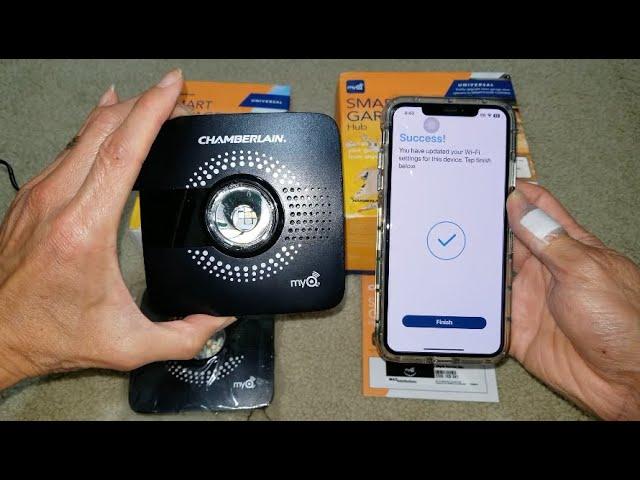
There are few things more frustrating than pulling into your driveway only to find that your smart garage door opener has lost its connection to the internet. If you are currently staring at a blinking LED or an unresponsive app, you are likely searching for how to reset WiFi on Chamberlain garage door opener systems to regain control. This common connectivity hiccup can stem from router updates, power outages, or simple software glitches, but the solution is usually straightforward and takes less than five minutes. In this comprehensive guide, we will walk you through the exact reset procedures, troubleshooting tips, and maintenance advice to ensure your garage remains secure and accessible.
Why Your Chamberlain Opener Loses WiFi Connectivity
Before diving into the reset process, it is helpful to understand why these disconnections occur. Chamberlain openers equipped with myQ technology rely on a stable 2.4GHz wireless signal to communicate with cloud servers. Unlike standard household devices, garage door openers are often located in metal-encased environments or far from the primary router, making them susceptible to signal degradation.
Common triggers for WiFi loss include:
- Router Firmware Updates: Automatic updates can change security protocols (e.g., WPA2 to WPA3), causing older opener firmware to reject the handshake.
- Band Steering: Many modern mesh routers combine 2.4GHz and 5GHz bands under one SSID. Chamberlain openers only support 2.4GHz; if the router forces a 5GHz connection, the device will fail to connect.
- Power Surges: Brief electrical fluctuations can corrupt the WiFi module’s temporary memory.
- ISP Changes: Changing your internet provider or network password requires a manual reconfiguration of the opener.
Understanding these root causes helps prevent future downtime and ensures that when you learn how to reset WiFi on Chamberlain garage door opener units, you are addressing the symptom and the source.
Step-by-Step: How To Reset Wifi On Chamberlain Garage Door Opener
The reset procedure varies slightly depending on whether your unit has a built-in WiFi hub or uses an external Internet Gateway. Below is the universal method for most modern Chamberlain/LiftMaster models with integrated myQ.
Phase 1: Clearing the Existing Network Configuration
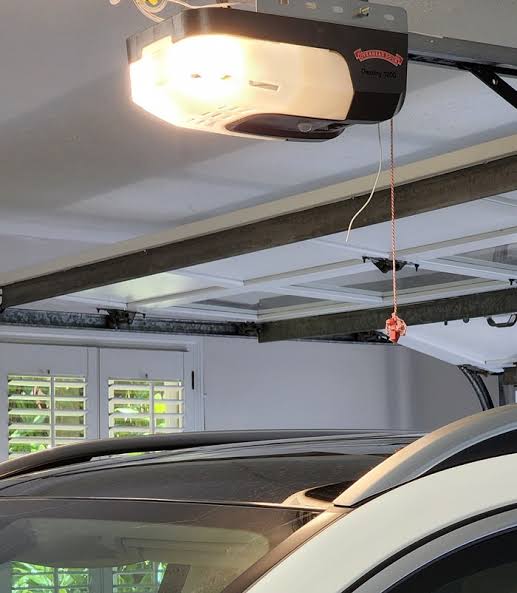
- Locate the Learn Button: Find the square or circular “Learn” button on the motor head. It is typically yellow, red, orange, or purple and located near the antenna wire or light lens.
- Initiate WiFi Reset Mode: Press and hold the Learn button for approximately 6 to 10 seconds. Watch the LED indicator closely.
- Confirm the Reset: The LED will turn off and then begin flashing blue (or amber on some models). Once the light flashes, release the button. This indicates the previous WiFi credentials have been erased from the logic board.
- Wait for Reboot: Allow the unit 30 seconds to fully cycle. The LED should eventually settle into a steady or slow-blinking blue state, indicating it is ready for pairing.
⚠️ Safety Note: Always keep hands and tools clear of the door chain/belt drive while working on the motor head. Disconnect power only if you need to perform a hard power cycle, not for a standard WiFi reset.
Phase 2: Reconnecting via the myQ App
Once the hardware reset is complete, you must re-establish the digital handshake:
- Open the myQ App on your smartphone and ensure Bluetooth is enabled.
- Tap the “+” icon or “Add Device” and select “Garage Door Opener.”
- Scan the QR code located on the motor head (or enter the serial number manually if the code is faded).
- Select your home WiFi network. Crucial: You must select a 2.4GHz network. If your router uses a single name for both bands, temporarily disable the 5GHz band in your router settings or move closer to the router during setup.
- Enter your WiFi password precisely. The app will transmit credentials to the opener via Bluetooth, then verify the internet connection.
- Wait for the confirmation chime and solid green/blue LED on the opener. This process typically takes 45 to 90 seconds.
Troubleshooting: When the Reset Doesn’t Work
If you have followed the steps above and still cannot connect, use this diagnostic table to identify the issue.
| Symptom | Probable Cause | Recommended Fix |
|---|---|---|
| LED flashes red/green alternating | Wrong WiFi band selected | Switch to dedicated 2.4GHz SSID |
| LED never enters flash mode | Logic board freeze | Unplug opener for 60 seconds; retry |
| App says “Device Offline” after setup | Weak signal strength | Install WiFi extender or myQ Signal Booster |
| Connects then drops immediately | Router firewall blocking ports | Enable UPnP or whitelist myQ servers |
| No LED response to Learn button | Faulty WiFi module | Contact Chamberlain Support for replacement |
The Importance of Signal Strength
According to Chamberlain’s technical documentation, the opener requires a minimum signal strength of -70 dBm for reliable operation. Most smartphones display WiFi signal in bars, which is imprecise. Use a free WiFi analyzer app to measure the actual dBm reading at the opener’s location. If the reading is below -75 dBm, no amount of resetting will solve the problem permanently; you will need hardware intervention like a range extender.
Optimizing Your Network for Smart Garage Security
Resetting your WiFi is a reactive measure. Proactive optimization ensures your Chamberlain garage door opener WiFi reset becomes a rare event rather than a monthly chore.
Dedicated IoT Network Segmentation
Security experts recommend creating a separate VLAN or guest network specifically for smart home devices. This serves two purposes:
- Stability: Prevents bandwidth-heavy devices (streaming TVs, gaming consoles) from crowding the 2.4GHz spectrum.
- Security: Isolates your garage door from personal computers and phones, reducing the attack surface if a device is compromised.
Firmware Maintenance
Chamberlain periodically releases firmware updates that improve WiFi stack stability. These updates occur automatically when the device is connected, but they can fail if the connection is intermittent. After successfully resetting and reconnecting, leave the opener powered on and connected for at least 24 hours to allow any pending firmware patches to download and install.
Frequently Asked Questions (FAQ)
1. Will resetting the WiFi erase my programmed remotes and keypads?
No. The WiFi reset procedure specifically targets the network module’s memory. Your handheld remotes, wireless keypads, and Homelink vehicle programming are stored on a separate non-volatile chip and remain fully functional during a WiFi reset. You do not need to reprogram access devices unless you perform a full factory reset of the entire logic board.
2. Can I use a 5GHz WiFi network with my Chamberlain opener?
Generally, no. Almost all Chamberlain myQ-enabled openers operate exclusively on the 2.4GHz frequency due to its superior wall penetration and range. Attempting to connect to a 5GHz-only network will result in repeated failures. Dual-band routers must have the 2.4GHz radio enabled for successful pairing.
3. How often should I reset my garage door opener’s WiFi?
You should only reset the WiFi when experiencing connectivity issues or when changing your home network credentials. There is no scheduled maintenance requirement for WiFi resets. Frequent resets may indicate underlying hardware failure, excessive RF interference, or router incompatibility that requires professional diagnosis.
4. What does a flashing blue light mean after a reset?
A flashing blue LED indicates the opener is in WiFi Setup Mode and is actively broadcasting a Bluetooth signal for the myQ app to discover. This mode typically lasts for approximately 30 minutes. If you do not complete the app setup within this window, the opener will exit setup mode, and you will need to repeat the Learn button hold procedure.
5. Is there a way to reset WiFi without using the myQ app?
No. While the hardware reset clears old credentials via the Learn button, the new credentials must be provisioned through the encrypted myQ app ecosystem. Chamberlain does not support WPS (WiFi Protected Setup) or web-browser-based configuration for security reasons. The app ensures end-to-end encryption between your phone, the cloud, and the garage door.
6. My opener connects but shows “offline” in the app—what now?
This usually indicates a DNS or firewall issue rather than a WiFi signal problem. Try restarting your router and modem. If the issue persists, check your router’s parental controls or firewall settings to ensure ports 80, 443, and 8883 are not blocked for the opener’s MAC address. Some ISPs also require you to disable “Advanced Security” features that mistakenly flag IoT telemetry as suspicious traffic.
Conclusion
Mastering how to reset WiFi on Chamberlain garage door opener systems empowers you to maintain seamless smart home functionality without relying on costly service calls. By following the precise Learn button sequence, ensuring 2.4GHz compatibility, and optimizing your network environment, you can restore myQ connectivity in minutes and keep your home secure. Remember that consistent connectivity is a combination of proper reset technique and proactive network management.
If this guide helped you get back online, please share it on social media to help fellow homeowners troubleshoot their smart garage issues. A quick share could save someone else hours of frustration! Have additional tips or unique model-specific quirks? Drop a comment below to contribute to our community knowledge base.
Leave a Reply