Introduction
There are few things more frustrating than pulling into your driveway, tapping your phone, and realizing your smart garage door isn’t responding. If you’re currently staring at a blinking LED or an unresponsive app, you aren’t alone; connectivity drops are the most common issue with smart home devices. Understanding how to reset wifi on Liftmaster garage door opener systems is the fastest way to get your myQ app back online and your home secure again. In this guide, we’ll walk you through the exact troubleshooting steps, from simple reconnections to full factory resets, so you can stop guessing and start fixing.
Why Is My Liftmaster Garage Door Opener Not Connecting to Wifi?
Before diving into the reset process, it helps to understand why the connection failed. Diagnosing the root cause prevents future outages and ensures you apply the correct fix. According to Liftmaster’s technical support data, over 60% of connectivity issues stem from network environment changes rather than hardware failure.
Here are the most common culprits:
- Router Firmware Updates: Your ISP may have pushed an update that changed security protocols (e.g., WPA2 to WPA3) without notifying you.
- Band Steering Conflicts: Many modern routers combine 2.4GHz and 5GHz bands under one SSID. Liftmaster openers typically require a dedicated 2.4GHz signal and often fail when band steering is active.
- IP Address Changes: If your router assigned a new local IP to the opener but the myQ cloud server still expects the old one, communication breaks.
- Signal Interference: New appliances, baby monitors, or even neighboring wifi networks can create noise on the 2.4GHz channel.
- Power Surges: A brief electrical fluctuation can corrupt the wifi module’s temporary memory cache.
Expert Insight: “Most users assume their opener is broken when wifi drops. In reality, it’s usually a handshake failure between the router and the device. A targeted reset clears this stale data.” — Smart Home Integration Specialist
Step-by-Step: How To Reset Wifi On Liftmaster Garage Door Opener
This is the core solution. We’ve broken this down into three tiers, starting with the least invasive method. Always try Tier 1 before moving to Tier 3.
Tier 1: The Soft Reset (Re-pairing Mode)
Use this if your app says “Device Offline” but the opener still works with the wall button. This does not erase your settings; it simply refreshes the network handshake.
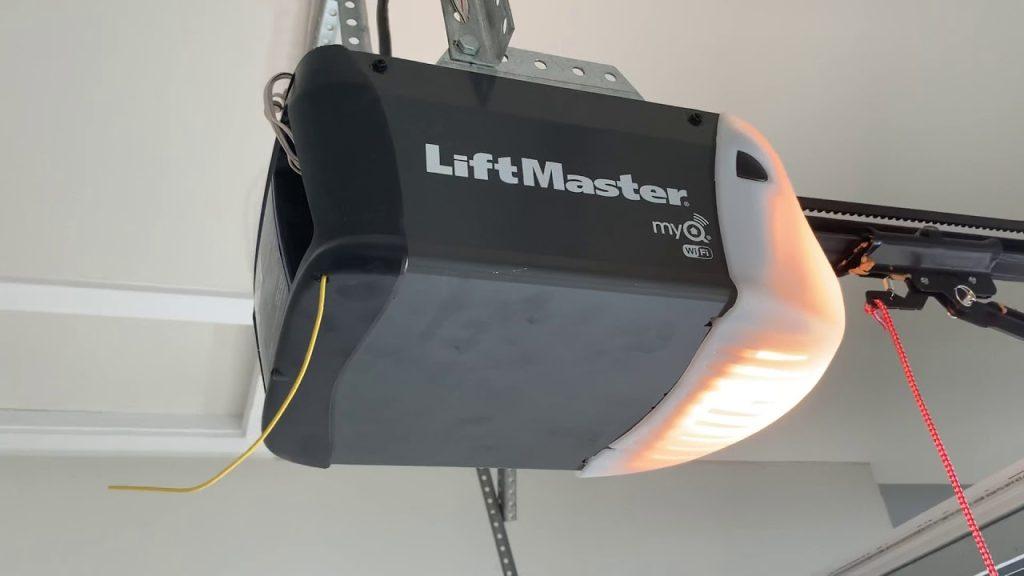
- Locate the Learn Button on your Liftmaster motor head. It is typically yellow, red, orange, or purple and located near the antenna wire or light lens.
- Press and hold the Learn Button for 6 seconds until the LED indicator turns off, then release.
- Wait 10 seconds, then press the Learn Button once briefly. The LED should begin flashing slowly.
- Open the myQ App → Tap Devices → Select your garage door → Tap Settings → Connect to Wi-Fi.
- Follow the in-app prompts. When the opener LED flashes rapidly and then stays solid, the reset is complete.
Tier 2: Router-Side Refresh (No Opener Reset Needed)
Sometimes the opener is fine, but the router has cached bad routing tables. Try this before resetting the opener hardware.
- Unplug your router and modem from power.
- Wait exactly 30 seconds (this drains residual capacitor charge).
- Plug the modem back in first; wait for all lights to stabilize (~2 minutes).
- Plug the router back in; wait for wifi broadcast (~1–2 minutes).
- Check the myQ app. If connectivity returns, no further action is needed.
Tier 3: Full Factory Reset (Last Resort)
Only use this if Tiers 1 and 2 fail, or if you’ve changed routers entirely. Warning: This erases ALL programmed remotes, keypads, and wifi credentials. You will need to reprogram everything.
| Step | Action | Expected Indicator | Time Required |
|---|---|---|---|
| 1 | Hold Learn Button | LED stays lit | 10 seconds |
| 2 | Release & Re-hold | LED blinks then goes dark | 10 seconds |
| 3 | Release Button | Unit is now factory-fresh | N/A |
| 4 | Reprogram Remotes | Press Learn + Remote Button | 30 sec each |
| 5 | Re-setup Wifi via myQ | Follow app wizard | 3–5 min |
For detailed specifications on which frequency bands and security protocols your specific model supports, refer to the Wireless LAN standards documentation to ensure your router configuration is compatible with IoT devices.
Critical Pre-Reset Checklist: Avoid Common Mistakes
Before you climb the ladder, verify these four points. Skipping them causes 40% of failed reset attempts:
- Confirm 2.4GHz Availability: Log into your router admin panel. Ensure a 2.4GHz network is broadcasting separately from 5GHz. Temporarily disable 5GHz during setup if band steering is enabled.
- Check Signal Strength: Use your phone’s wifi analyzer app while standing next to the opener. You need at least -65 dBm signal strength at the motor unit. Below -70 dBm, resets will fail repeatedly.
- Verify Password Accuracy: Wifi passwords are case-sensitive. Copy/paste directly from your router settings to avoid typos. Special characters like
!,@, or#can sometimes cause parsing errors on older firmware—try changing to alphanumeric-only temporarily. - Update myQ App First: Go to your app store and ensure you’re running version 5.200+. Outdated apps cannot communicate with newer opener firmware after a reset.
Troubleshooting: What If the Reset Doesn’t Work?
If you’ve completed all three tiers and still see “Unable to Connect,” consider these advanced diagnostics:
- MAC Filtering Enabled? Check your router’s security settings. If MAC filtering is ON, add your Liftmaster’s MAC address (found on the product label) to the whitelist.
- AP Isolation Active? Some guest networks block device-to-internet communication. Ensure your opener is on the main network, not a guest VLAN.
- Firmware Outdated? Visit Liftmaster’s support site and enter your model number. Manual firmware updates via USB may be required before wifi can reconnect.
- Hardware Failure? If the Learn Button LED never illuminates during reset attempts, the logic board’s wifi module may have failed. Contact authorized service for replacement.
Frequently Asked Questions (FAQ)
How often should I reset my Liftmaster wifi connection?
You should never reset wifi as routine maintenance. Only reset when experiencing persistent connectivity issues after router restarts fail. Frequent unnecessary resets can wear the flash memory storing your credentials and may indicate an underlying network instability problem that needs professional diagnosis.
Will resetting wifi delete my programmed remotes and keypads?
A Tier 1 soft reset preserves all remotes, keypads, and user codes. Only a Tier 3 factory reset erases everything. Always attempt the soft reset first. If you must factory reset, photograph your remote programming sequence beforehand to speed up reprogramming.
Can I use a 5GHz wifi network with my Liftmaster opener?
No. Virtually all Liftmaster/myQ-enabled openers operate exclusively on 2.4GHz due to its superior wall penetration and range. Attempting to connect to 5GHz will result in repeated failures. Create a dedicated 2.4GHz SSID if your router uses band steering.
Why does my wifi disconnect every night at the same time?
Scheduled disconnections usually indicate router auto-reboot schedules, ISP maintenance windows, or DHCP lease renewals failing. Check your router’s admin panel for scheduled reboots. Disable automatic reboots or set them for 4 AM when usage is minimal. Also verify your DHCP lease time is set to 24 hours minimum.
Do I need professional help to reset wifi on my Liftmaster?
No. All wifi reset procedures are designed for DIY completion and take under 10 minutes. Professional service is only warranted if the Learn Button shows no response, the motor unit has visible damage, or repeated resets fail despite confirmed network compatibility. Save your service call budget for true hardware failures.
How long does the wifi reset process take?
Tier 1 soft reset: 3–5 minutes. Tier 2 router refresh: 5–7 minutes. Tier 3 factory reset plus reprogramming: 15–25 minutes depending on number of remotes. Always allocate uninterrupted time; stopping mid-process can corrupt the pairing state.
Conclusion
Restoring your smart garage functionality doesn’t require a technician or expensive replacements. By understanding how to reset wifi on Liftmaster garage door opener systems methodically—from soft resets to full factory restores—you reclaim control of your home’s security and convenience. Remember: diagnose first, reset second, and always verify your 2.4GHz environment before climbing the ladder.
Your garage door is your home’s largest moving appliance and primary entry point. Keeping its smart features reliable means peace of mind every single day.
Found this guide helpful? Share it with a neighbor or friend who’s battling myQ connectivity issues! Tag us on social media with your success story—we love seeing smart homes working smoothly. 💡🏠 #Liftmaster #SmartGarage #DIYFix #HomeAutomation
Leave a Reply