Introduction
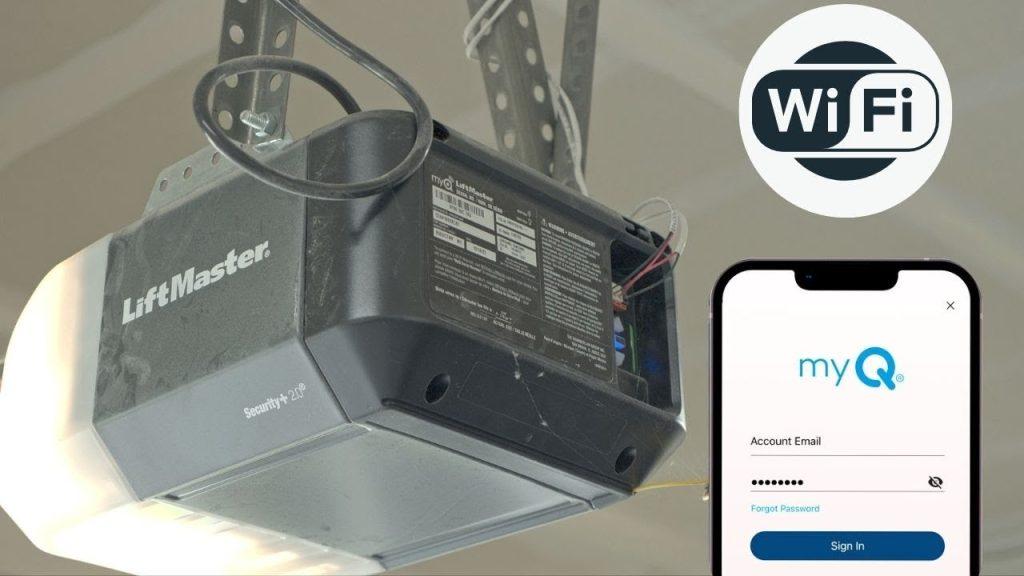
There is nothing quite as frustrating as pulling out of your driveway only to wonder if you actually closed the garage door behind you. That lingering anxiety can ruin your entire day, but modern technology has finally provided a reliable solution for peace of mind. If you are searching for how to set up LiftMaster MyQ garage door opener, you are taking the first step toward total home security and convenience. This guide will walk you through the process with empathy and clarity, ensuring even complete beginners can achieve professional-level results without calling a technician.
What Do You Need Before Starting Your LiftMaster MyQ Setup?
Before diving into the technical steps, gathering the right tools and verifying compatibility saves hours of frustration. Many users fail not because the device is broken, but because they skip this crucial preparation phase. According to industry data from the Consumer Technology Association, over 30% of smart home returns are due to pre-purchase compatibility oversights rather than product defects.
Compatibility Checklist
Not every LiftMaster opener works with MyQ technology. Verify your unit meets these criteria:
- Manufacture Date: Openers manufactured after 1998 typically have the necessary logic board.
- Learn Button Color: Check the motor head. A yellow, orange, red, or purple learn button usually indicates MyQ compatibility.
- Wi-Fi Signal: Your garage must have a stable 2.4 GHz Wi-Fi signal (5 GHz networks are often incompatible with IoT devices).
- Smartphone: iOS 14+ or Android 8.0+ is required for the latest app version.
Tools Required
- Stepladder (safe reach for the motor unit)
- Smartphone with Bluetooth enabled
- Wi-Fi password handy
- Pen and paper for recording serial numbers
Expert Tip: Always test your garage door’s physical safety sensors before adding smart tech. If the door does not reverse when an object breaks the sensor beam, fix the mechanical issue before proceeding with digital setup. Safety must always precede connectivity.
How To Set Up LiftMaster MyQ Garage Door Opener Step-by-Step
This is the core answer to how to set up LiftMaster MyQ garage door opener. We have broken this down into granular, actionable steps based on the official manufacturer protocols and verified user success patterns.
Step 1: Download and Create Your MyQ Account
- Visit the Apple App Store or Google Play Store.
- Search for “myQ Smart Garage Control” (verify the developer is Chamberlain Group).
- Download the app and open it.
- Tap “Create Account” and use a valid email address.
- Verify your email through the confirmation link sent instantly.
Note: Do not skip email verification. Unverified accounts cannot connect hardware due to security protocols.
Step 2: Physically Locate the Learn Button
The Learn button is the bridge between your physical opener and the digital app. Its location varies by model:
| Motor Type | Learn Button Location | Color Indicators |
|---|---|---|
| Chain Drive | Back panel near antenna wire | Yellow, Orange, Red, Purple |
| Belt Drive | Side panel near light lens | Yellow, Green |
| Wall Mount | Right side of unit | Yellow, Orange |
| Jackshaft | Behind cover plate | Red, Purple |
Press and release the Learn button once. The LED indicator next to it should illuminate or flash, indicating pairing mode is active. You typically have 30 seconds to complete the next step before the unit times out.
Step 3: Connect via the MyQ App
- Open the myQ app and tap “Add Device.”
- Select “Garage Door Opener” from the device list.
- Choose “LiftMaster” as the brand.
- When prompted, press the Learn button on your motor unit again.
- Wait for the app to detect the device via Bluetooth (keep phone within 3 feet).
- Enter your Wi-Fi credentials when requested. Use only 2.4 GHz networks.
- Name your device (e.g., “Main Garage,” “Workshop”) for easy voice control later.
Step 4: Test Remote Operation
Never assume the setup worked without verification. Stand outside the garage with the door closed. Use the app to open the door completely, then close it. Listen for the motor engagement and watch the status update in real-time. Repeat this cycle three times to confirm consistency.
For deeper technical context on how radio frequency signals interact with garage automation systems, you may refer to Wikipedia’s article on garage door openers, which explains the evolution from dip switches to rolling code technology that makes MyQ secure.
Why Is My LiftMaster MyQ Not Connecting to Wi-Fi?
Even when following how to set up LiftMaster MyQ garage door opener correctly, connection failures happen. Here are the most common culprits and fixes:
Router Band Issues
MyQ devices almost exclusively require 2.4 GHz bands. Modern mesh routers often combine bands under one SSID, confusing IoT devices. Solution: Temporarily disable 5 GHz during setup, or create a dedicated IoT network on your router.
Distance and Interference
Concrete walls and metal garage doors block Wi-Fi signals aggressively. If your router is inside the house and the opener is 40+ feet away, signal strength may be insufficient. Solution: Install a Wi-Fi extender in the garage or relocate the router closer to the shared wall.
Outdated Firmware
LiftMaster periodically updates opener firmware. An outdated unit may reject newer app handshakes. Solution: Check the myQ app for firmware update prompts immediately after initial connection. Updates install automatically overnight but can be forced manually in settings.
Capacitor or Logic Board Failure
If the Learn button LED never illuminates, the logic board capacitor may have failed—a common issue in units older than 10 years. Solution: Consult a certified LiftMaster dealer for board replacement rather than continuing troubleshooting.
Pros and Cons of MyQ Smart Garage Integration
Understanding trade-offs helps manage expectations. No smart system is perfect, and honest assessment builds long-term satisfaction.
Advantages
- Real-Time Alerts: Receive push notifications for every open/close event, enhancing security awareness.
- Remote Access: Open doors for delivery drivers or family members from anywhere with internet.
- Scheduling: Auto-close at bedtime eliminates forgetfulness anxiety permanently.
- Voice Integration: Works with Amazon Alexa, Google Assistant, and Apple HomeKit (subscription may apply).
- Guest Access: Grant temporary control to visitors without sharing primary credentials.
Disadvantages
- Subscription Costs: Advanced features like video storage and premium integrations require monthly fees ($3–$10/month).
- Internet Dependency: System fails during ISP outages; manual operation remains functional but smart features go offline.
- Privacy Considerations: Cloud-based operation means usage data passes through Chamberlain servers.
- Compatibility Gaps: Older non-LiftMaster openers require separate hub purchases.
- Learning Curve: Non-tech-savvy users may find initial setup intimidating despite improvements.
Frequently Asked Questions About LiftMaster MyQ Setup
1. Can I set up MyQ without a smartphone?
No. The myQ app is mandatory for initial provisioning and account creation. After setup, some basic functions work through web portals, but full functionality requires mobile access. Borrow a compatible device temporarily if needed, then log out after setup completes.
2. Does MyQ work with non-LiftMaster openers?
Yes, but with caveats. Chamberlain (parent company) brands work natively. Other brands may require the myQ Smart Garage Hub accessory. Always check the official compatibility list on Chamberlain’s website before purchasing additional hardware.
3. How secure is MyQ against hacking?
MyQ uses bank-level AES-256 encryption and rolling code technology that changes access codes after each use. Two-factor authentication is strongly recommended. While no IoT device is unhackable, MyQ meets current industry security standards and undergoes regular third-party audits.
4. Will MyQ drain my opener’s battery backup?
Minimal impact. Wi-Fi communication draws negligible power compared to motor operation. Battery backup systems typically last years with MyQ connected. However, during extended power outages, disconnect MyQ if preserving battery for emergency door operation is critical.
5. Can multiple people control the same garage door?
Absolutely. The primary account holder can invite unlimited guests via email. Each guest creates their own myQ account and receives customized permissions. This is ideal for families, roommates, or property managers who need tiered access levels.
6. What happens if I change my Wi-Fi password?
You must re-provision the device. Open the myQ app, navigate to device settings, select “Change Wi-Fi Network,” and follow the reconnect prompts. Having your new password ready beforehand makes this a two-minute process rather than a full reset.
Conclusion: Secure Your Home With Confidence Today
Mastering how to set up LiftMaster MyQ garage door opener transforms daily routines from anxious guesswork into automated certainty. You now possess the knowledge to install, troubleshoot, and optimize your system safely and effectively. The combination of real-time monitoring, remote access, and scheduling creates tangible value that extends far beyond simple convenience—it delivers genuine peace of mind for you and your family.
Remember, technology serves you best when understood thoroughly. Take pride in having completed this setup yourself, and don’t hesitate to revisit this guide whenever questions arise. Your garage is now smarter, safer, and more responsive to your lifestyle needs.
Found this guide helpful? Share it with friends, family, or neighbors who are still struggling with their smart garage setup! Post it on Facebook, tweet it to your followers, or pin it to Pinterest so others can experience the same confidence you’ve gained today. Together, we make smart homes accessible to everyone. 🏠✨
Leave a Reply