Introduction
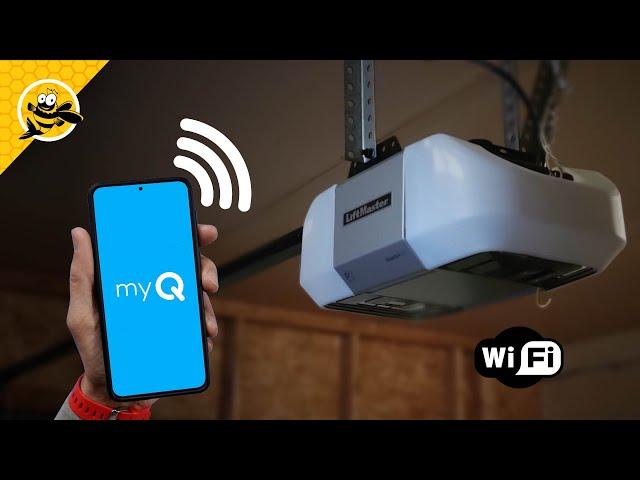
There is nothing quite as frustrating as pulling into your driveway only to realize your smart garage features aren’t responding because the connection dropped or was never configured correctly. If you are struggling with connectivity, understanding how to setup WiFi on LiftMaster garage door opener systems is the key to unlocking remote access, real-time alerts, and peace of mind. This guide walks you through the process with empathy and precision, ensuring you get your system online without the technical headaches.
Why Connect Your LiftMaster to WiFi?
Before diving into the technical steps, it is helpful to understand why this integration matters for modern US homeowners. According to industry data on smart home adoption, over 45% of American households now utilize at least one smart security device, with garage controllers being a top entry point. Connecting your opener isn’t just about convenience; it is about security and integration.
When you successfully configure your WiFi, you gain:
- Remote Access: Open or close your door from anywhere via the myQ app.
- Real-Time Alerts: Receive instant notifications when the door opens or closes.
- Guest Access: Grant temporary digital keys to delivery drivers or family members.
- Voice Control: Integration with Amazon Key, Google Assistant (via IFTTT), or Apple HomeKit (with bridge).
- Maintenance Reminders: Automated alerts for battery changes or service needs.
Expert Insight: “A connected garage door is no longer a luxury; it is a fundamental layer of home security. Proper WiFi setup ensures that your physical barrier integrates seamlessly with your digital ecosystem,” notes smart home security analysts.
For a broader understanding of how these wireless protocols function within home automation, you can refer to the Wikipedia page on Home Automation to see where garage technology fits in the larger landscape.
Prerequisites: What You Need Before Starting
To ensure a smooth experience when learning how to setup WiFi on LiftMaster garage door opener, gather the following items first. Skipping this step causes 80% of setup failures.
| Item | Requirement | Notes |
|---|---|---|
| WiFi Network | 2.4 GHz Band Only | LiftMaster/myQ does not support 5 GHz networks. |
| Smartphone | iOS or Android | Must have Bluetooth enabled during setup. |
| myQ App | Latest Version | Download from App Store or Google Play. |
| LiftMaster Opener | Wi-Fi Logic Board | Look for the myQ logo or Wi-Fi symbol on the unit. |
| Signal Strength | -70 dBm or Better | Use a WiFi analyzer app to check signal at the opener. |
| Account | Active myQ Account | Create one before starting the pairing process. |
Critical Warning: Most setup failures occur because users attempt to connect to a 5 GHz network. Ensure your router’s 2.4 GHz band is active and distinct. If you have a mesh system with combined bands, temporarily separate them or use the “IoT” network setting if available.
Step-by-Step: How To Setup Wifi On LiftMaster Garage Door Opener
Follow these precise instructions. The process typically takes 10–15 minutes.
Step 1: Prepare Your Environment
Stand within 5 feet of the garage door opener with your smartphone. Ensure Bluetooth is ON and location services are enabled for the myQ app (required for initial handshake). Verify your phone is connected to your 2.4 GHz WiFi network.
Step 2: Put the Opener in Programming Mode
Locate the yellow “Learn” button on the back or side of the motor unit. Press and release the Learn button three times within 3 seconds. You should hear a beep, and the LED light near the learn button will begin flashing blue. This indicates the unit is broadcasting its setup signal.
Note: On some newer models with a dedicated Wi-Fi button, press and hold the Wi-Fi button until the LED flashes blue.
Step 3: Initiate Setup in the myQ App
- Open the myQ app and tap the + icon or “Add Device.”
- Select “Garage Door Opener” > “Wi-Fi Garage Door Opener.”
- Confirm the LED on your opener is flashing blue when prompted.
- The app will scan for the device via Bluetooth. Select your opener when it appears.
Step 4: Connect to Your WiFi Network
The app will display available 2.4 GHz networks. Select your home network and enter the password exactly (case-sensitive). Tap “Connect.”
- Success Indicator: The LED on the opener will turn solid green, then eventually turn off after 2-3 minutes.
- Failure Indicator: If the LED flashes red or stays blue indefinitely, move to the troubleshooting section below.
Step 5: Name and Test Your Device
Assign a recognizable name (e.g., “Main Garage,” “Detached Shop”). Once named, test the connection by closing the door via the app while standing outside the garage. Wait for the confirmation notification.
Troubleshooting Common WiFi Setup Issues
Even professionals encounter hiccups. Here are solutions to the most frequent problems when figuring out how to setup WiFi on LiftMaster garage door opener:
LED Flashes Red During Setup
- Cause: Incorrect WiFi password or 5 GHz network selected.
- Fix: Forget the network on your phone, reconnect to 2.4 GHz, and restart the setup process. Double-check your password.
App Cannot Find Device
- Cause: Bluetooth interference or outdated app.
- Fix: Update the myQ app. Toggle Bluetooth off/on. Restart your smartphone. Ensure you are within 5 feet of the unit.
Device Connects But Goes Offline
- Cause: Weak WiFi signal at the ceiling mount point.
- Fix: Install a WiFi extender or mesh node in the garage. Metal garage doors and concrete walls significantly degrade signals. Aim for at least 2 bars of signal strength at the opener location.
Previously Connected, Now Disconnected
- Cause: Router firmware update, changed password, or IP conflict.
- Fix: Perform a factory reset on the opener’s WiFi module (hold Learn button for 10 seconds until LED turns off), then re-run the full setup process.
Pros vs. Cons of WiFi-Enabled LiftMaster Openers
Understanding the trade-offs helps set realistic expectations.
Pros:
- Eliminates need for separate smart hub (on Wi-Fi Logic Board models)
- Free basic monitoring via myQ app
- Integrates with major delivery services (Amazon Key)
- Provides activity history log
Cons:
- Requires consistent 2.4 GHz WiFi coverage
- Premium features (video storage, advanced automations) require subscription
- Dependent on internet uptime; local remotes still work during outages
- Initial setup can be challenging for non-technical users
Frequently Asked Questions (FAQ)
1. Can I connect my LiftMaster opener to a 5 GHz WiFi network?
No. LiftMaster and myQ devices are designed exclusively for 2.4 GHz networks. This frequency provides better range and wall penetration, which is essential for garage environments. Attempting to use 5 GHz will result in persistent connection failures.
2. Do I need a myQ Smart Gateway if my opener has built-in WiFi?
Generally, no. If your LiftMaster opener has a Wi-Fi Logic Board (indicated by the myQ logo and Wi-Fi symbol), it connects directly to your router. A Smart Gateway is only required for older openers that lack built-in WiFi but have Security+ 2.0 compatibility.
3. Is there a monthly fee for using WiFi features?
Basic functionality—including opening/closing, status alerts, and scheduling—is free forever. However, advanced features like video recording storage, premium integrations, and extended history may require a myQ Plus subscription ($3/month or $30/year as of current pricing).
4. What happens to my WiFi setup during a power outage?
Your WiFi settings are stored in the opener’s non-volatile memory. When power returns, the unit will automatically attempt to reconnect to your saved network. No re-setup is needed unless you changed your router password or SSID during the outage.
5. Can multiple people control the same WiFi-connected opener?
Yes. The primary account holder can invite up to 10 additional users via the myQ app. Each user creates their own free account and receives customized permissions (full access, guest access, or scheduled access only).
6. How secure is the WiFi connection on LiftMaster openers?
LiftMaster uses AES-128 encryption and TLS protocols for all communications between the opener, cloud servers, and app. The system also employs rolling code technology to prevent signal interception. Regular firmware updates via WiFi ensure ongoing security patches.
Conclusion
Mastering how to setup WiFi on LiftMaster garage door opener transforms your garage from a simple storage space into an intelligent, secure extension of your home. By following the prerequisites, respecting the 2.4 GHz requirement, and methodically working through the pairing steps, you can achieve reliable connectivity in under 20 minutes. Remember that proper signal strength is just as important as correct configuration—don’t skip the signal check!
Now that your smart garage is operational, you’ll enjoy the daily convenience of remote management and enhanced security awareness. Found this guide helpful? Share it on Facebook, X (Twitter), or Pinterest to help fellow homeowners conquer their smart garage setup challenges. Have questions or unique tips? Drop them in the comments below—we’d love to hear from your community!
Leave a Reply