Introduction
There is nothing quite as frustrating as pulling into your driveway only to realize you cannot control your smart garage door because the connection failed. If you are currently struggling with connectivity issues or installing a new unit, understanding how to setup wifi on Chamberlain garage door opener systems is the first step toward true peace of mind. This guide provides a clear, empathetic walkthrough to get your myQ system online so you can monitor and operate your home securely from anywhere.
Why Connect Your Chamberlain Opener to WiFi?
Before diving into the technical steps, it helps to understand why this connection matters for modern homeowners. According to industry data regarding smart home adoption, over 70% of users cite “remote access” and “security monitoring” as their primary motivations for upgrading to WiFi-enabled openers. Connecting your device transforms a standard mechanical lifter into an integrated security node.
When you successfully learn how to setup wifi on Chamberlain garage door opener hardware, you unlock features like real-time alerts, guest access codes, and integration with platforms like Amazon Key or Ring. As noted in general smart home technology documentation on Wikipedia, interoperability between devices creates a cohesive ecosystem that significantly enhances residential safety and convenience. Without WiFi, your expensive smart opener is essentially just a traditional motor with unused potential.
Prerequisites: What You Need Before Starting
To ensure a smooth setup process, gather the following items before pressing any buttons. Preparation prevents the most common setup failures.
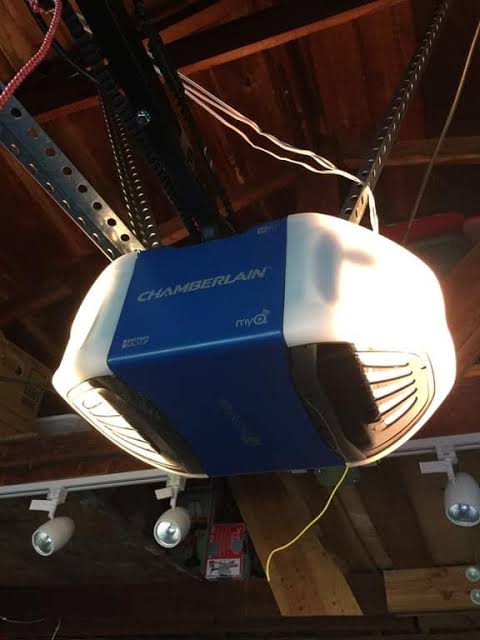
- Compatible Chamberlain/LiftMaster Opener: Look for the myQ logo on the motor head.
- Smartphone or Tablet: iOS or Android with Bluetooth enabled.
- myQ App: Downloaded and updated to the latest version.
- WiFi Credentials: You must know your SSID and password.
- Ladder: Safe access to the motor unit for button presses.
Critical Network Requirements
Not all networks are created equal. Chamberlain myQ devices strictly require a 2.4 GHz WiFi network. They cannot connect to 5 GHz bands. If you have a dual-band router, ensure you are selecting the correct band during setup. Additionally, enterprise networks (like those in apartments with captive portals) are generally unsupported.
Step-by-Step: How To Setup Wifi On Chamberlain Garage Door Opener
Follow these precise instructions to establish a stable connection. This method applies to most myQ-enabled models manufactured after 2017.
Step 1: Prepare the myQ App
Open the myQ app on your mobile device. Create an account if you haven’t already, or log in. Tap the “+” icon in the top right corner and select “Garage Door Opener.” The app will begin searching for nearby devices via Bluetooth. Ensure your phone is within 10 feet of the opener during this phase.
Step 2: Put the Opener in Programming Mode
Locate the Learn Button on the back or side of the motor unit. It is typically yellow, red, purple, or green. Press and release the Learn button once. You should hear a beep, and the LED light near the button may flash or change color, indicating it is ready to pair. Note: Do not hold the button down; a single press is sufficient.
Step 3: Connect via the App
Return to your phone. The app should detect the opener. Select your specific model from the list. When prompted, enter your 2.4 GHz WiFi network name and password exactly. Double-check for capitalization errors, as WiFi passwords are case-sensitive.
Step 4: Confirm the Connection
The opener lights will flash, and you will hear audible clicks as it attempts to handshake with your router. This process takes between 30 to 60 seconds. Once successful, the myQ app will display a green checkmark and ask you to name the device (e.g., “Main Garage,” “Workshop”). Test the connection immediately by opening and closing the door through the app while standing outside WiFi range (using cellular data) to verify remote functionality.
Troubleshooting Common WiFi Setup Failures
Even when you follow the guide on how to setup wifi on Chamberlain garage door opener perfectly, technology can be temperamental. Here are solutions to the most frequent obstacles.
| Symptom | Probable Cause | Recommended Fix |
|---|---|---|
| App cannot find opener | Bluetooth disabled or too far away | Enable Bluetooth; move within 5ft of motor |
| WiFi connection fails | Using 5 GHz network | Switch router/device to 2.4 GHz band |
| Intermittent disconnection | Weak signal at ceiling level | Install WiFi extender in garage |
| Learn button unresponsive | Logic board lockout | Power cycle opener; wait 60 seconds |
| “Device Offline” message | Router firewall blocking ports | Enable UPnP or whitelist myQ servers |
Signal Strength Matters
Garages are often constructed with materials that block signals, such as metal siding or insulated drywall. If your router is inside the house and the opener keeps dropping offline, consider installing a dedicated WiFi extender in the garage. A strong signal (at least -70 dBm) is essential for reliable operation.
Advanced Tips for Optimal Performance
Once connected, optimize your setup for long-term reliability.
- Label Your Device Clearly: If you have multiple doors, distinct names prevent accidental operation.
- Update Firmware Regularly: Check the app settings monthly for firmware updates that patch security vulnerabilities.
- Enable Two-Factor Authentication (2FA): Protect your garage access just as you would your bank account.
- Set Up Guest Access: Use temporary codes for dog walkers or contractors instead of sharing your main credentials.
- Integrate with Voice Assistants: Link myQ to Google Assistant or Alexa for hands-free status checks (note: voice opening usually requires a PIN for security).
Frequently Asked Questions (FAQ)
Can I connect my Chamberlain opener to a 5 GHz WiFi network?
No. Chamberlain myQ technology is designed exclusively for 2.4 GHz networks due to their superior range and wall penetration capabilities. Attempting to connect to a 5 GHz band will result in persistent failure. You must separate your router bands or use a dedicated 2.4 GHz SSID.
What should I do if I lost my WiFi password during setup?
You will need to retrieve your password from your router’s admin panel or contact your ISP. The myQ app does not store visible passwords for security reasons. Alternatively, use a secondary device already connected to the network to view saved credentials before attempting the how to setup wifi on Chamberlain garage door opener process again.
Is the myQ app free to use for basic WiFi setup?
Yes. Downloading the myQ app, creating an account, and connecting your opener are completely free. However, some advanced integrations (like IFTTT or certain cloud storage video plans) may require a subscription. Basic remote open/close and status monitoring remain free forever.
How secure is my WiFi-connected garage door opener?
Chamberlain uses bank-level encryption (TLS/SSL) for all communications between the app, cloud servers, and your opener. Security experts recommend enabling 2FA and keeping firmware updated to mitigate risks. Treat your myQ account with the same vigilance as any smart home security device.
Why did my previously working WiFi connection suddenly stop?
Common causes include router firmware updates changing channel settings, ISP equipment replacements altering SSIDs, or power surges resetting the opener’s logic board. Start by power-cycling both your router and the garage opener. If the issue persists, re-run the WiFi setup wizard in the app to refresh credentials.
Can I set up WiFi without the myQ app?
Generally, no. The myQ app serves as the provisioning bridge between your phone’s Bluetooth and the opener’s WiFi module. While some older HomeLink systems offer alternative paths, modern Chamberlain units require the app for initial authentication and network configuration.
Conclusion
Mastering how to setup wifi on Chamberlain garage door opener systems empowers you with unprecedented control over your home’s primary entry point. By following the prerequisites, executing the four-step pairing process, and applying our troubleshooting tips, you transform a complex technical task into a manageable five-minute project. Remember, a connected garage isn’t just about convenience—it’s about creating a safer, more responsive living environment for you and your family.
Did this guide help you get your smart garage online? We’d love to hear about your experience! Share this article on Facebook, X (Twitter), or Pinterest to help fellow homeowners conquer their WiFi setup challenges. Together, we can make smart home technology accessible to everyone. Happy connecting!
Leave a Reply