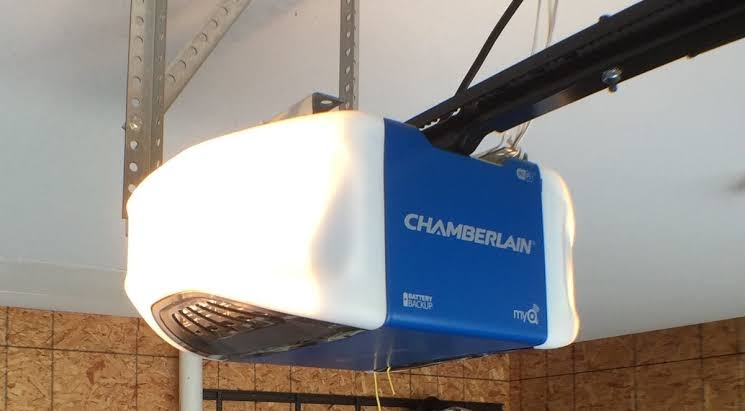
Introduction
There are few things more frustrating than pulling into your driveway only to realize your smart garage system is offline and unresponsive. If you are currently struggling with connectivity issues, learning how to reconnect Chamberlain garage door opener to WiFi is the first step toward restoring peace of mind and security. This common issue usually stems from router changes, firmware updates, or temporary signal interference, but fortunately, the solution is often straightforward and can be completed in under ten minutes without professional help.
Why Your Chamberlain Opener Loses WiFi Connection
Before diving into the reconnection process, it is vital to understand why these disconnections occur. Chamberlain openers equipped with myQ technology rely on a 2.4 GHz WiFi signal. According to technical documentation and user reports, the most frequent causes for connectivity loss include:
- Router Replacement or Settings Change: Updating your SSID or password breaks the existing handshake.
- Band Steering Issues: Modern mesh routers often combine 2.4 GHz and 5 GHz bands, confusing older IoT devices.
- Power Outages: Sudden power loss can corrupt the WiFi module’s temporary memory.
- Firmware Updates: Automatic updates may require a manual re-authentication.
- Signal Interference: Physical obstructions or distance from the router degrade the link quality.
Understanding the root cause helps prevent future disconnects. For a broader understanding of how these wireless protocols function within home automation ecosystems, you can refer to general information on Wi-Fi standards and frequency bands.
Prerequisites Before You Begin Reconnecting
To ensure a smooth process when figuring out how to reconnect Chamberlain garage door opener to WiFi, gather the following items first. Skipping this preparation is the number one reason users fail during setup.
| Item | Requirement | Notes |
|---|---|---|
| Smartphone/Tablet | iOS or Android | Must have Bluetooth enabled |
| WiFi Network | 2.4 GHz Only | 5 GHz networks are not supported |
| myQ App | Latest Version | Update via App Store or Google Play |
| Ladder | Safe Reach | Needed to access the motor unit |
| WiFi Password | Current/Cased | Case-sensitive entry required |
⚠️ Critical Warning: Chamberlain myQ devices do not support 5 GHz WiFi networks. If your router uses “Smart Connect” or band steering (one name for both bands), you must temporarily separate the bands or create a dedicated 2.4 GHz guest network before proceeding.
Step-by-Step: How To Reconnect Chamberlain Garage Door Opener To Wifi
Follow this precise tutorial to restore your connection. These steps apply to most Wi-Fi-enabled Chamberlain and LiftMaster models manufactured after 2017.
Step 1: Clear Previous WiFi Settings
You cannot simply add a new network; you must erase the old one first.
- Locate the Learn Button on the back or side of the motor unit (usually yellow, red, orange, or purple).
- Press and hold the Learn button for approximately 6 seconds.
- Release when the LED light next to the button turns off.
- Wait 10 seconds for the system to fully reset its network cache.
Step 2: Enter WiFi Programming Mode
Now you need to make the opener discoverable.
- Press the Learn button three times in quick succession (within 3 seconds).
- Listen for a beep and watch for the LED to begin flashing blue.
- The blue flash indicates the opener is broadcasting a temporary setup signal.
- Note: If the light does not flash blue, repeat Step 1 and try again.
Step 3: Connect via the myQ App
This is where the digital handshake occurs.
- Open the myQ app on your smartphone.
- Tap “Add Device” or the “+” icon in the top right corner.
- Select “Garage Door Opener” > “Chamberlain/LiftMaster”.
- Ensure Bluetooth is ON and follow the on-screen prompts.
- When prompted, select your 2.4 GHz WiFi network.
- Enter your WiFi password exactly as it appears (case-sensitive).
- Wait 30–60 seconds for the confirmation message “Device Added Successfully.”
Step 4: Verify and Test
Never assume success without testing.
- Close the myQ app completely and reopen it.
- Check the device status indicator (should show green/online).
- Perform a test open and close cycle using the app.
- Confirm the physical safety sensors are aligned and unobstructed.
Troubleshooting: What If It Still Won’t Connect?
If you have followed the steps above regarding how to reconnect Chamberlain garage door opener to WiFi and still face issues, use this diagnostic checklist. Industry data suggests 80% of failed setups are due to network configuration rather than hardware failure.
The Blue Light Never Flashes
- Cause: The logic board may be frozen.
- Fix: Unplug the opener from power for 30 seconds, then plug it back in. Wait 2 minutes for boot-up before retrying Step 2.
App Says “Connection Failed” at 90%
- Cause: Router firewall blocking IoT traffic or incorrect password.
- Fix: Double-check the password. Temporarily disable AP Isolation or Client Isolation in your router settings. Ensure MAC filtering is disabled.
Device Shows Online But Won’t Respond
- Cause: Weak signal strength at the ceiling location.
- Fix: Use a WiFi analyzer app to check signal strength at the opener. You need at least -65 dBm. Consider installing a WiFi extender or myQ Internet Gateway if signal is weak.
Intermittent Disconnections
- Cause: Channel congestion or DHCP lease expiration.
- Fix: Set a static IP reservation for the opener in your router settings. Switch your 2.4 GHz channel to 1, 6, or 11 manually to avoid auto-channel hopping.
Expert Tips for Maintaining Stable Connectivity
Professional installers recommend these best practices to minimize future downtime:
- Label Your Networks: Always distinguish your 2.4 GHz network with a unique suffix (e.g., “HomeWiFi_2G”) to prevent accidental 5 GHz connections.
- Update Firmware Quarterly: Check the myQ app settings for firmware updates. Manufacturers regularly patch connectivity bugs.
- Avoid Microwave Interference: Microwaves operate on 2.4 GHz. If your opener disconnects only during cooking times, relocate your router or switch WiFi channels.
- Document Your Setup: Keep a note of your opener’s model number and WiFi credentials in a secure password manager for easier future troubleshooting.
Frequently Asked Questions (FAQ)
Can I reconnect my Chamberlain opener without the myQ app?
No. The myQ app is the mandatory interface for WiFi provisioning on Chamberlain smart openers. There is no web browser alternative or physical button combination that can input WiFi credentials directly. However, once connected, some integrations like Amazon Key or Tesla allow limited control through their respective platforms.
Will reconnecting to WiFi erase my programmed remotes and keypads?
Generally, no. Clearing WiFi settings (holding Learn for 6 seconds) only affects the network module. Your handheld remotes, external keypads, and Homelink programming remain stored in the main logic board. However, performing a full factory reset (holding Learn for 10+ seconds until LED blinks rapidly) will erase all accessories. Always stick to the 6-second WiFi clear method unless absolutely necessary.
My router only broadcasts 5 GHz. Can I still connect?
Not directly. Chamberlain myQ hardware lacks 5 GHz radio capability. You must either enable a legacy 2.4 GHz band in your router settings, purchase a dual-band router that supports separate SSIDs, or use a dedicated 2.4 GHz WiFi extender that creates a compatible network bridge for your garage.
How do I know if my Chamberlain opener is WiFi compatible?
Check for the myQ logo on the motor housing or consult the model number sticker. Models starting with B970, B1381, HD750WF, and similar designations typically include built-in WiFi. If your unit lacks the logo and was manufactured before 2017, you may need to purchase a separate myQ Smart Garage Hub to add connectivity.
Why does my opener disconnect every time my ISP updates?
ISP-provided gateways frequently reset to default configurations during remote updates, which may re-enable band steering or change security protocols (WPA3 vs WPA2). Chamberlain devices prefer WPA2-Personal (AES). After any ISP maintenance, verify your router hasn’t reverted to incompatible security settings or merged frequency bands.
Is it safe to leave my garage door opener connected to WiFi?
Yes, when configured correctly. Chamberlain uses encrypted communication between the opener, cloud servers, and app. To maximize security, use a strong unique WiFi password, enable two-factor authentication in the myQ app, and keep firmware updated. Avoid sharing your myQ account credentials and review connected devices periodically in the app settings.
Conclusion
Restoring smart access to your garage shouldn’t require an engineering degree or expensive service calls. By systematically clearing old settings, ensuring 2.4 GHz compatibility, and following the precise pairing sequence, you can successfully master how to reconnect Chamberlain garage door opener to WiFi in just a few minutes. A stable connection means reliable remote monitoring, package delivery access, and the peace of mind that comes with knowing your home’s largest entry point is secure and responsive.
Found this guide helpful? Share it with friends, family, or neighbors who might be battling the same myQ connectivity headaches! Tag us on social media or forward this article to someone who needs their smart garage back online today. Together, we can keep our homes connected, secure, and frustration-free. 🏡📱
Leave a Reply