Introduction
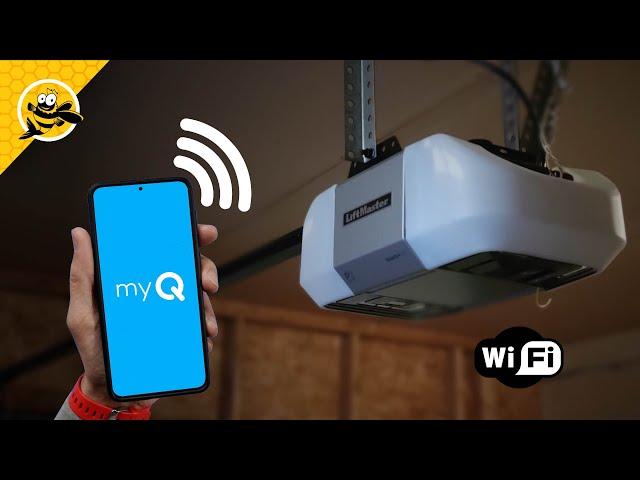
There is nothing quite as frustrating as pulling out of your driveway and immediately wondering, “Did I close the garage door?” If you are tired of that anxiety or simply want the convenience of opening your door from anywhere, learning how to set up LiftMaster garage door opener WiFi is a game-changer. We understand that navigating new technology can feel overwhelming, but connecting your opener to your home network is simpler than you think. This guide will walk you through every step with empathy and clarity, ensuring you gain peace of mind and total control over your home’s entry point without the technical headache.
Why Connect Your LiftMaster to WiFi?
Before diving into the installation, it helps to understand why this upgrade matters. According to industry data on smart home adoption, homes with connected security devices see a significant increase in perceived safety and resale value. Connecting your LiftMaster isn’t just about novelty; it is about integrating your garage into your broader home security ecosystem.
For a deeper understanding of how these radio frequency and internet protocols interact within smart home ecosystems, you can refer to the comprehensive overview of smart home technology on Wikipedia. Understanding this foundation helps explain why a stable 2.4 GHz connection is non-negotiable for reliable performance.
Key Benefits at a Glance
| Feature | Benefit | User Impact |
|---|---|---|
| Remote Access | Open/close from anywhere | Never locked out again |
| Real-Time Alerts | Instant notifications | Peace of mind while traveling |
| Guest Access | Share virtual keys | No need to hide physical keys |
| Scheduling | Auto-close at set times | Enhanced security overnight |
| Integration | Works with Amazon Key/Google | Seamless smart home automation |
Pre-Installation Checklist: What You Need
Success starts before you even touch the learn button. Gathering the right tools and verifying compatibility prevents mid-setup frustration.
- Compatible Opener: Verify your unit has the myQ logo or built-in WiFi. Most models manufactured after 2017 include this natively. Older units may require an Internet Gateway or Smart Garage Control hub.
- WiFi Network: A dedicated 2.4 GHz network is required. LiftMaster openers generally do not support 5 GHz bands due to range limitations.
- Smartphone/Tablet: iOS (version 14+) or Android (version 8+) with Bluetooth enabled.
- myQ App: Downloaded and account created before starting.
- Ladder & Flashlight: Safety first when working near ceiling-mounted motors.
- Signal Strength: Ensure your router provides at least -60 dBm signal strength at the garage location. Weak signals are the #1 cause of failed setups.
Step-by-Step: How To Set Up LiftMaster Garage Door Opener WiFi
Follow these precise instructions to ensure a successful connection. Do not rush; each step builds upon the last.
1. Prepare Your Environment
Close your garage door completely. Clear the area around the motor unit to ensure safe ladder placement. Turn on your phone’s Bluetooth and connect to your 2.4 GHz WiFi network. Do not proceed if you are currently on a 5 GHz band.
2. Initiate Pairing Mode on the Opener
Locate the yellow “Learn” button on the back or side of your LiftMaster motor unit. Press and release this button three times within five seconds. You should hear a beep, and the LED light will begin flashing blue. This indicates the unit is actively broadcasting its Bluetooth signal for pairing.
Pro Tip: If the light does not flash blue, hold the Learn button for 6 seconds until the LED turns off, then try the three-press sequence again. Timing matters.
3. Connect via the myQ App
Open the myQ app and tap “Add Device.” Select “Garage Door Opener” and choose “LiftMaster” as the brand. The app will search for nearby devices via Bluetooth. When your serial number appears, select it.
4. Enter WiFi Credentials
The app will prompt you to select your home WiFi network. Critical: Only select your 2.4 GHz SSID. Enter your password exactly, paying attention to capitalization. The opener will attempt to handshake with your router. This process typically takes 30–90 seconds.
5. Name and Test Your Device
Assign a recognizable name (e.g., “Main Garage,” “Detached Shop”). Once named, the app will run a diagnostic test cycle. Watch the door move fully up and down to confirm calibration. If the test fails, check your safety sensors for alignment issues before retrying the WiFi setup.
6. Update Firmware
After successful connection, the app may prompt a firmware update. Always accept this. Updates patch security vulnerabilities and improve connectivity stability. Keep your phone within 10 feet of the opener during updates, which can take 2–5 minutes.
Troubleshooting Common Setup Failures
Even professionals encounter hiccups. Here are solutions to the most frequent issues users face when figuring out how to set up LiftMaster garage door opener WiFi.
Connection Drops Repeatedly
- Cause: Insufficient signal strength or band steering confusion.
- Fix: Install a WiFi extender in the garage. Create a separate 2.4 GHz-only SSID if your mesh system combines bands. Ensure the extender supports WPA2 security (WEP is incompatible).
App Cannot Find Device
- Cause: Bluetooth interference or expired pairing window.
- Fix: Power-cycle the opener by unplugging it for 30 seconds. Restart your phone’s Bluetooth. Ensure no other myQ apps are running in the background. Try pairing within 2 minutes of pressing the Learn button.
Door Moves During Setup But Won’t Respond Remotely
- Cause: Router firewall blocking myQ cloud communication.
- Fix: Ensure ports 443 and 80 are open. Disable AP isolation on guest networks. Verify your router’s UPnP setting is enabled for automatic port forwarding.
Intermittent Offline Status
- Cause: DHCP lease expiration or IP conflict.
- Fix: Assign a static IP address to your garage door opener through your router’s admin panel. Reserve the same MAC address to prevent future conflicts.
Frequently Asked Questions (FAQ)
Q1: Can I use a 5 GHz WiFi network with my LiftMaster opener?
No. LiftMaster garage door openers are designed exclusively for 2.4 GHz networks. The longer wavelength of 2.4 GHz penetrates walls and metal garage doors better than 5 GHz. Attempting to connect to a 5 GHz band will result in persistent failure. If you have a dual-band router, create a dedicated 2.4 GHz SSID specifically for IoT devices.
Q2: Is my garage door secure once connected to WiFi?
Yes, when configured correctly. LiftMaster uses AES-128 encryption for all communications between the opener, app, and cloud servers. Enable two-factor authentication (2FA) in your myQ account settings for an additional security layer. Never share your login credentials; use the built-in guest access feature instead. Regularly update both the app and opener firmware to patch known vulnerabilities.
Q3: What if my LiftMaster model doesn’t have built-in WiFi?
Older models (typically pre-2017) require the myQ Smart Garage Control Hub (model MYQ-G0401). This device mounts to your ceiling, connects to your existing opener’s learn button, and bridges the gap to your WiFi network. The setup process mirrors the native WiFi steps above, with the hub acting as the intermediary. Check your model number against LiftMaster’s official compatibility list before purchasing accessories.
Q4: How far can my router be from the garage door opener?
Ideally, your router should be within 30–50 feet of the opener with no more than one exterior wall in between. Metal garage doors, concrete walls, and appliances significantly degrade signal. Use a WiFi analyzer app to measure signal strength at the opener location; aim for -60 dBm or stronger. Below -70 dBm, expect intermittent connectivity regardless of setup success.
Q5: Will my opener still work during an internet outage?
Absolutely. WiFi connectivity only enables remote features. Your wall console, remotes, and keypads operate independently via radio frequency and will function normally without internet. Scheduled auto-close features stored locally on the opener will also continue working. Only real-time alerts, remote operation, and third-party integrations require active internet.
Q6: Can multiple family members control the same garage door?
Yes. The primary account holder can invite up to 15 guests via email through the myQ app. Each guest creates their own account and receives customized permissions (full control, view-only, or scheduled access). This eliminates the need to share passwords and allows you to revoke access instantly if needed. Activity logs show who operated the door and when, enhancing household accountability.
Conclusion
Mastering how to set up LiftMaster garage door opener WiFi transforms your garage from a mechanical afterthought into an intelligent, secure extension of your home. From eliminating departure anxiety to granting secure access for deliveries, the benefits compound daily. Remember: patience during setup, strict adherence to 2.4 GHz requirements, and regular firmware maintenance are the pillars of reliable performance.
You now have the knowledge to complete this project confidently. Share this guide on social media to help friends and neighbors reclaim their peace of mind too! Tag us with your setup success stories—we love seeing smart homes come to life. Your journey to a smarter, safer home starts with that first blue flash. Happy connecting!
Leave a Reply