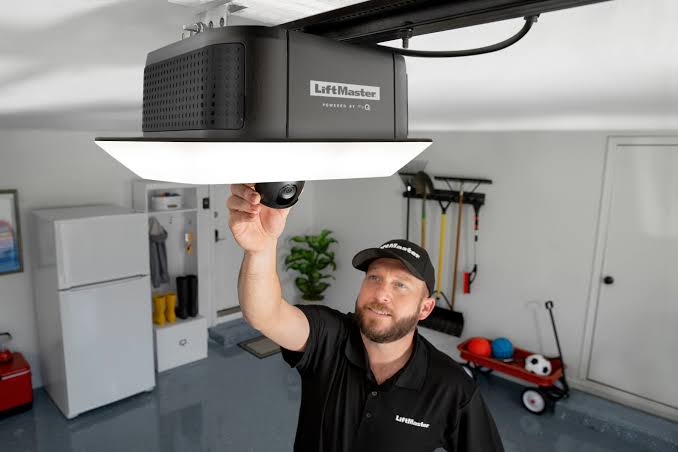
Have you ever stood in the rain, frantically pressing a remote button that just won’t work? Or perhaps you’ve recently upgraded to a smart home system and realized your garage door is the last “dumb” device in your house? You are not alone. Thousands of homeowners face this exact frustration every day. The good news is that learning how to program a LiftMaster MyQ garage door opener is simpler than you might think. With the right guidance, you can transform your traditional garage into a smart, secure, and convenient entry point for your home in under 15 minutes.
In this comprehensive guide, we will walk you through the entire process. Whether you are setting up a brand-new unit or reconnecting an existing one, we have got you covered. Let’s get your garage door connected.
Why Choose the LiftMaster MyQ System?
Before we dive into the technical steps, it is essential to understand why the MyQ ecosystem has become the gold standard for residential garage automation. LiftMaster, a subsidiary of Chamberlain Group, has dominated the market for decades due to its reliability and security features.
The MyQ technology allows you to control your garage door from anywhere using your smartphone. According to recent smart home adoption statistics, over 40% of US homeowners now use at least one smart device in their home, with garage door openers being among the top three most popular upgrades. This isn’t just about convenience; it is about peace of mind. Knowing whether you left the garage open while you are at work or on vacation provides a layer of security that traditional remotes simply cannot offer.
For a deeper understanding of the history and evolution of automated garage systems, you can refer to this Wikipedia overview of garage door openers.
Prerequisites: What You Need Before Starting
To ensure a smooth programming experience, gather the following items before you begin:
- A Compatible LiftMaster MyQ Garage Door Opener: Most units manufactured after 2012 are MyQ-enabled. Look for the MyQ logo on your motor unit.
- A Smartphone or Tablet: You will need an iOS (iPhone/iPad) or Android device.
- Stable Wi-Fi Connection: Your phone must be connected to your home’s 2.4 GHz Wi-Fi network. Note: MyQ does not currently support 5 GHz networks for initial setup.
- The MyQ App: Download it for free from the Apple App Store or Google Play Store.
- A Ladder: You may need to access the motor unit mounted on your garage ceiling.
Step-by-Step Guide: How to Program a LiftMaster MyQ Garage Door Opener
Programming your device involves two main phases: connecting the hardware to your Wi-Fi and then linking it to the MyQ app. Follow these steps carefully.
Step 1: Prepare the Garage Door Opener
First, ensure your garage door is closed. Locate the motor unit on the ceiling of your garage. On the back or side of the unit, you will find a panel with buttons. Look for the Wi-Fi button. It is usually located near the antenna wire.
- Press and hold the Wi-Fi button for about 10 seconds.
- Wait until the LED indicator next to the button begins to blink blue. This indicates that the unit is in “setup mode” and is ready to receive a signal from your phone.
- If the light does not blink, try pressing the button again. Ensure you are holding it long enough.
Step 2: Set Up the MyQ App
Now, pick up your smartphone. If you haven’t already, install the MyQ app.
- Open the app and create a new account if you are a first-time user. You will need to provide a valid email address and create a secure password.
- If you already have an account, simply log in.
- Tap on the “Add Device” or “+” icon, usually found in the top corner of the dashboard.
- Select “Garage Door Opener” from the list of device types.
Step 3: Connect to Wi-Fi
The app will now search for your garage door opener.
- Ensure your phone is connected to your home’s 2.4 GHz Wi-Fi network. This is crucial. Many modern routers broadcast both 2.4 GHz and 5 GHz signals under the same name. If you have trouble, check your router settings to separate them or temporarily disable the 5 GHz band.
- Enter your Wi-Fi password when prompted by the app.
- The app will communicate with the garage door opener. Keep your phone within 10 feet of the motor unit during this process.
- Once connected, the LED on the motor unit should turn solid blue. The app will confirm that the device has been added.
Step 4: Name and Customize Your Device
After the connection is successful, you can personalize your setup.
- Name Your Door: Give it a recognizable name like “Main Garage” or “Side Entry.”
- Set Notifications: Enable push notifications to alert you when the door opens or closes. This is particularly useful for monitoring when family members arrive home.
- Test the Functionality: Use the app to open and close the garage door. Stand clear of the door and observe its movement. It should respond instantly.
Troubleshooting Common Connection Issues
Even with careful preparation, you might encounter hiccups. Here are solutions to the most frequent problems users face when learning how to program a LiftMaster MyQ garage door opener.
| Issue | Possible Cause | Solution |
|---|---|---|
| LED Not Blinking Blue | Unit not in setup mode | Hold the Wi-Fi button for a full 10–15 seconds. |
| App Can’t Find Device | Wrong Wi-Fi Band | Ensure you are on 2.4 GHz, not 5 GHz. |
| Connection Timeout | Weak Signal | Move closer to the motor unit during setup. |
| Login Errors | Incorrect Credentials | Reset your MyQ password via the “Forgot Password” link. |
Dealing with Wi-Fi Interference
Garages are often filled with metal objects and electronic devices that can interfere with Wi-Fi signals. If your connection is unstable:
- Check Router Placement: If your router is far from the garage, consider adding a Wi-Fi extender.
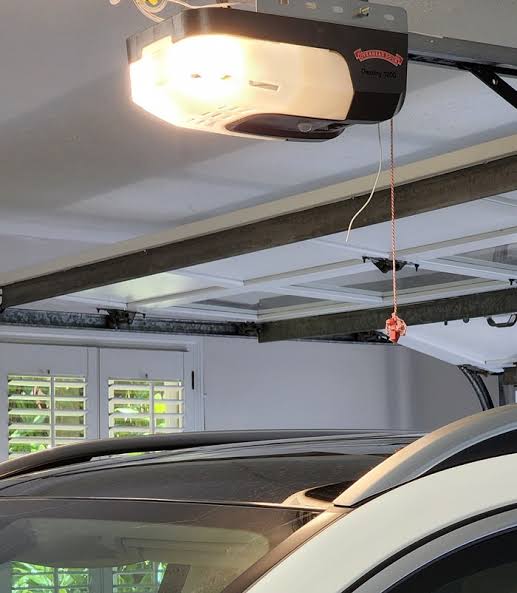
- Reduce Obstacles: Ensure the antenna on the garage door opener is hanging down freely and not tucked behind metal beams.
Advanced Features: Maximizing Your MyQ Experience
Once you have successfully programmed your opener, you can explore advanced features that enhance security and convenience.
Integrating with Smart Home Ecosystems
LiftMaster MyQ integrates seamlessly with major smart home platforms. You can connect your garage door to:
- Amazon Alexa: Use voice commands like, “Alexa, close the garage door.”
- Google Assistant: Similar voice control capabilities.
- Apple HomeKit: Note that some older MyQ units require a separate HomeKit bridge for full integration.
Setting Up Schedules and Rules
Automation is where smart homes truly shine. Within the MyQ app, you can create rules such as:
- Auto-Close: Set the garage door to automatically close after 10 minutes of being open. This prevents accidental security breaches.
- Geofencing: Configure the app to send you an alert if the garage door opens when you are not at home.
Frequently Asked Questions (FAQ)
Here are answers to the most common questions regarding LiftMaster MyQ programming.
1. Can I program MyQ without Wi-Fi?
No, the MyQ system relies on an internet connection to communicate with your smartphone. However, once set up, you can still use physical remotes or wall consoles if the internet goes down, though remote app access will be unavailable.
2. Is the MyQ app free to use?
Yes, the basic MyQ app is free. It allows you to control your garage door and receive notifications. There is a premium subscription called “MyQ Premium” that offers video storage and advanced integrations, but it is not required for basic operation.
3. What if my garage door opener is too old for MyQ?
If your opener was manufactured before 2012, it may not have built-in MyQ technology. In this case, you can purchase a MyQ Smart Garage Hub. This standalone device attaches to your existing opener and adds Wi-Fi connectivity, allowing you to enjoy smart features without replacing the entire motor unit.
4. How do I reset my MyQ garage door opener?
To reset the Wi-Fi settings, locate the Wi-Fi button on the motor unit. Press and hold it for 10 seconds until the LED blinks. This clears the previous network settings and puts the device back into setup mode. You will need to re-enter your Wi-Fi credentials in the app.
5. Is MyQ secure from hackers?
LiftMaster uses bank-level encryption to protect your data. However, it is crucial to use a strong, unique password for your MyQ account and enable two-factor authentication (2FA) if available. Regularly updating your app also ensures you have the latest security patches.
Conclusion
Learning how to program a LiftMaster MyQ garage door opener is a straightforward process that yields significant benefits in convenience and security. By following the steps outlined above, you can quickly integrate your garage into your smart home ecosystem. Remember to keep your Wi-Fi network stable, use the 2.4 GHz band, and keep your app updated for the best performance.
Don’t let a disconnected garage door leave you vulnerable or inconvenienced. Take control of your home today. If you found this guide helpful, please share it with friends or family who might be struggling with their own smart garage setup. Your next step? Open your MyQ app and test that auto-close feature!
Leave a Reply