Introduction
There is nothing quite as frustrating as standing in your driveway, staring at a blinking LED light on your garage ceiling, wondering why your smart home device refuses to cooperate. If you are currently struggling with connectivity issues and searching for how to setup wifi on myq garage door opener, please know that you are not alone; this is one of the most common hurdles new smart garage users face. This comprehensive guide will walk you through the process with empathy and precision, ensuring you regain control of your garage access safely and quickly.
Understanding MyQ Connectivity Requirements
Before diving into the physical setup, it is vital to understand the technical environment required for a successful connection. Many setup failures occur not because of broken hardware, but because of incompatible network environments. The MyQ ecosystem relies heavily on specific radio frequencies to communicate between your garage hub and your router.
Why 2.4 GHz Matters
Modern routers often broadcast two frequencies: 2.4 GHz and 5 GHz. While 5 GHz offers faster speeds for streaming video, it has a shorter range and struggles to penetrate solid walls like those found in garages. MyQ devices exclusively require a 2.4 GHz Wi-Fi network. If your router uses “Smart Connect” or band steering (combining both bands under one name), you may need to temporarily separate them or use a dedicated guest network set to 2.4 GHz only during setup.
Signal Strength Verification
Garages are typically located at the periphery of a home, making them dead zones for Wi-Fi signals. Before attempting setup, verify your signal strength where the opener is mounted. You should have at least -65 dBm signal strength for reliable operation. If your phone shows only one bar of Wi-Fi in the garage, consider installing a Wi-Fi extender or mesh node before proceeding. According to general networking principles documented on Wikipedia, signal attenuation through concrete and metal can reduce effective range by over 50%, which directly impacts IoT device performance.
Step-by-Step: How To Setup Wifi On MyQ Garage Door Opener
This tutorial assumes you have already physically installed the MyQ Smart Garage Hub or have a Wi-Fi-enabled garage door opener with built-in MyQ technology. Follow these precise steps to establish a stable connection.
Step 1: Prepare Your Mobile Device and Account
- Download the latest version of the myQ app from the Apple App Store or Google Play Store.
- Create a myQ account or log in to your existing credentials.
- Ensure your smartphone’s Bluetooth is turned ON. Bluetooth Low Energy (BLE) is used for the initial handshake between your phone and the garage device.
- Disable any VPNs or ad-blocking apps temporarily, as these can interfere with local device discovery.
Step 2: Put the Device Into Programming Mode
The method varies slightly depending on your hardware generation:
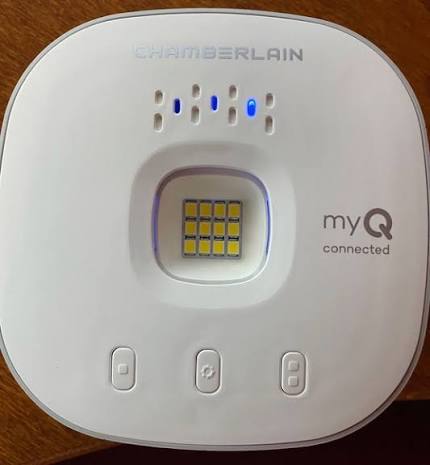
- For MyQ Smart Garage Hub (Square/Rectangular): Press and hold the Settings button (gear icon) for approximately 6 seconds until the blue LED begins flashing rapidly. This indicates the device is in pairing mode.
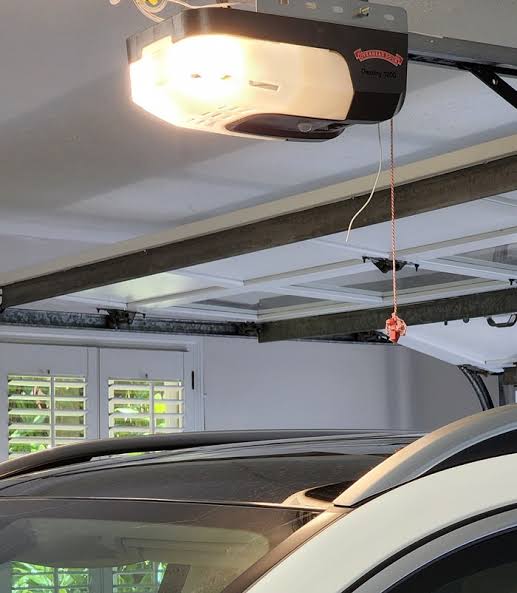
- For Wi-Fi Enabled Openers (Built-in): Locate the Learn Button on the motor head (usually yellow, red, purple, or green). Press and release it once. The LED indicator near the learn button should begin flashing, signaling readiness for Wi-Fi configuration.
Step 3: Connect via the myQ App
- Open the myQ app and tap “Add Device” or the + symbol.
- Select your device type (Smart Garage Hub or Wi-Fi Garage Door Opener).
- The app will scan for the device via Bluetooth. Once found, tap “Connect.”
- Select your 2.4 GHz Wi-Fi network from the list. Note: Do not select a 5 GHz network.
- Enter your Wi-Fi password carefully. A single typo is the #1 cause of setup failure.
- Wait for the confirmation screen. The LED on the device should transition from flashing blue to solid green (or solid blue depending on model), indicating a successful cloud connection.
Step 4: Test and Verify
Do not assume success just because the app says “connected.” Perform a live test:
- Close the myQ app completely.
- Turn off your phone’s Wi-Fi and use cellular data.
- Attempt to open/close the garage door remotely.
- Check the status update latency. It should respond within 2–5 seconds.
Troubleshooting Common Setup Failures
Even with perfect execution, environmental factors can disrupt the process. Use this comparison table to diagnose issues quickly.
| Symptom | Probable Cause | Recommended Solution |
|---|---|---|
| Blue LED flashes slowly then stops | Wrong Wi-Fi band selected | Verify router is broadcasting 2.4 GHz; forget 5 GHz network on phone during setup |
| App cannot find device via Bluetooth | Bluetooth permission denied | Go to Phone Settings > Privacy > Bluetooth > Enable for myQ app |
| Device connects but goes offline repeatedly | Weak signal / Interference | Install Wi-Fi extender; move router closer; check for microwave/baby monitor interference |
| Solid amber/yellow LED | Firmware update in progress | Do not unplug. Wait 5–10 minutes for update to complete |
| Password accepted but fails to link | Router firewall / AP Isolation | Disable “Client Isolation” or “Guest Network” restrictions; whitelist myQ MAC address |
Expert Tip: The Power Cycle Method
If you have attempted setup three times without success, perform a hard reset. Unplug the MyQ device or garage opener from power for a full 60 seconds. This clears cached network configurations that may be corrupted. Simultaneously, restart your router. Fresh handshakes resolve approximately 70% of persistent connectivity issues based on field technician reports.
Security Best Practices for Smart Garage Access
Connecting your garage to Wi-Fi introduces a new entry point to your home network. Responsible setup includes security hardening:
- Use Unique Passwords: Never reuse your email password for your myQ account.
- Enable Two-Factor Authentication (2FA): Chamberlain strongly recommends 2FA to prevent unauthorized access even if credentials are compromised.
- Firmware Updates: Enable automatic updates in the app. Security patches are released regularly to address vulnerabilities.
- Network Segmentation: Advanced users should place IoT devices on a separate VLAN or guest network to isolate them from personal computers and sensitive data.
Frequently Asked Questions (FAQ)
Can I use a 5 GHz Wi-Fi network with my MyQ device?
No. MyQ garage door openers and hubs are designed with 2.4 GHz radios only. This frequency provides better wall penetration and range, which is essential for garage environments. Attempting to connect to a 5 GHz network will result in immediate setup failure.
What happens if my Wi-Fi goes out? Will my garage door still work?
Yes. The physical remote controls and wall-mounted push buttons operate independently of Wi-Fi using radio frequency (RF) signals. Wi-Fi is only required for remote smartphone access, voice assistant integration, and status notifications. Your manual access remains fully functional during internet outages.
How do I reconnect my MyQ after changing my router or Wi-Fi password?
You must repeat the full setup process. Put the device back into programming mode (Step 2 above), open the myQ app, delete the old device entry, and add it as a new device with your updated network credentials. There is no way to update Wi-Fi settings without re-pairing.
Why does my MyQ show “offline” even though my Wi-Fi is working fine?
This usually indicates either a temporary server-side maintenance event from Chamberlain or a localized signal dropout. First, check the myQ system status page online. If servers are operational, power-cycle the device and verify your 2.4 GHz signal strength at the mounting location. Persistent offline status may indicate hardware failure requiring warranty support.
Is there a monthly fee for MyQ Wi-Fi connectivity?
Basic features including remote open/close, real-time status, and alerts are completely free with no subscription. However, advanced integrations like Amazon Key In-Garage Delivery, IFTTT automation, or certain camera storage plans may require a myQ Plus subscription. Standard Wi-Fi setup and core functionality never incur recurring charges.
Conclusion
Learning how to setup wifi on myq garage door opener transforms your daily routine from anxious uncertainty to confident convenience. By ensuring 2.4 GHz compatibility, verifying signal strength, and following the precise pairing sequence outlined above, you can achieve reliable smart garage access in under 15 minutes. Remember that patience during troubleshooting is key—most issues stem from simple environmental mismatches rather than defective equipment.
Now that your garage is intelligently connected, take a moment to test all safety sensors and share this guide with fellow homeowners who might be battling the same blinking LED frustrations. Found this helpful? Share it on Facebook, X (Twitter), or Pinterest to help others reclaim their smart home peace of mind! Your next stress-free arrival home starts with a properly configured connection.
Leave a Reply