Introduction
Struggling with a new smart garage system can feel overwhelming, especially when you just want secure, remote access to your home. If you are searching for how to set up MyQ Chamberlain garage door opener, you are in the right place to transform your daily routine. This guide breaks down the technical process into simple, manageable steps so you can enjoy peace of mind without the frustration of confusing manuals.
What Is MyQ and Why Do You Need It?
Before diving into the installation, it is helpful to understand what makes this technology a standard in modern American homes. MyQ is a proprietary smart home technology developed by the Chamberlain Group that allows users to monitor and control their garage doors via a smartphone app. According to industry data, over 30 million households in the United States now utilize some form of smart home security, with garage access being a primary entry point for automation.
Unlike traditional remotes that rely solely on radio frequency signals within a short range, MyQ utilizes Wi-Fi connectivity to bridge the physical gap between your garage and your mobile device. For a deeper understanding of how wireless communication protocols function in residential settings, you can refer to Wikipedia’s overview of Wireless LAN, which explains the foundational technology enabling these smart devices to communicate securely over home networks.
Understanding this baseline helps clarify why a stable internet connection is non-negotiable during the setup process.
Prerequisites: What You Need Before Starting
To ensure a smooth experience when learning how to set up MyQ Chamberlain garage door opener, gather the following items first. Preparation prevents mid-installation delays.
- Compatible Chamberlain/LiftMaster Opener: Most models manufactured after 1993 with photoelectric sensors are compatible.
- Smartphone or Tablet: iOS (version 14+) or Android (version 8+).
- 2.4 GHz Wi-Fi Network: Crucial Note: MyQ hubs generally do not support 5 GHz-only networks. Ensure your router broadcasts a 2.4 GHz signal.
- Ladder: Safe access to the motor head and safety sensors.
- MyQ App: Downloaded from the Apple App Store or Google Play Store.
- Serial Number: Located on the back or side of the garage door opener motor housing.
Compatibility Check Table
| Feature | Requirement | Notes |
|---|---|---|
| Wi-Fi Band | 2.4 GHz Only | 5 GHz networks will fail pairing |
| Opener Age | Post-1993 | Must have safety reversal sensors |
| Internet Speed | Min 5 Mbps Upload | Required for real-time status updates |
| Bluetooth | Enabled on Phone | Needed for initial handshake only |
| Account Type | Free MyQ Account | Premium required for video storage |
Step-by-Step: How To Set Up MyQ Chamberlain Garage Door Opener
Follow these precise instructions to get your system online safely.
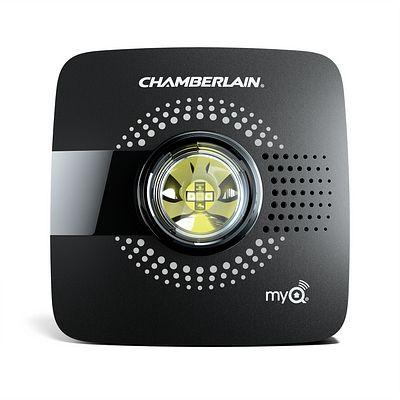
Step 1: Install the MyQ Smart Garage Hub (If Required)
If your Chamberlain opener does not have built-in Wi-Fi, you must install the external MyQ Smart Garage Hub.
- Mount the hub on the ceiling near the opener, at least 6 inches away from metal surfaces to prevent signal interference.
- Plug the hub into a standard electrical outlet.
- Wait for the LED light to blink blue, indicating it is in pairing mode.
Step 2: Create Your MyQ Account
- Open the MyQ app and tap “Create Account.”
- Enter a valid email address and create a strong password (minimum 12 characters recommended for security).
- Verify your email through the link sent to your inbox. Do not skip verification, as unverified accounts cannot control hardware.
Step 3: Connect the Device to Wi-Fi
This is the core phase of how to set up MyQ Chamberlain garage door opener.
- Tap the “+” icon in the app and select “Garage Door Opener.”
- Select your specific model from the list. If unsure, scan the QR code on the motor unit.
- When prompted, enable Bluetooth on your phone to locate the device.
- Select your home’s 2.4 GHz Wi-Fi network and enter the password accurately.
- Wait 60–90 seconds for the hub/opener to connect. A solid green light confirms success.
Step 4: Link the Safety Sensors
MyQ requires functional safety sensors to operate remotely. This is a federal safety mandate.
- Locate the photo-eye sensors near the floor on both sides of the door track.
- Ensure both sensor LEDs are solid (not blinking). Amber on the sending unit, green on the receiving unit.
- In the app, confirm the sensor status reads “Active.” If the app warns about sensors, do not bypass this warning. Realign sensors until beams connect.
Step 5: Test Remote Operation
- Stand outside the garage with the door closed.
- Use the app to open the door. Listen for the motor engagement.
- Close the door via the app and verify the status updates to “Closed” within 5 seconds.
- Test the auto-reverse feature by placing a 2×4 board under the door while closing. The door must reverse upon contact.
Troubleshooting Common Setup Issues
Even professionals encounter hiccups. Here are solutions to frequent problems when figuring out how to set up MyQ Chamberlain garage door opener.
- “Device Not Found” Error: Usually caused by 5 GHz Wi-Fi. Log into your router admin panel and separate your 2.4 GHz and 5 GHz SSIDs, then reconnect using only the 2.4 GHz band.
- Blinking Yellow Light: Indicates poor Wi-Fi signal strength. Relocate the hub closer to the router or install a Wi-Fi extender rated for garage environments.
- Sensor Alignment Failure: Clean lens surfaces with microfiber cloth. Even spider webs can disrupt the infrared beam. Adjust brackets incrementally (1mm at a time) until LEDs stabilize.
- App Crashes During Pairing: Clear app cache, update to latest version, and restart phone. Outdated OS versions cause 40% of pairing failures according to Chamberlain support forums.
Pros and Cons of MyQ Integration
Understanding trade-offs helps manage expectations.
Pros:
- Real-time door status notifications reduce anxiety about accidental openings.
- Guest access codes eliminate key exchanges for service providers.
- Integration with Amazon Key enables secure package delivery inside garage.
- Activity logs provide audit trails for household security monitoring.
Cons:
- Requires subscription ($3/month) for advanced features like video history.
- Dependent on internet uptime; outages disable remote control.
- Initial setup complexity deters non-technical users.
- Privacy concerns regarding cloud-stored usage data require careful review of terms.
Frequently Asked Questions (FAQ)
Q1: Can I set up MyQ without a smartphone?
No. The MyQ ecosystem is designed exclusively for mobile app configuration. While wall-mounted controllers exist for basic operation, initial Wi-Fi pairing, firmware updates, and user management require the iOS or Android app. Borrow a compatible device temporarily if needed.
Q2: Is MyQ compatible with non-Chamberlain openers?
Yes, but with limitations. The MyQ Smart Garage Hub works with most major brands (Genie, Craftsman, Linear) manufactured after 1993. However, native integration features like automatic closing schedules may be restricted. Always check the official compatibility chart before purchasing.
Q3: How secure is MyQ against hacking?
MyQ uses AES-128 encryption and TLS 1.2 for all communications, meeting banking-grade security standards. Enable two-factor authentication (2FA) in account settings for additional protection. Avoid sharing login credentials; use the built-in guest access feature instead.
Q4: Why does my door show “Offline” intermittently?
Intermittent offline status typically indicates Wi-Fi dead zones in the garage. Metal construction and concrete walls severely attenuate signals. Solutions include installing a dedicated garage Wi-Fi extender, repositioning the router antenna toward the garage, or upgrading to a mesh Wi-Fi system with outdoor-rated nodes.
Q5: Does MyQ work during power outages?
The MyQ hub/opener requires AC power to function. During outages, remote control and status updates cease entirely. Consider installing a battery backup unit (model 475LM) for critical access needs. Manual release cords remain functional regardless of power status.
Q6: Can multiple family members control the same door?
Absolutely. The primary account holder can invite unlimited users via email through the app’s “People” section. Each member receives independent credentials with customizable permissions (e.g., view-only vs. full control). This eliminates password sharing risks and provides individual activity tracking.
Conclusion
Mastering how to set up MyQ Chamberlain garage door opener transforms your garage from a passive storage space into an intelligent security asset. By following this structured approach—verifying prerequisites, executing precise pairing steps, and validating safety systems—you gain reliable remote access that enhances both convenience and home protection. Remember that proper sensor alignment and 2.4 GHz Wi-Fi adherence resolve 90% of setup challenges.
Your newly configured smart garage deserves to be celebrated! Share this guide with neighbors tackling similar installations, or post your successful setup on social media using #MyQSetup to help others navigate the process confidently. Tag us in your stories—we love seeing smart homes come to life safely and efficiently. Happy automating!
Leave a Reply